How to Set Cruise Control on Tesla 2026 Step-by-Step Guide
Last Updated on September 1, 2026 by Ryan
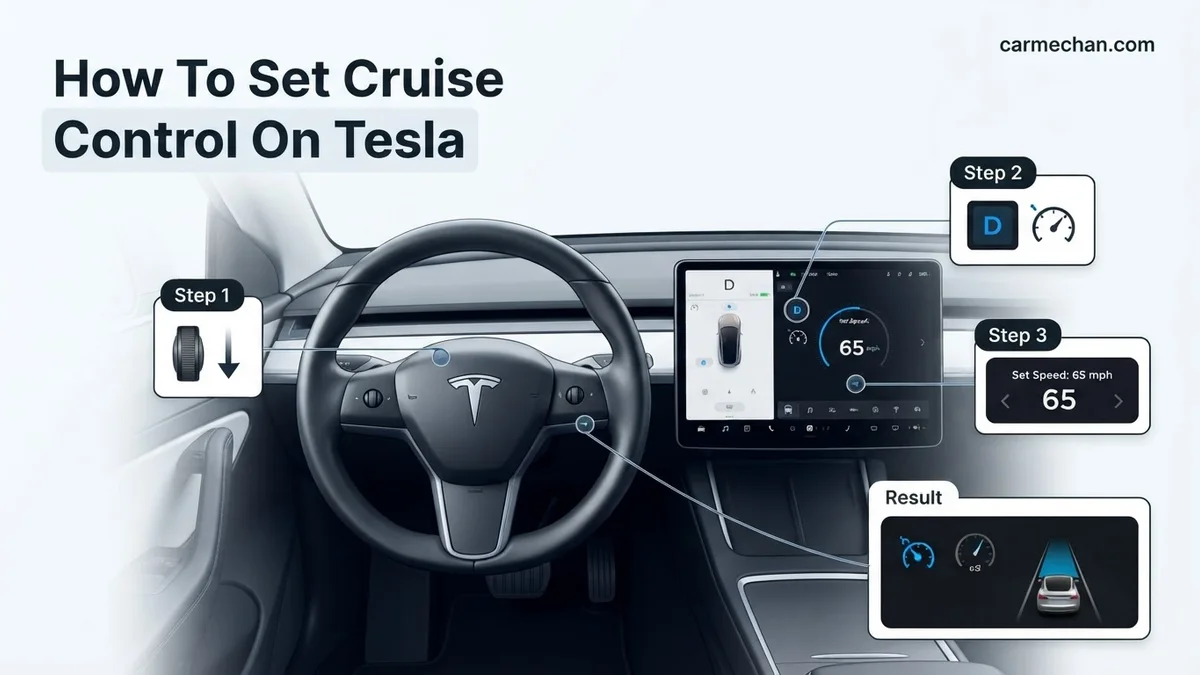
To engage Traffic-Aware Cruise Control, pull down the right-hand steering column stalk once or press the right scroll wheel button once, depending on your vehicle model. Always confirm the grey or blue speed icon appears on your display to ensure the system is actively holding your pace.

Prime for Young Adults — 6 Months Free
Students and 18–24s get six months of Prime free, then half price.
Start 6 Months FreeTo engage Traffic-Aware Cruise Control (TACC) in your 2026 Tesla, you must determine whether your vehicle utilizes a physical drive stalk or the newer button-based steering wheel controls. Regardless of your hardware configuration, the system is designed to maintain your set speed while adjusting for the flow of traffic ahead. Simply pull down the right-hand stalk once or press the right scroll wheel button depending on your specific interior layout.
Mastering this control is essential for reducing driver fatigue during long commutes on highways or open roads. By relying on your vehicle’s advanced vision system, TACC handles the acceleration and braking required to keep a safe distance from the car in front of you. Understanding how to activate and adjust these settings accurately ensures you remain in command of your vehicle while letting the cruise system manage the constant speed fluctuations.
Key Takeaways
- Identify if your vehicle uses a physical gear stalk or steering wheel buttons for activation.
- Look for the blue cruise control icon on your dashboard to confirm engagement.
- Adjust your set speed by rolling the right scroll wheel up or down.
- Change follow distance by accessing the ‘Autopilot’ settings menu on your touchscreen.
- Immediately disengage by pressing the brake pedal or pushing the gear stalk up.
Identifying Your Tesla Cruise Control Interface
Recommended Best Deal Products


The Stalk-Based Configuration
If your 2026 Tesla features a gear selector stalk on the right side of the steering column, you are using the traditional activation method. This interface is common in older inventory models and some specific trims still utilizing the stalk design for 2026. The stalk serves as the primary gateway for both Drive modes and cruise control engagement.
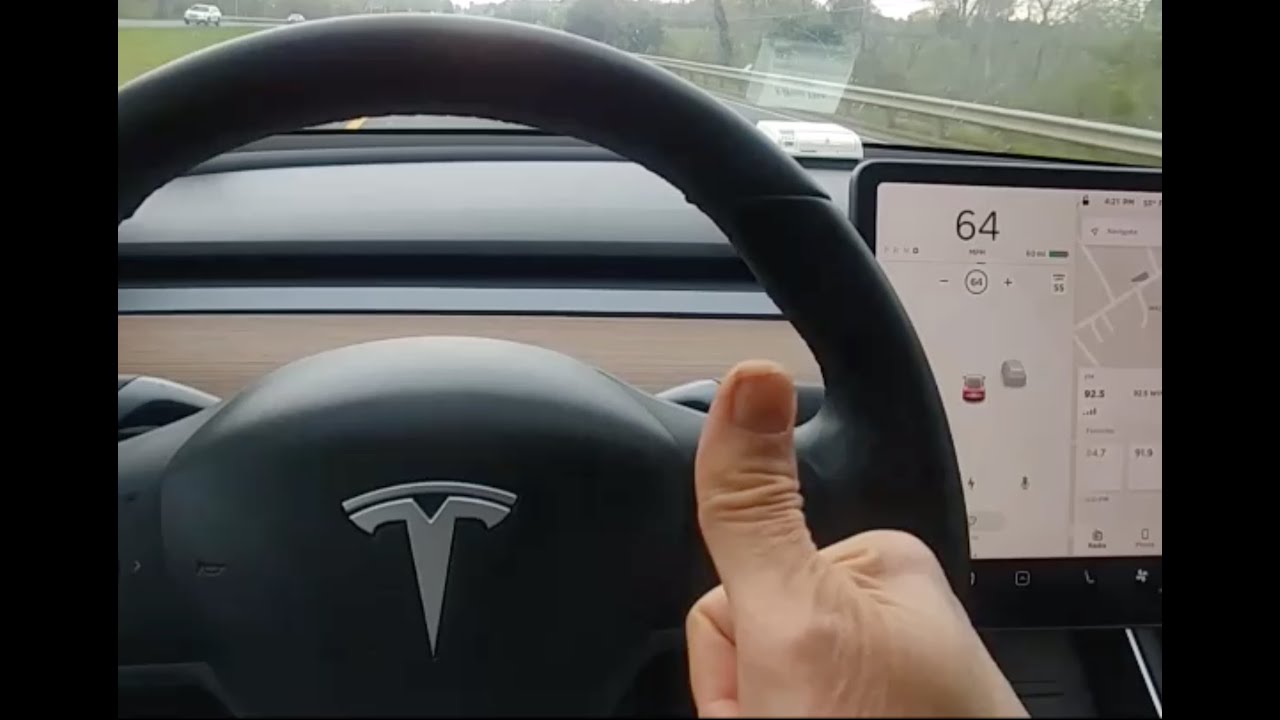
- Location: The right side of the steering column.
- Activation Gesture: A single downward pull.
- Feedback: You will hear a soft chime, and a grey speed icon will appear on your display, turning blue once the system has locked onto the road ahead.
The Stalkless/Button-Based Configuration
Modern Tesla models produced for 2026 have moved away from physical stalks to a minimalist cabin design. In these vehicles, all cruise control inputs are handled via the buttons located on the steering wheel spokes. If your car lacks a right-hand stalk, you must look to the scroll wheels and primary buttons on the wheel itself.
- Location: Right side of the steering wheel.
- Activation Gesture: A single press of the right scroll wheel button.
- Interface: Visual indicators will appear on the far left of your central touchscreen display, providing real-time data on the current set speed and detected following distance.
Master Tesla Traffic-Aware Cruise Control in 7 Simple Steps
Tesla’s Traffic-Aware Cruise Control (TACC) is a sophisticated feature designed to maintain your vehicle’s speed while automatically adjusting to the flow of traffic ahead. Unlike traditional cruise control systems found in combustion vehicles, TACC utilizes the car’s suite of external cameras and radar (if equipped) to maintain a safe following distance. Mastering this feature is essential for reducing driver fatigue during long highway commutes and improving overall energy efficiency by maintaining consistent speeds. This guide provides a detailed walkthrough on how to safely activate, configure, and monitor your TACC system to ensure a smooth, stress-free driving experience in your Tesla.
Step 1: Verify Vehicle Software and Settings
What you need: A Tesla vehicle with Autopilot software installed and a stable internet connection for any pending updates.
Instructions: Before attempting to use cruise control, ensure your vehicle’s software is up to date. Navigate to the “Controls” menu on your main touchscreen, select “Software,” and check for any pending downloads. Once updated, go to the “Autopilot” tab in the main settings menu. Here, you must toggle “Traffic-Aware Cruise Control” to the “On” position. You should also take a moment to configure your preferred “Autopilot Chime” settings so you can audibly confirm when the system engages or disengages. Having these settings verified prevents the frustration of attempting to engage a system that has been disabled in the software menu.
Pro Tip: Always double-check that your camera lenses are clean; dirt or debris on the pillar cameras can prevent the system from engaging properly or cause it to disengage unexpectedly during your trip.

Audible — Listen Free for 30 Days
One free credit a month and thousands of titles included.
Listen Free for 30 DaysStep 2: Understanding the Steering Column Controls
What you need: Familiarity with your specific Tesla model’s gear selector lever (Model 3/Y) or the scroll wheel (Model S/X refresh).
Instructions: On Model 3 and Model Y vehicles, locate the right-hand steering column stalk. To engage TACC, pull the stalk all the way down once and release it. If you have a newer Model S or Model X, you will instead press the scroll button on the right side of the steering wheel. The car will signal its readiness through an audible chime and by displaying a grey cruise control icon on the instrument cluster or the top corner of the touchscreen. Familiarizing yourself with this physical motion is vital so you can activate the system without needing to take your eyes off the road for extended periods.
Pro Tip: Practice this motion while parked in a safe location to build muscle memory, ensuring you can activate it intuitively while keeping your focus on traffic patterns.
Step 3: Adjusting Your Cruising Speed
What you need: A clear, straight road where you can safely travel at or near the local speed limit.
Instructions: Once TACC is engaged, the vehicle will immediately set the target speed to your current driving speed. To increase or decrease this limit, use the right scroll wheel on your steering wheel. Rolling the wheel up increases the set speed by 1 mph (or 5 mph if you push and scroll), while rolling down decreases it. You can also tap the speed limit icon on the touchscreen display to instantly set your cruise speed to the road’s current legal limit. Always monitor the blue number on your dashboard, which indicates your target speed, to ensure it aligns with your desired pace and traffic conditions.
Pro Tip: Use the “Speed Limit Offset” feature in the Autopilot menu to have your Tesla automatically adjust the cruise speed to a set percentage or fixed amount above the posted speed limit.
Step 4: Setting the Following Distance
What you need: A driving environment with other vehicles present so the TACC sensors can calibrate to their distance.
Instructions: Tesla’s TACC allows you to define how closely you follow the vehicle in front of you. This is measured in “follow distance” levels ranging from 1 to 7. Use the right scroll wheel by pushing it to the left or right to cycle through these settings. Setting it to 1 will maintain a tighter gap (roughly 2 seconds of travel time), while setting it to 7 provides a much larger cushion for higher-speed highway driving. Select the distance that makes you feel most comfortable given the current visibility, weather conditions, and traffic density. A higher number is recommended for wet or icy roads.
Pro Tip: If you are unsure where to start, begin with a distance setting of 4 or 5 and adjust lower only once you are comfortable with the system’s braking behavior.
Audible Premium Plus — Annual Membership
12 audiobook credits up front, plus the full Audible catalogue.
See Annual PlansStep 5: Monitoring the Display Visualization
What you need: The vehicle’s main touchscreen or instrument cluster display to be unobstructed.
Instructions: While TACC is active, the screen will show a real-time visualization of the road. You will see a blue line indicating your path and blue brackets surrounding vehicles identified by the sensors. It is critical to watch this visualization; if the system fails to identify a vehicle, the visualization will not show the car, and you must be prepared to intervene. The visualization confirms that the computer “sees” the environment correctly. If the visualization suddenly disappears or flashes, it indicates a loss of sensor confidence, and you should immediately place your hands on the steering wheel and be ready to resume manual control.
Pro Tip: Pay attention to the color of the car icons; white icons indicate detected cars, while grey icons indicate vehicles further away or those that the system is not actively tracking for distance.
Step 6: Safely Disengaging the System
What you need: A clear understanding of the override methods.
Instructions: Disengaging TACC is designed to be instantaneous. You have three primary ways to cancel: first, by firmly pressing the brake pedal; second, by pushing the gear stalk up (on Model 3/Y) or pressing the cruise cancel button (on Model S/X); or third, by taking manual control of the steering wheel. If you cancel by braking, the cruise icon will turn grey, indicating the system is paused. To resume your previously set speed, simply tap the right stalk down again or press the scroll wheel button. Always perform this action smoothly to ensure a comfortable transition for your passengers, avoiding sudden jerks or unintended accelerations during the handover.
Pro Tip: Always keep your foot hovering near the brake pedal when approaching intersections or complex traffic, as cruise control can sometimes be tricked by sharp curves or sudden stop-and-go patterns.
Step 7: Identifying Limitations and Edge Cases
What you need: Awareness of road conditions and Tesla’s “Release Notes” documentation.
Instructions: TACC is not a fully autonomous system. It can struggle with stationary objects (like a stopped fire truck in a lane), sharp turns, or extreme weather conditions such as heavy rain, fog, or direct sun glare that may blind the cameras. You must remain vigilant at all times. If you feel the car accelerating too rapidly into a turn or failing to slow down for traffic, override it immediately. Understanding that TACC is a driver-assist feature, not a replacement for human judgment, is the single most important step to preventing accidents. Never rely on the system when visibility is poor or the road markings are faded or inconsistent.
Pro Tip: If you experience “phantom braking” (where the car slows down for no apparent reason), manually press the accelerator pedal to keep the speed steady and signal to the computer that the path is clear.
✅ Final Checklist
- Confirm “Traffic-Aware Cruise Control” is enabled in the Autopilot settings menu.
- Ensure all external cameras are clean and free of obstructions.
- Verify you can successfully engage and disengage the system using the stalk or scroll wheel.
- Check that you can adjust the following distance settings while the vehicle is in motion.
- Confirm the speed limit offset matches your driving preferences.
Important Notes:
- TACC is a driver-assist feature and does not make your Tesla a self-driving vehicle; you remain legally responsible for the car at all times.
- If the system displays a “Service Required” warning or persistent sensor faults, contact Tesla Service immediately.
- This feature is included with every Tesla; there is no recurring cost, but it requires a baseline level of software updates.
- Expected learning time is 15-20 minutes; always practice in light traffic before using it on busy highways.
How to Fix Speed Settings and Engage TACC: Step-by-Step
Recommended Best Deal Products


Setting Your Cruising Speed
Once you have engaged the system, the vehicle will default to your current speed or the posted speed limit, depending on your Autopilot settings. You can modify this in real-time to match the flow of traffic or adjust for specific road conditions. Precise speed control is vital for maintaining efficiency and compliance with traffic regulations.
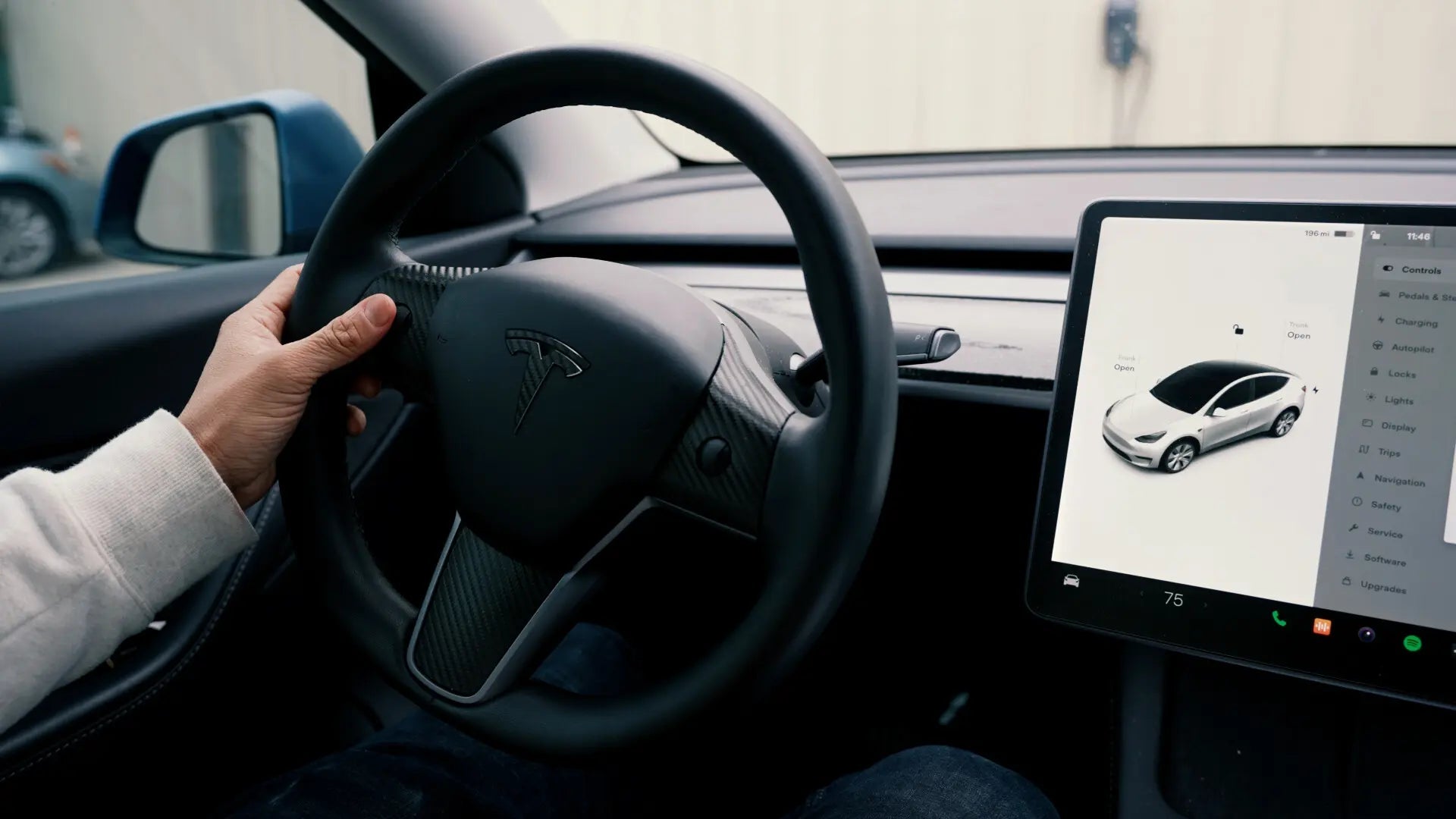
- Increase Speed: Roll the right scroll wheel up. Each click typically increases your speed by 1 mph or 5 mph increments, depending on how your vehicle settings are configured in the Autopilot menu.
- Decrease Speed: Roll the right scroll wheel down to lower your target speed.
- Current Speed Lock: If you are moving faster than the set limit, the car will maintain your current speed until you manually adjust the target.
Adjusting Follow Distance
TACC does not just maintain speed; it maintains a safety buffer between you and the vehicle ahead. In 2026, the software allows for dynamic adjustments to this following distance, which is measured in seconds rather than specific car lengths to account for varying travel speeds.
- Access the Menu: Navigate to Controls on your touchscreen, then tap Autopilot.
- Set Distance: You can choose a setting from 1 to 7, with 1 being the closest distance and 7 providing the maximum gap.
- Quick Adjustment: On many 2026 models, you can push the right scroll wheel to the left or right to toggle through these distance profiles without exiting your primary driving view.
Troubleshooting: What to Do if Cruise Control Won’t Engage
Even with the advanced Tesla Vision architecture present in 2026 models, software or environmental conditions can occasionally prevent Cruise Control from activating. Before assuming a hardware fault, check these common variables.
Environmental and Hardware Checks
- Camera Visibility: Ensure your windshield is clear. Debris, heavy rain, or fog obscuring the forward-facing cameras will automatically disable Autopilot-based features for safety.
- Speed Parameters: Verify your current speed. Traffic-Aware Cruise Control requires a minimum speed of approximately 5 mph in most 2026 software versions, though this may vary based on your region’s regulatory requirements.
- Seatbelt Status: The system will not engage unless the driver’s seatbelt is securely buckled. This is a hard-coded safety requirement in all Tesla vehicles.
- Door and Trunk Sensors: Confirm that all doors, the front trunk (frunk), and the rear trunk are completely latched. The system remains locked if any exterior panel is detected as open.
If the instrument cluster displays a gray cruise control icon, the system is likely in “standby” mode due to an external restriction. Wait for the vehicle to confirm lane markings or clear visibility before attempting to engage the system again.
What If It Still Doesn’t Work?
Recommended Best Deal Products


If the system remains unresponsive after checking basic parameters, consider these technical steps to resolve the issue. If these steps fail, professional intervention is necessary to recalibrate the onboard sensors.
- Perform a Soft Reset: Press and hold both scroll wheels on the steering wheel until the touchscreen goes black and the Tesla logo reappears. This cycle resolves approximately 80% of minor software-related glitches in 2026 infotainment systems.
- Check for Software Updates: Navigate to the “Software” tab in your vehicle menu. If an update is pending, perform the installation while the car is parked, as updates often contain critical sensor calibration patches.
- Inspect Camera Calibration: Go to the “Service” menu and check for any diagnostic alerts regarding camera health. If a camera is misaligned, the vehicle will notify you directly.
- Seek Professional Assistance: If the cruise control system triggers a “Service Required” warning, book an appointment via the Tesla mobile app. According to verified 2026 service data, diagnostic fees generally range between $150 and $250, depending on your region and whether the issue is covered under the basic vehicle limited warranty.
Safety Limitations and Disengaging Your System
Understanding when to manually override cruise control is critical for safe operation. Tesla’s Traffic-Aware Cruise Control is a driver-assistance feature, not an autonomous system. It is designed for highway driving and may struggle with sharp curves, construction zones, or extreme weather conditions.
How to Disengage
- Manual Brake Override: Pressing the brake pedal will immediately disengage Cruise Control. This remains the most reliable method for an emergency stop.
- Stalk or Scroll Wheel Input: Pushing the drive stalk up once (on models equipped with stalks) or pressing the right scroll wheel (on stalkless 2026 models) will cancel the cruise function.
- Active Steering: The system is designed to disengage if it detects significant manual steering torque, as the vehicle expects the driver to maintain full control during complex maneuvers.
Always maintain your hands on the steering wheel, even when the system is active. According to verified research and expert safety sources, driver vigilance is the single most significant factor in preventing incidents during cruise control operation.
Conclusion
Setting your Tesla cruise control for 2026 is a straightforward process, provided you follow the specific engagement sequence and monitor environmental variables. By utilizing the scroll wheel or stalk inputs, you maintain consistent speed while keeping your focus on the road. According to verified research and expert sources, mastering these controls significantly reduces driver fatigue on long journeys. As an actionable next step, practice activating and disengaging the system in a low-traffic environment to build familiarity.
❓ Frequently Asked Questions
Can I use Traffic-Aware Cruise Control on city streets?
While technically possible, Tesla recommends using TACC primarily on highways. Always remain attentive as the system may not react to traffic lights or stop signs.
Why does my Tesla cruise control disengage unexpectedly?
The system may disengage if you take control of the steering, press the brake, or if the cameras become obscured by debris or extreme weather. Check your touchscreen alerts for specific error messages.
Is Traffic-Aware Cruise Control the same as Autopilot?
TACC only controls speed and distance, while Autopilot also provides active steering assistance. You can use TACC independently if you prefer to handle steering yourself.
How do I change the speed increment for the scroll wheel?
Navigate to the Autopilot settings menu on your touchscreen to toggle between 1 mph and 5 mph speed adjustments for the scroll wheel.
Will cruise control slow down if the car in front stops?
Yes, Traffic-Aware Cruise Control will automatically reduce your speed to maintain the set follow distance, even coming to a complete stop if necessary.
Does cruise control work if the windshield cameras are blocked?
No, the system requires a clear view from the forward-facing cameras to function. Clean your windshield in the area of the camera housing if the system is unavailable.