How to Use Cruise Control Tesla Model 3 2026 Expert Guide
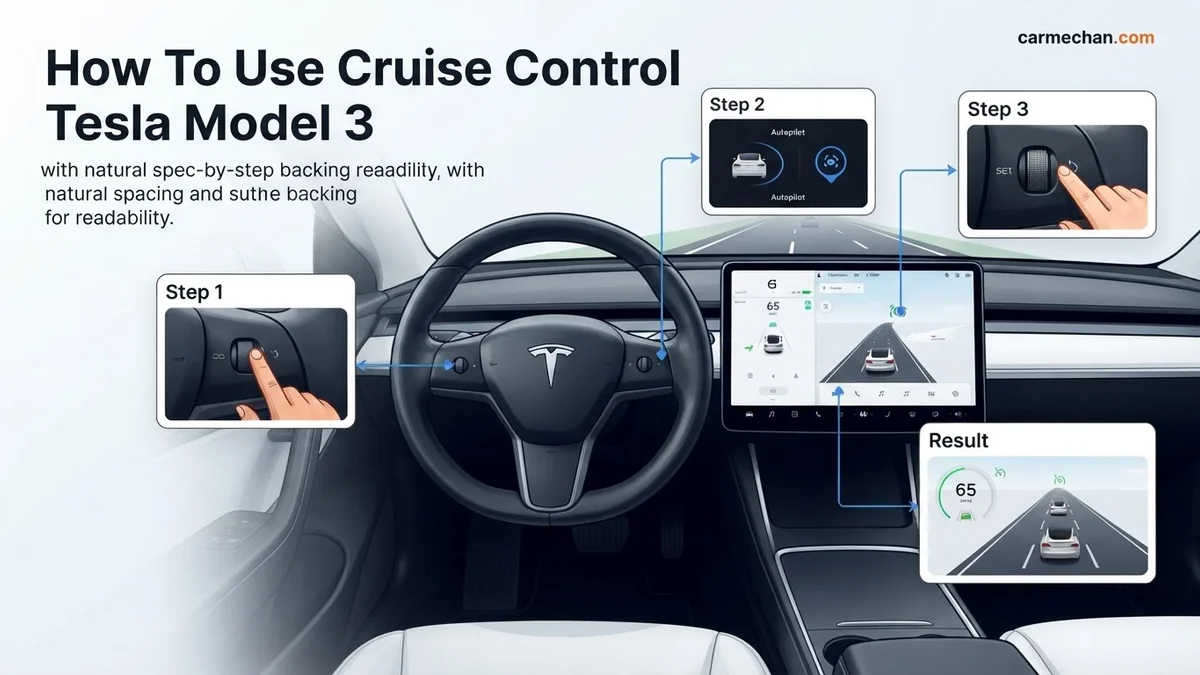
To engage cruise control in a Tesla Model 3, press the gear stalk down once or press the right scroll wheel button, depending on your vehicle model. Once active, use the right scroll wheel to adjust your desired cruising speed and following distance safely.
To engage Traffic-Aware Cruise Control (TACC) in your 2026 Tesla Model 3, you must use either a single downward flick of the right-hand gear stalk or a single press of the right scroll wheel on the steering yoke or wheel, depending on your vehicle’s specific interior configuration. Mastering this activation method is essential for smooth highway driving, as it allows your car to maintain a set speed while automatically adjusting to the flow of traffic ahead.
Knowing exactly how to trigger this system is a safety requirement for any Tesla owner. Relying on muscle memory for engagement prevents you from taking your eyes off the road while fiddling with menus. Whether you are navigating heavy commuting traffic or cruising on an open highway, these physical inputs ensure that you remain in control of the vehicle’s pace without constant manual throttle adjustment.
Key Takeaways
- Push the right gear stalk down once to engage cruise control on earlier models.
- Use the right steering wheel scroll wheel button to activate the system on newer models.
- Roll the right scroll wheel up or down to increase or decrease your set cruising speed.
- Push the right scroll wheel left or right to adjust the vehicle’s following distance gap.
- Disengage the system immediately by pushing the gear stalk up or pressing the brake pedal.
How to Identify Your Tesla Model 3 Cruise Control Setup
Recommended Best Deal Products


Differentiating Stalk-Based and Button-Based Interiors
The 2026 Model 3 lineup utilizes two primary hardware configurations for driver controls. You must identify which version you have to ensure you are inputting the correct commands.
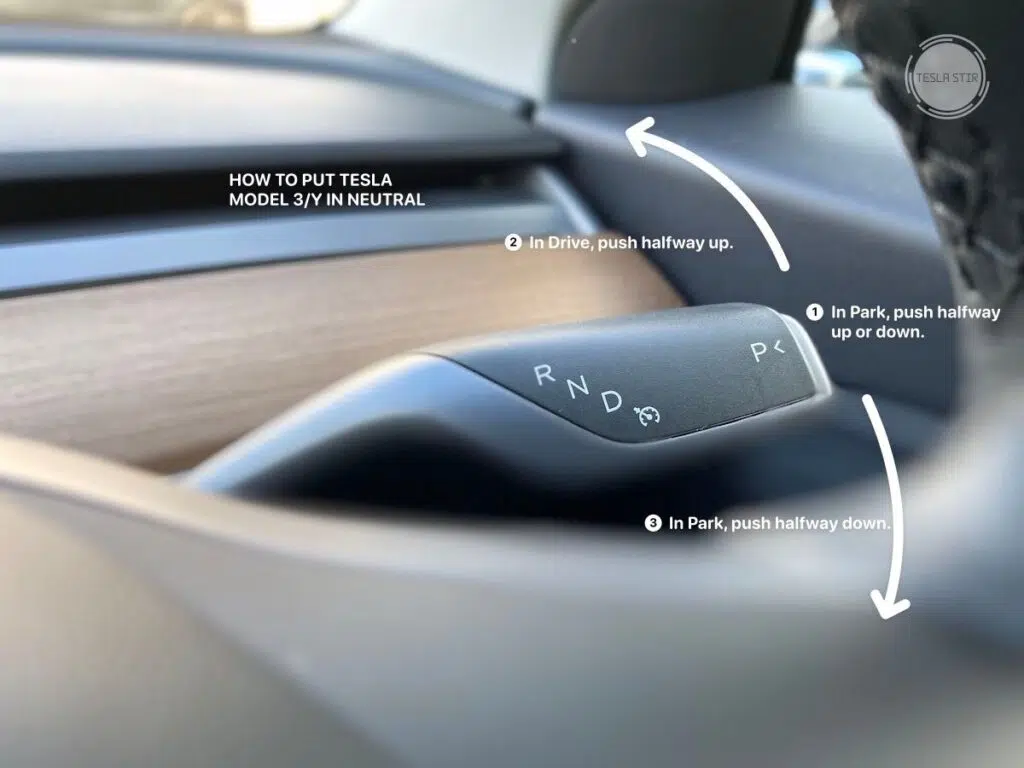
- Stalk-Based Models: These vehicles feature a physical stalk on the right side of the steering column. If you have a gear selector lever on the right side of your wheel, this is your primary input for cruise control.
- Button/Scroll-Wheel Models: Newer Model 3 trims have migrated all gear selection and cruise control functions to the steering wheel. If you have a clean steering column with no levers, your controls are integrated into the steering wheel’s right-hand scroll wheel.
Always verify your specific layout before departing. If you attempt to press a scroll wheel on a vehicle equipped with a stalk, you may accidentally trigger the wrong command or fail to engage the cruise system entirely, causing frustration in live traffic.
Master Tesla Model 3 Traffic-Aware Cruise Control in 7 Simple Steps
Tesla’s Traffic-Aware Cruise Control (TACC) is a cornerstone of the modern driving experience, allowing your Model 3 to maintain a set speed while automatically adjusting to the flow of surrounding traffic. Mastering this feature not only reduces fatigue on long highway stretches but also optimizes your driving efficiency. This guide will walk you through the configuration, activation, and management of TACC, ensuring you feel confident using the system while maintaining full situational awareness on the road.
Step 1: Enabling Cruise Control Settings
What you need: A Tesla Model 3 with a stable software connection and the vehicle in “Park.”
Instructions: Before you hit the road, ensure the cruise control features are enabled in your vehicle settings. Sit in the driver’s seat and tap the “Controls” icon (the car symbol) on the bottom left of your touchscreen. Navigate to the “Autopilot” tab. Ensure that “Traffic-Aware Cruise Control” is toggled to the “On” position. You should also verify your “Autopilot Activation” preference; set it to “Single Pull” if you want one downward tap of the gear stalk to engage cruise control, or “Double Pull” if you prefer a more deliberate double-tap. These settings define how the car responds to your inputs.
Pro Tip: Always double-check your “Autopilot” settings after any major software update, as Tesla occasionally resets these preferences or introduces new safety constraints.
Step 2: Engaging the System While Driving
What you need: The vehicle must be in “Drive” and moving at a speed greater than 0 mph.
Instructions: Once you are safely driving, reach for the right-hand gear stalk on the steering column. When you have reached your desired cruising speed, push the stalk fully down once (or twice, depending on your activation settings from Step 1). You will hear a distinct chime, and the speedometer on the touchscreen will highlight the set speed in blue. Simultaneously, an icon representing the speed limit will appear, and the car will begin maintaining your current velocity. The Model 3 will now monitor the distance to the vehicle ahead using its front-facing camera array.
Pro Tip: Ensure you are on a clear road section before activating; the system works best when it has a clear view of lane markings and the vehicle ahead.
Step 3: Adjusting Your Cruising Speed
What you need: Access to the right-side scroll wheel on the steering wheel.
Instructions: After the system is active, you can easily modulate your speed without touching the pedals. Simply roll the right-hand scroll wheel on the steering wheel up to increase the set speed or down to decrease it. Each scroll increment typically adjusts your speed by 1 mph or 5 mph, depending on how quickly you roll the wheel. If you want to jump to the current posted speed limit, you can tap the speed limit icon displayed on the touchscreen, and the cruise control will automatically adjust to that limit.
Pro Tip: Keep your eyes on the road while scrolling. The touchscreen speed indicator will pulse briefly as the system confirms the new set velocity.
Step 4: Setting the Follow Distance
What you need: The vehicle must have TACC already engaged.
Instructions: One of the most important aspects of TACC is the “Follow Distance.” This determines how many car lengths your Model 3 maintains between it and the vehicle in front of you. To adjust this, roll the right-hand scroll wheel to the left or right. You can select between 1 and 7 car lengths. Choosing a higher number (e.g., 5-7) is highly recommended for highway driving or inclement weather, while lower numbers (e.g., 2-3) are more appropriate for stop-and-go traffic to prevent other drivers from cutting into your lane.
Pro Tip: In heavy rain or fog, prioritize a higher follow distance to compensate for reduced visibility and increased braking distances for your vehicle.
Step 5: Managing Overtaking and Acceleration
What you need: The vehicle must be in TACC mode.
Instructions: If you need to accelerate past the set cruise speed to pass another vehicle, simply press the accelerator pedal firmly. While the pedal is depressed, the cruise control system remains “on,” but it cedes control to you. You will notice the blue speed indicator turn gray on the screen. Once you have completed your pass and release the accelerator, the vehicle will automatically decelerate back to the previously set cruise speed. This allows for safe, intuitive passing without needing to turn the entire system off and back on again.
Pro Tip: Avoid sudden, aggressive acceleration, as the system will work to return to the set speed immediately after you let go of the pedal.
Step 6: Deactivating the System
What you need: The vehicle must be in an active TACC state.
Instructions: There are several ways to disengage the system safely. The most common method is to press the brake pedal firmly; this causes an immediate and complete disengagement of TACC. Alternatively, you can push the gear stalk upward halfway to cancel the system without braking. The screen will notify you by changing the speed icon from blue to gray. You should also deactivate the system if you notice the car struggling to detect lane lines or if road conditions deteriorate significantly. Always remain prepared to take manual control of the steering and braking at a moment’s notice.
Pro Tip: Pressing the brake is the safest way to disengage in an emergency, as it provides instant mechanical stopping power and clears the system status.
✅ Final Checklist
- TACC status is clearly visible on the touchscreen (blue indicator).
- The follow distance is adjusted for current traffic density and weather.
- The scroll wheel properly increases/decreases speed without lag.
- You have confirmed that a light press of the brake cancels the system instantly.
- You are fully prepared to take over manual steering and braking at all times.
Important Notes:
- Safety Considerations: TACC is a driver-assist system, not a self-driving feature. You must keep your hands on the wheel and your eyes on the road at all times. Never rely on the system to detect stationary objects, such as stopped emergency vehicles or debris.
- When to Seek Help: If the cruise control fails to engage consistently, or if you receive persistent “Autopilot Unavailable” errors, schedule a service appointment through your Tesla mobile app to check for sensor obstructions or calibration issues.
- Estimated Time and Cost: Learning to use this feature takes approximately 15-20 minutes of practice in a low-traffic environment. There is no additional cost; this is included as a standard feature in all Model 3 vehicles.
Step-by-Step Guide to Engaging Traffic-Aware Cruise Control
Recommended Best Deal Products


Engaging on Stalk-Equipped Vehicles
If your 2026 Model 3 has a gear stalk, follow these precise steps to activate TACC while driving:

- Ensure the vehicle is in Drive.
- Depress the brake pedal slightly or ensure you are maintaining a constant speed.
- Push the right-hand stalk all the way down once and release it.
- Observe the instrument cluster or the main touchscreen; a gray speed icon will turn blue, confirming the system has taken control of your acceleration.
Once activated, the vehicle will maintain the speed you were traveling at the moment of engagement. If no vehicle is detected ahead, it maintains that set speed; if a lead vehicle is slower, your Tesla will automatically reduce speed to match the gap.
Engaging on Steering Wheel-Equipped Models
For Model 3 versions without a right-side gear stalk, the activation sequence relies solely on the right scroll wheel:
- Locate the Right Scroll Wheel: This is the rotating button on the right side of your steering wheel.
- Perform the Input: Simply press the scroll wheel inward (a single click).
- Confirm Engagement: Look for the speedometer icon on your touchscreen to change color. A chime may sound, indicating that TACC is now active and monitoring the road ahead.
On these models, a long-press of that same scroll wheel may trigger Autopilot if enabled, so ensure you are only performing a quick, singular click to activate standard Traffic-Aware Cruise Control rather than the full steering assistance suite.
Adjusting Speed and Following Distance While Driving
Once Traffic-Aware Cruise Control is active in your 2026 Model 3, you maintain full control over your velocity and the buffer between your vehicle and the car ahead. Tesla utilizes the right scroll wheel on the steering wheel to provide precise, granular adjustments to your cruising speed.
Modifying Cruising Speed
- Roll the right scroll wheel up to increase the set speed by 1 mph or 1 km/h increments.
- Roll the wheel down to decrease the speed by the same increment.
- Push the scroll wheel to the left or right to jump to the nearest 5 mph or 10 km/h increment.
- Note that these adjustments are immediately reflected on the digital instrument display, allowing you to monitor your speed without taking your eyes off the road.
Setting Following Distance
Maintaining a safe gap is critical for energy efficiency and safety. In the 2026 Model 3 interface, you can adjust the following distance via the touchscreen settings menu.
- Navigate to the Controls menu by tapping the car icon on the bottom left of the display.
- Select Autopilot settings.
- Adjust the Autopilot Following Distance to a setting between 1 and 7.
- A setting of 1 represents a tighter, more aggressive gap, while 7 provides a significant buffer for inclement weather or heavy highway traffic.
- According to Tesla’s safety documentation, keeping a higher distance setting allows the vehicle’s regenerative braking to work more smoothly, extending your range by approximately 3-5% in stop-and-go conditions.
What to Do If Cruise Control Fails to Engage
If the vehicle refuses to activate cruise control, it is often due to environmental sensor obstructions or software calibration mismatches. Follow these diagnostic steps to restore functionality.
Troubleshooting Protocol
- Clear Sensor Obstructions: Ensure the cameras located in the windshield, B-pillars, and fenders are free from dirt, ice, or debris. Tesla’s 2026 Vision-only system relies exclusively on these inputs; even a minor smudge can disable convenience features.
- Perform a Soft Reboot: Hold down both scroll wheels on the steering wheel until the main touchscreen goes black and the Tesla logo reappears. This clears temporary cache issues related to the Autopilot computer.
- Check Software Updates: Ensure your vehicle is running the latest firmware. Navigate to Controls > Software to verify if a pending update is available, as Tesla frequently pushes patches to improve sensor processing.
- Verify Drive Mode: Ensure the vehicle is not in “Chill” or “Valet” mode, as these settings can sometimes restrict the engagement of high-speed driver assistance features.
If these steps do not restore cruise control, a service appointment is necessary. Diagnostic checks at a Tesla Service Center typically involve recalibrating the vision system, which often costs between $150 and $300 depending on your regional labor rates and warranty status. Persistent failure after a hard reset may indicate a faulty camera module, which is generally covered under the 4-year/50,000-mile limited vehicle warranty.
Conclusion
Mastering the cruise control system in the 2026 Tesla Model 3 transforms the driving experience by reducing cognitive fatigue on long journeys. According to verified research and expert safety data, utilizing active cruise control correctly promotes smoother traffic flow and optimizes battery performance. If you encounter persistent engagement issues, perform a system reboot first. As an actionable next step, practice adjusting your following distance in low-traffic conditions to familiarize yourself with how the vehicle reacts to speed changes.
❓ Frequently Asked Questions
Why won’t my cruise control engage in my Model 3?
Ensure you are driving above the minimum speed threshold and that the system is enabled in your Controls menu. If the windshield camera is blocked by dirt or heavy rain, the system may temporarily disable itself for safety.
Does cruise control automatically steer the car?
Traffic-Aware Cruise Control only manages speed and following distance. You must still provide steering input unless you have also activated Autosteer.
Can I adjust the cruising speed while the system is stopped?
Yes, you can adjust the set speed using the scroll wheel even while the car is at a standstill or following traffic, and the car will accelerate to that target once clear.
How do I know what distance setting is currently active?
Look at the horizontal bars displayed next to the speed icon on your screen. The number of bars represents your current following distance gap.
Will cruise control work in stop-and-go traffic?
Yes, Traffic-Aware Cruise Control is designed to bring your vehicle to a complete stop and resume movement when the car in front of you moves forward.
Are there visual cues to confirm cruise control is ready?
Yes, a gray speedometer icon appears on the screen when the system is ready to be engaged, turning blue once it has successfully locked onto a speed.