How to Reset Your Mazda Connect Screen: Quick Fixes for Glitches
Last Updated on September 1, 2026 by Ryan
Performing a quick soft reset on your Mazda infotainment screen can resolve common issues like freezing or unresponsiveness. Most Mazda models use a specific button combination to initiate this process safely and effectively. This simple reset does not typically erase your personal settings.

Prime for Young Adults — 6 Months Free
Students and 18–24s get six months of Prime free, then half price.
Start 6 Months Free🎯 Key Takeaways
Recommended Best Deal Products


- Resolve freezing with a simple button reset.
- Specific button combinations vary slightly by Mazda model.
- A soft reset won’t erase paired devices or navigation.
- Resetting is the first troubleshooting step for glitches.
- Persistent issues may require dealer diagnosis.
Experiencing a frozen screen, unresponsive touch, or glitchy Bluetooth in your Mazda? A simple screen reset can often resolve these frustrating issues without requiring a trip to the dealership. The quickest way to perform a soft reset on your Mazda Connect screen is by simultaneously pressing and holding the Back, Nav, and Mute buttons for approximately 10-15 seconds until the screen reboots. This straightforward fix can restore functionality, clear minor software bugs, and get your infotainment system back on track, letting you enjoy your drive without technological interruptions.

Knowing how and when to reset your Mazda’s infotainment system is a valuable skill for any owner. This process doesn’t delete your personal data, settings, or navigation favorites; it simply reboots the system, much like restarting your smartphone or computer. It’s an essential first step in troubleshooting common screen-related problems, saving you time and potential diagnostic fees for issues that are often simple software hiccups.
Understanding Mazda Infotainment System Resets
When your Mazda Connect screen acts up, understanding the different types of resets can help you choose the right solution. Most common issues can be resolved with a simple software reboot, distinct from more drastic measures like a full factory reset. Prioritizing the least intrusive method first ensures you don’t lose valuable data or settings unnecessarily.
The Soft Reset: Your First Line of Defense
A soft reset is your go-to solution for most everyday glitches. Think of it as restarting your computer; it clears temporary memory, resolves minor software conflicts, and refreshes the system without erasing any personal information or custom settings. This process is safe, quick, and highly effective for transient problems.
Here’s how to perform a soft reset:
-
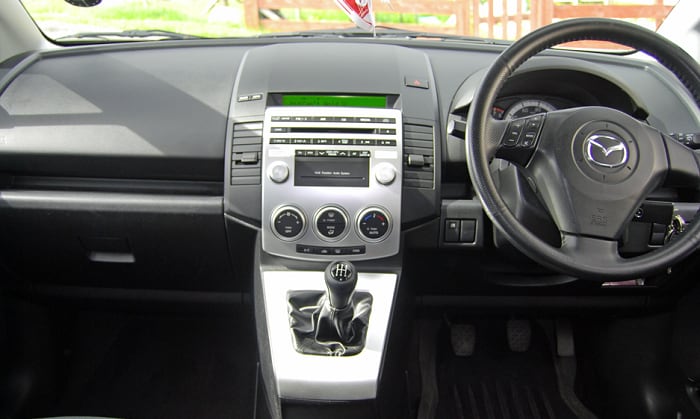
Identify the buttons: Locate the “Back” button, the “Nav” (or Navigation) button, and the “Mute” button. These are typically part of the rotary commander dial assembly in the center console.
-
Press and hold: Simultaneously press and hold all three buttons (Back, Nav, and Mute) down firmly.
-
Wait for the reboot: Continue holding for approximately 10 to 15 seconds. The screen will typically go blank, then display the Mazda logo as the system reboots.
-
Release: Once the Mazda logo appears and the system begins to load, you can release the buttons.
Important Note on Model Year Variations:
-
This “Back + Nav + Mute” combination is standard for many 2014-2018/2019 Mazda models featuring the original Mazda Connect system (e.g., Mazda 3, CX-5, CX-9).
-
For some newer Mazda models (e.g., 2019+ Mazda 3, CX-30, MX-30, and later versions of CX-5/CX-50/CX-90) with the redesigned infotainment system and wider screens, the button layout might differ. While a similar button combination (often involving the “Mute” and “Nav” or “Home” button) might work, it’s always best to consult your specific owner’s manual if the primary combination doesn’t yield results. The principle of holding down specific buttons for a system reboot remains consistent.
When to Consider a Factory Reset (If Available)
A factory reset is a more aggressive troubleshooting step. It reverts your infotainment system to its original factory settings, wiping all user data, paired devices, stored navigation destinations, and custom preferences. This is typically accessed through the system’s settings menu, not a physical button combination, and should only be considered as a last resort for persistent and severe issues that a soft reset cannot resolve.
Mazda Screen Reset Made Easy: Your Essential Action Plan
Experiencing a frozen, unresponsive, or glitching screen on your Mazda’s infotainment system can be incredibly frustrating and disrupt your driving experience. This comprehensive guide provides a detailed, step-by-step walkthrough on how to perform both a soft reset and a factory reset of your Mazda Connect system. Following these instructions carefully can often resolve common software-related screen issues, saving you a trip to the dealership and getting you back to seamless connectivity and entertainment.

Audible — Listen Free for 30 Days
One free credit a month and thousands of titles included.
Listen Free for 30 DaysStep 1: Diagnose the Issue and Prepare
What you need: Your Mazda vehicle, a safe parking spot.
Instructions: Begin by safely parking your Mazda in a secure location, engaging the parking brake. Turn off the engine but ensure the accessory power is on (or the engine is running if the screen only operates with the engine on). Carefully observe the exact nature of the problem: Is the screen completely black, frozen on a specific image, unresponsive to touch, or displaying garbled text? Understanding the symptom will help determine if a simple soft reset is sufficient or if a deeper factory reset is warranted. Ensure no critical operations (like navigation guidance) are active before proceeding with any reset procedure.
Pro Tip: Take a mental note or even a quick photo of the screen’s state if it’s displaying an error message or unusual pattern. This documentation can be helpful if the issue persists and professional assistance becomes necessary.
Step 2: Initiate a Soft Reset (The 3-Button Method)
What you need: Your Mazda vehicle.
Instructions: Locate the three key buttons on your Mazda’s center console commander control: the ‘Mute’ (often integrated into the audio volume knob), ‘Nav’ (for Navigation), and ‘Back’ buttons. These are typically situated in a triangular or linear arrangement near the gear selector. Press and hold all three buttons down firmly and simultaneously. Continue to hold them for approximately 10 to 15 seconds. During this period, the screen should momentarily go black, and then the Mazda logo will reappear, indicating a system reboot. Release all buttons once the Mazda logo or welcome screen appears.
Pro Tip: Some older Mazda models (pre-2016) or specific global variants might use slightly different button combinations. If the 3-button method doesn’t trigger a reset, consult your vehicle’s owner’s manual for the precise soft reset procedure specific to your model year and trim.
Step 3: Verify Soft Reset Success and Test Functionality
What you need: Your patience.
Instructions: Allow the Mazda Connect system a full minute or two to completely boot up and load all its components after the logo disappears. Once the home screen is displayed, systematically test the various functions. Check the responsiveness of the touchscreen (if applicable) and the commander knob. Try tuning the radio, connecting a Bluetooth device, inputting a destination into the navigation, and accessing different apps. Pay particular attention to the specific function that was experiencing issues prior to the reset to confirm it is now operating correctly and without glitches.
Pro Tip: Don’t just check the main functions. Open and close a few different applications or menus within the system to ensure overall stability. Sometimes issues are intermittent, so giving it a few minutes of normal operation before concluding success is wise.
Audible Premium Plus — Annual Membership
12 audiobook credits up front, plus the full Audible catalogue.
See Annual PlansStep 4: Prepare for a Factory Reset (If Soft Reset Fails)
What you need: Understanding of data loss, a pen and paper or smartphone for notes.
Instructions: If the soft reset did not resolve the screen issue, a factory reset is the next course of action. It’s crucial to understand that this process will erase all personalized data, including paired phones, saved navigation favorites, custom audio settings, and any other user-specific configurations. Before proceeding, take a moment to list or photograph any important settings you wish to retain or reconfigure later. This preparation will streamline the post-reset setup and minimize frustration, ensuring you don’t lose crucial information you’d prefer to keep.
Pro Tip: Prioritize taking pictures of complex settings, such as custom equalizer settings for audio, unique display brightness/contrast preferences, or specific Wi-Fi network passwords stored in the system. These are often harder to recall from memory.
Step 5: Navigate to the Factory Reset Option
What you need: Access to the Mazda Connect System menu.
Instructions: With your vehicle’s accessory power on, use the commander knob or touchscreen to navigate through the Mazda Connect interface. Start from the main menu, then typically select the ‘Settings’ icon (often a gear symbol). Within the Settings menu, you’ll need to locate ‘System,’ ‘General,’ or ‘Display’ options. Once inside, look for a sub-menu or direct option labeled ‘Factory Reset,’ ‘Restore Defaults,’ or ‘Initialize All Settings.’ The precise path can vary slightly based on your Mazda model year and software version, so explore thoroughly if the exact wording isn’t immediately visible.
Pro Tip: If the screen is partially responsive or difficult to use, try using only the commander knob and its surrounding buttons. This tactile control can sometimes be more reliable than a glitchy touchscreen interface when navigating menus.
Step 6: Execute the Factory Reset
What you need: Confirmation.
Instructions: Upon finding and selecting the ‘Factory Reset’ or ‘Initialize’ option, the system will usually present a confirmation prompt, warning you about the imminent data loss. Read this carefully, then confirm your intention to proceed. The screen will then go dark, and the system will begin its reinitialization process, which typically includes displaying the Mazda logo and a progress bar or spinning icon. This operation can take anywhere from 3 to 7 minutes to complete, depending on the system’s current state. Do not turn off the vehicle, interrupt power, or press any buttons during this critical phase to prevent system corruption.
Pro Tip: Ensure your car’s battery is in good health or, ideally, have the engine running during a factory reset. A power interruption during this sensitive process can lead to software corruption, potentially requiring more costly professional intervention.
Step 7: Reconfigure and Final Testing
What you need: Time for setup.
Instructions: Once the factory reset is complete, your Mazda Connect system will reboot to its initial setup screen, much like a brand new device. You will likely be prompted to select a language, agree to terms and conditions, and potentially set up initial preferences. Proceed to re-pair your mobile phone via Bluetooth, input your favorite radio stations, restore any specific audio or display settings you noted down earlier, and re-enter navigation destinations. After reconfiguring, perform comprehensive testing of all system functions to ensure stability and that the original screen issue is fully resolved, confirming all features work as expected.
Pro Tip: Reconnect only essential devices initially. If you had multiple phones or accessories paired, try connecting them one by one. This helps identify if a specific external device or its connection might have been contributing to the original infotainment system problem.
✅ Final Checklist
- The Mazda Connect screen boots up normally without freezing or glitches.
- Touchscreen and/or commander knob input is consistently responsive.
- Bluetooth devices (e.g., your phone) pair and connect successfully for calls and media.
- The navigation system functions correctly (if equipped), allowing destination input and route guidance.
- All personal settings (radio presets, audio preferences, display brightness) have been reconfigured to your satisfaction.
Important Notes:
- Safety Considerations: Always perform these screen reset procedures with your vehicle parked safely and the parking brake engaged. Never attempt to reset the screen while driving, as it can be a significant distraction and safety hazard.
- When to Seek Professional Help: If the screen remains unresponsive, completely black, or continues to exhibit persistent issues (like constant freezing, restarting, or hardware-like flickering) after both a soft and a factory reset, it may indicate a deeper hardware failure or a complex software problem. In such cases, it is strongly recommended to schedule an appointment with an authorized Mazda dealership or a qualified automotive electronics specialist for professional diagnosis and repair.
- Estimated Time and Cost Range: A soft reset typically takes only 1-2 minutes to perform. A factory reset, including the subsequent re-configuration of personal settings, can take approximately 15-30 minutes of your time. There is no direct cost for performing these DIY resets. However, if professional help is required, diagnostic fees can range from $100-$250, and repairs involving part replacement (e.g., a new head unit) could range from $500 to over $1500, depending on the component and labor.
Scenarios Benefiting from a Screen Reset
A Mazda Connect screen reset is not just a fix for total system failure; it’s a proactive measure for various common annoyances. Understanding when to deploy this quick solution can save you hassle and improve your daily driving experience. Most software-related issues are temporary and easily rectified with a simple reboot.
Common Infotainment Glitches a Soft Reset Can Fix
Many seemingly complex problems can be quickly resolved with a soft reset. If you encounter any of these issues, performing the button combination reset is an excellent first step:
-
Screen Freezing or Unresponsiveness: The most common scenario. If your screen locks up or stops responding to touch or commander knob inputs.
-
Bluetooth Connectivity Issues: Problems pairing a new phone, frequent disconnections, or audio dropouts during calls or music streaming.
-
Navigation System Errors: The map not loading, GPS signal loss, or navigation instructions failing to update.
-
Audio Malfunctions: Inability to switch audio sources, volume control issues, or no sound from any source despite the system appearing active.
-
Apple CarPlay/Android Auto Problems: Intermittent disconnections, apps not launching, or general instability when connected.
-
Software Glitches: Any unusual behavior, such as incorrect time display, unresponsive menu selections, or graphical anomalies.
These issues often stem from minor software bugs or temporary memory overload, which a system reboot effectively clears, allowing the system to start fresh.
When to Perform the Reset
You should perform a soft reset as soon as you notice a persistent glitch or malfunction that disrupts your use of the infotainment system. There’s no harm in trying it; it won’t damage your system or delete your data. It’s often recommended as the very first troubleshooting step before delving into more complex diagnostics or considering professional assistance. If the issue reappears quickly after a reset, or if the screen remains entirely black and unresponsive, then further investigation might be needed.
Post-Reset Expectations and Troubleshooting
You’ve successfully performed a reset, and now you’re wondering what’s next. It’s perfectly normal for your Mazda Connect system to behave a little differently immediately after a reset. Most of the time, these quick fixes work like a charm, bringing your screen back to life and eliminating those pesky glitches.
What to Expect Immediately After a Reset
After initiating a reset, the screen might momentarily go black or display the Mazda logo. This is a good sign, indicating the system is restarting. You might notice a slightly longer boot-up time than usual as the system reinitializes all its components. Don’t be alarmed; this is part of the process. For most software-based resets, your core settings and data should remain untouched. This means:
- Your radio station presets usually stay the same.
- Paired Bluetooth devices should automatically reconnect.
- Navigation history and saved destinations typically persist.
- Vehicle settings (like door lock behavior or lighting preferences) are generally preserved.
The goal of these resets is to clear temporary software hiccups, not to wipe your personalized settings entirely.
If Problems Persist: Quick Checks
What if your screen still isn’t behaving, or new minor issues pop up after the reset? Before you panic, try these quick troubleshooting steps:
- Re-Pair Bluetooth Devices: If your phone isn’t reconnecting, simply delete the Mazda connection from your phone’s Bluetooth settings and re-pair it. Sometimes a fresh connection is all it needs.
- Check for Updates: An outdated software version can sometimes cause recurring glitches. Check your Mazda’s infotainment settings for available system updates, or inquire at your dealership.
- Inspect External Devices: Unplug any USB drives, SD cards, or other accessories from your Mazda. Faulty or corrupted media can sometimes interfere with the system’s stability.
- Give it Time: For very minor glitches, sometimes the system needs a few drive cycles or a bit of time to fully recalibrate after a reset.
- Try Another Reset: If the problem is persistent but minor, a second attempt at a soft reset might clear any lingering issues.
These simple checks can often resolve post-reset quirks and get your Mazda Connect back on track.
When to Consider Professional Assistance
While many Mazda Connect screen issues can be resolved with a quick reset, there are instances where the problem goes beyond a simple software glitch. Knowing when to escalate the issue to a professional can save you time, frustration, and potentially prevent further damage.
Identifying Persistent or Escalating Issues
If your Mazda Connect screen continues to act up despite multiple reset attempts, or if new and more severe symptoms appear, it’s a strong indicator that something more complex is at play. Look out for these red flags:
- Frequent Freezing or Crashing: If your screen consistently freezes, lags significantly, or crashes repeatedly within a short period, the underlying issue might be hardware-related or a deeper software corruption.
- Complete Unresponsiveness: A totally black screen that won’t respond to any inputs, even after a reset, suggests a critical failure. This could point to a power supply issue, a faulty display panel, or a problem with the main control unit.
- Consistent Error Messages: If your system displays specific error codes or persistent warning messages that you can’t decipher or clear, a diagnostic tool is likely needed.
- Physical Damage: Any visible damage to the screen, commander knob, or surrounding console could explain the issues and would definitely require professional assessment.
- Intermittent Power Loss: If the screen randomly turns off and on, or experiences flickering, it could indicate loose wiring, a failing component, or power supply irregularities.
These symptoms suggest that the problem extends beyond what a simple user reset can fix.
The Dealership or Certified Technician Advantage
When you encounter the kind of issues listed above, taking your Mazda to a dealership or a certified Mazda specialist is your best course of action. They have several key advantages:
- Specialized Diagnostic Tools: Mazda technicians possess advanced diagnostic equipment that can communicate directly with your car’s computer system, pinpointing the exact fault, whether it’s a software bug or a failing hardware component.
- Access to Proprietary Updates: They can perform deeper software re-flashes or apply specific firmware updates that aren’t available to the public, often resolving persistent bugs.
- Expertise and Experience: These technicians are trained specifically on Mazda systems, understanding their intricacies and common failure points. They can differentiate between minor glitches and serious underlying problems.
- Genuine Parts and Warranty: If a part needs replacement, they use genuine Mazda components and can ensure any repairs fall under your vehicle’s warranty, if applicable.
Don’t hesitate to seek professional help when the self-help options are exhausted. It ensures a correct diagnosis and a lasting solution, helping you maintain the integrity and functionality of your Mazda Connect system.
Conclusion
Dealing with a glitchy car infotainment screen can be frustrating, but your Mazda Connect system is often more resilient than you think. By understanding the common causes of screen issues and knowing how to perform simple resets, you’re empowered to tackle many problems yourself. Remember, these quick fixes are designed to clear minor software hiccups and restore your system’s responsiveness.
Don’t hesitate to try a soft reset first if your screen starts acting up. It’s a non-invasive way to resolve many common issues. However, if problems persist or escalate, trust your instincts and reach out to a professional Mazda technician. They have the expertise and tools to diagnose complex issues and get your screen back to perfect working order. Enjoy a smoother, more connected driving experience in your Mazda!
❓ Frequently Asked Questions
What is the difference between a soft reset and a factory reset for Mazda screens?
A soft reset reboots the system to fix minor glitches while retaining user data and settings. A factory reset, if available, restores the system to its original settings, erasing all personal data like paired phones, navigation history, and custom preferences.
What are common signs that my Mazda screen needs a reset?
Common indicators include the screen freezing, touch input becoming unresponsive, Bluetooth connection issues, navigation glitches, or the system generally running slowly. A reset often resolves these temporary software hiccups and improves responsiveness.
Are there different reset methods for older vs. newer Mazda models?
Yes, while the principle is similar, the exact button combination or menu navigation for a reset can differ. Older Mazda Connect systems often use a specific three-button hold, whereas newer systems might have slight variations or a reset option within the settings menu.
What should I expect immediately after performing a screen reset?
After initiating the reset, your screen will typically go blank for a few seconds before the Mazda logo reappears and the system reboots. It will then return to the home screen, often resolving the previous issues, and your settings should remain intact.
My screen is completely black after a reset; what should I do?
If the screen remains black after a reset, ensure your vehicle is turned off, wait a minute, and then restarted. If the issue persists, check fuses related to the infotainment system or consult a Mazda dealership, as it might indicate a more serious hardware problem.
Can a Mazda screen reset fix Apple CarPlay or Android Auto problems?
Often, yes. Many connectivity issues with Apple CarPlay or Android Auto, such as freezing or failure to connect, are software-related glitches within the infotainment system. A screen reset can clear temporary communication errors, often restoring normal functionality for these applications.