
How to Unmute Instagram Stories & Get Them Back in Your Feed
Unmuting someone’s Instagram story is a quick process that restores their updates to your stories tray. You can typically do this directly from their profile or by finding their story in the muted section of your settings. This guide will help you bring those stories back into view.
🎯 Key Takeaways


- Unmute stories directly from the user’s profile.
- Access ‘Muted Accounts’ in settings to unmute.
- Unmuting only affects stories, not feed posts.
- Restore hidden stories to your main tray view.
- Verify unmuting by checking story visibility.
Accidentally muted someone’s Instagram story and now you’re wondering where they went and how to get them back? Don’t worry, unmuting a story on Instagram is a straightforward process, and it doesn’t mean you’ve permanently removed their content. Instagram provides several easy ways to restore a person’s stories to your main feed, ensuring you don’t miss out on their updates for long.

The good news is that muting is a temporary state, not a permanent block. You can quickly bring someone’s stories back into your regular story tray, making them visible and interactive again. We’ll show you exactly how to find those hidden stories and get them flowing back into your feed, so you can stay connected with the accounts you care about.
Understanding Muted Stories on Instagram
When you mute an Instagram story, you’re not unfollowing the person or blocking them. Instead, you’re simply telling Instagram that you don’t want to see their stories in your primary stories feed. This feature is designed to help you customize your feed and prioritize content from accounts you engage with most frequently.

What Happens When a Story is Muted?
Once a story is muted, it doesn’t disappear entirely. Instead, Instagram moves it to the very end of your stories tray. You’ll notice a few key changes:
- Location: Muted stories appear after all active, unmuted stories in your horizontal stories bar at the top of your home feed.
- Appearance: The profile picture icon for a muted story will appear faded, greyed out, or slightly transparent. This visual cue helps you quickly identify accounts you’ve muted.
- Order: Even if a muted account posts a brand new story, it will still appear at the very end of your stories tray, regardless of how recently it was posted.
This means if you’re looking for a specific person’s story and can’t find it in its usual spot, it’s highly likely it’s been muted and relegated to the back of the queue.
Why Muted Stories Disappear (From Your Main View)
Instagram’s algorithm prioritizes stories from accounts you interact with regularly and those you haven’t muted. When you mute a story, you’re signaling to the algorithm that this content is less of a priority for you. This causes it to effectively “disappear” from your immediate view, even though it’s still accessible. Many users mute stories to declutter their feed, but then forget they’ve done so, leading to confusion when they want to see updates from that person again. Understanding this mechanism is the first step to knowing how to bring them back.
Master Instagram Story Unmuting in 7 Simple Steps
Have you ever accidentally muted someone’s Instagram Story, only to later realize you miss their updates or want to catch up on their daily happenings? It’s a common scenario, and thankfully, Instagram makes it straightforward to reverse this action. This comprehensive, step-by-step guide will walk you through the process of unmuting a person’s story on Instagram, ensuring you don’t miss any more of their captivating content. We’ll cover the primary method, an alternative approach, and essential verification tips, transforming you into an Instagram Story unmuting pro.
Step 1: Launch Instagram and Log In
What you need: An internet-connected smartphone or tablet with the Instagram application installed and your login credentials.
Instructions: Begin by locating the Instagram app icon on your device’s home screen or app drawer. It’s typically a multi-colored camera icon. Tap on it to launch the application. If you aren’t already logged in, you’ll be prompted to enter your username or email and password. Ensure you’re logging into the correct account from which you muted the story. A stable internet connection (Wi-Fi or mobile data) is crucial for the app to load correctly and display the latest stories.
Pro Tip: Always ensure your Instagram app is updated to the latest version through your device’s app store (Google Play Store for Android, Apple App Store for iOS). Outdated versions can sometimes have different user interfaces or bug-related issues that might affect functionality.
Step 2: Locate the Muted Story Icon
What you need: Your Instagram feed loaded on screen.
Instructions: Once logged in, you’ll land on your Instagram home feed. At the very top, you’ll see a horizontal row of circular profile pictures – these are the active stories from people you follow. Muted stories are usually pushed to the very end of this story tray and often appear faded or greyed out compared to active stories. Scroll horizontally to the right through this story tray until you find the profile picture of the user whose story you wish to unmute. Their profile picture will typically have a subtle grey border or appear less vibrant, signifying their stories are currently muted.
Pro Tip: If you follow a large number of people, finding the muted story icon can take a moment. Muted stories are always at the far right. Be patient and scroll all the way to the end of your story tray to ensure you don’t miss it.
Step 3: Initiate the Unmute Action
What you need: The identified muted story icon visible on your screen.
Instructions: Once you’ve successfully located the faded or greyed-out profile picture of the person whose story you want to unmute, perform a long-press gesture on their circular profile icon. Do not just tap it, as tapping will simply view their story (if they have one active) or do nothing if they don’t. A long-press, typically holding your finger down for about 1-2 seconds, will bring up a small pop-up menu at the bottom or middle of your screen, presenting you with a couple of options related to that user’s stories.
Pro Tip: Ensure your finger is stable during the long-press. A slight drag or accidental movement might interpret it as a scroll action instead of a long-press, preventing the options menu from appearing. If it doesn’t work the first time, try again with a steady hold.
Step 4: Confirm “Unmute Story”
What you need: The pop-up menu displayed on your screen.
Instructions: After the long-press, the pop-up menu will present you with options such as “View Profile,” “Mute,” and if their story is currently muted, “Unmute Story.” Carefully read the options and tap on “Unmute Story.” This action is immediate and doesn’t usually require further confirmation. Once tapped, the pop-up menu will disappear, and the story tray will refresh itself. This tells Instagram to reinstate their stories into your regular feed, making them visible whenever they post new content.
Pro Tip: Be mindful not to accidentally tap “Mute” again, which would re-mute their stories. The “Unmute Story” option is typically clearly visible and distinct from “Mute.”
Step 5: Verify Successful Unmute
What you need: Your refreshed Instagram story tray.
Instructions: After selecting “Unmute Story,” the user’s profile icon should instantly revert to its normal, vibrant appearance. Their stories will now appear among the active stories at the beginning of your story tray, rather than being pushed to the end or appearing faded. To further verify, you can scroll through your story tray again. If the user has active stories, their profile picture will likely be one of the first few you see, with the distinctive colorful ring around it indicating new, unviewed content. If they don’t have active stories, their icon will still appear normally, just without the colorful ring, indicating their stories are unmuted.
Pro Tip: If you don’t immediately see the change, try gently pulling down on your Instagram feed and releasing it (the “pull to refresh” gesture). This forces the app to refresh its content and often resolves minor display lags.
Step 6: Alternative Method: Via User’s Profile
What you need: The user’s Instagram profile page.
Instructions: If you’re having trouble locating the muted story icon in the story tray, or if the user doesn’t have an active story at the moment, you can unmute them directly from their profile. First, navigate to their Instagram profile by tapping their name from a post, a comment, or by using the search bar (magnifying glass icon at the bottom of the app) to find them. Once on their profile page, you’ll see a button near the top, usually labeled “Following” or a similar action. Tap on this button. A menu will appear, and one of the options will be “Mute.” Tap “Mute,” and a sub-menu will show “Stories” and “Posts.” Ensure the toggle next to “Stories” is switched off (greyed out) to unmute their stories.
Pro Tip: This method is particularly useful when you remember who you muted but can’t find their story icon among many others. It also provides control over muting/unmuting both stories and posts from one centralized location.
Step 7: Troubleshooting and Refresh
What you need: Your Instagram app and a stable internet connection.
Instructions: In rare cases, even after following the steps, you might find that the stories haven’t unmuted or aren’t appearing as expected. First, try closing the Instagram app completely and reopening it. On most smartphones, this involves swiping up from the bottom of the screen (iOS) or tapping the recent apps button (Android) and swiping the Instagram app away. Then, relaunch the app. If the issue persists, check your internet connection. A weak or unstable connection can prevent the app from updating correctly. As a last resort, restart your device. This can often clear minor software glitches and refresh network connections, allowing the unmute action to register properly.
Pro Tip: If problems continue after trying all troubleshooting steps, consider clearing the Instagram app’s cache (via your phone’s settings> Apps> Instagram> Storage). This can resolve persistent issues without deleting your login details, though you might need to re-login.
✅ Final Checklist
- The unmuted user’s profile icon now appears vibrant and colorful in your story tray (if they have an active story).
- Their profile icon is no longer pushed to the very end of your story tray.
- When you long-press their story icon, the option “Mute Story” (not “Unmute Story”) is displayed.
- You can now view their new stories as they are posted, without needing to seek them out.
- You have tried refreshing the feed or restarting the app if changes weren’t immediate.
Important Notes:
- Privacy Considerations: Unmuting someone’s story is a private action within your Instagram account. The person whose story you unmute will not receive a notification that you’ve done so.
- Viewing Muted Stories: It’s important to remember that muting a story only hides it from your main story feed; it doesn’t prevent you from viewing it if you navigate directly to the user’s profile. However, unmuting ensures their stories appear automatically in your feed.
- Estimated Time: The entire process of unmuting a story typically takes between 10-30 seconds, once you’ve identified the user. Troubleshooting steps might add an extra 1-5 minutes.
- Cost Range: There is absolutely no cost associated with muting or unmuting stories on Instagram, as it is a built-in feature of the free application.
Navigating Options to Restore Story Visibility
Bringing a muted story back to life in your feed is often just a tap or two away. Instagram offers a couple of direct methods to unmute, catering to whether you can still see the faded story icon or if it seems to have vanished completely from your stories tray.
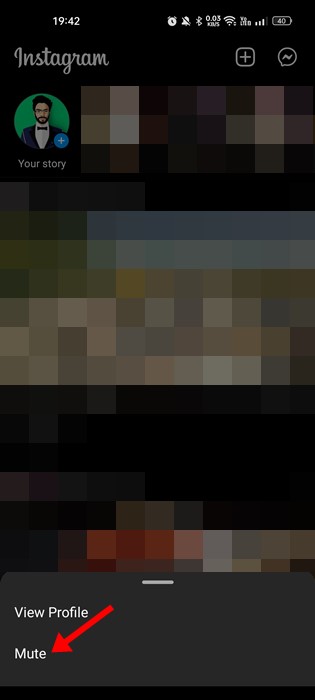
The Direct Approach: Unmuting from the Stories Tray
If you can still see the greyed-out or faded profile picture of the person whose stories you want to unmute at the end of your stories tray, this is the quickest method. It works best when you haven’t muted too many accounts, and you can easily scroll to find them.
- Open Instagram: Launch the Instagram app on your mobile device.
- Scroll Right: On your main feed, scroll all the way to the right along the horizontal stories bar at the top of your screen. You’ll pass all the active stories first.
- Locate Muted Story: Look for the greyed-out or faded profile picture. This indicates a muted story.
- Tap and Hold: Press and hold your finger on the muted profile picture for about two seconds.
- Select “Unmute Story”: A small pop-up menu will appear. You will see an option that says “Unmute story” (or sometimes “Unmute [Username]’s Story”). Tap on this option.
Immediately after selecting “Unmute Story,” their profile picture will revert to its normal colorful state, and their stories will now appear in your regular feed order, based on recency and your engagement, rather than being stuck at the very end.
Searching for the User: When Stories Aren’t Visible
What if you’ve muted so many accounts that scrolling to the end of the stories tray is impractical, or you simply can’t find the specific person’s faded icon? Don’t worry, you can always go directly to their profile to unmute their stories.
- Go to the Search Tab: From your Instagram home screen, tap the magnifying glass icon at the bottom of the screen to navigate to the Search tab.
- Search for the User: In the search bar at the top, type the exact username of the person whose stories you want to unmute.
- Navigate to Their Profile: Tap on their profile from the search results to go to their main profile page.
- Tap Their Profile Picture: On their profile, tap their circular profile picture (the one where you would normally tap to view their current story).
- Choose “Unmute Story”: A menu will pop up at the bottom of the screen. Look for and tap the option that says “Unmute Story” (or “Unmute [Username]’s Story”).
Once you’ve done this, their stories will be restored to your main stories feed, appearing in their normal position. This method is particularly useful if you rarely see their stories and need to specifically seek them out to unmute.
<h2>Verifying Story Unmute Status and Troubleshooting</h2>
<p>Once you’ve taken steps to unmute an Instagram story, you’ll naturally want to confirm it worked! Sometimes, despite your best efforts, a story might not immediately reappear as expected. This section helps you verify the change and offers some initial troubleshooting tips if things aren’t quite right.</p>
<h3>How to Confirm a Story is Unmuted</h3>
<p>The most straightforward way to check if someone’s story is unmuted is to simply look at your story tray at the top of your Instagram feed. Unmuted stories from accounts you follow will have their profile picture appear as a colorful ring when they have new content. If the ring around their profile picture is greyed out or they’re pushed to the very end of your story list, it’s a good sign they might still be muted or you haven’t interacted with their content recently.</p>
<ul>
<li><strong>Look for the colorful ring:</strong> This is the primary indicator of a new, unmuted story.</li>
<li><strong>Check their profile directly:</strong> Navigate to their profile. If their profile picture has the colorful ring, you should see their stories in your feed. If it’s just a plain circle, they don’t have a current story.</li>
<li><strong>Observe their position:</strong> Unmuted stories from accounts you frequently engage with will typically appear closer to the beginning of your story feed.</li>
</ul>
<h3>What If They’re Still Not Showing Up?</h3>
<p>If you’re certain you’ve unmuted an account’s stories but they’re still missing from your feed, a few factors could be at play. Remember, Instagram’s algorithm curates your feed based on engagement, not just follow status.</p>
<ul>
<li><strong>Algorithm & Engagement:</strong> If you haven’t interacted with this user’s posts or stories in a while, Instagram might prioritize other accounts you engage with more. Try liking a few of their recent posts or watching their stories (if you can find them via their profile) to signal your interest.</li>
<li><strong>Refresh Your Feed:</strong> Sometimes a simple pull-down-to-refresh on your Instagram home screen is all it takes for the changes to take effect.</li>
<li><strong>App Glitch or Update:</strong> Occasionally, minor app glitches can occur. Try closing and reopening the Instagram app, or even restarting your phone. Ensure your Instagram app is updated to the latest version.</li>
<li><strong>They Haven’t Posted a Story:</strong> It sounds obvious, but double-check that the user actually has an active story. You can verify this by visiting their profile directly.</li>
</ul>
<h2>Managing Your Instagram Story Preferences</h2>
<p>Unmuting a story is just one piece of the puzzle when it comes to tailoring your Instagram experience. Understanding how to manage your story preferences allows you to take full control of what you see and prioritize content that truly matters to you. It’s about creating a feed that’s both engaging and personally relevant.</p>
<h3>Beyond Unmuting: Optimizing Your Story Feed</h3>
<p>To ensure the stories you want to see consistently appear in your feed, it’s beneficial to actively engage with those accounts. Instagram’s algorithm uses your interactions to decide what to show you more of. Think of it as a feedback loop where your actions guide your viewing experience.</p>
<ul>
<li><strong>Engage Actively:</strong> Liking, commenting on posts, sending DMs, and replying to stories from specific accounts will tell Instagram you’re interested in their content. This increases the likelihood of their stories appearing higher in your feed.</li>
<li><strong>Use “Favorites”:</strong> For the accounts you absolutely never want to miss, consider adding them to your “Favorites” list. This feature helps Instagram prioritize their content (including stories) in your feed, ensuring you see it first.</li>
<li><strong>Limit Muted Accounts:</strong> While muting is useful, having too many accounts muted can push desired stories further down your feed as the algorithm tries to fill the space. Periodically review your muted list.</li>
<li><strong>Follow Mindfully:</strong> A cluttered follow list can dilute your feed. Regularly unfollow accounts you no longer engage with or find interesting to make space for more relevant content.</li>
</ul>
<h3>Re-Muting Stories (When You Change Your Mind)</h3>
<p>Sometimes, an account’s stories might become overwhelming or less interesting than they once were. The beauty of Instagram’s story controls is that they’re not permanent. You can easily re-mute someone’s stories if your preferences change.</p>
<ul>
<li><strong>Revisit the story tray:</strong> If their story is currently visible, you can often mute it directly from there.</li>
<li><strong>Through their profile:</strong> Just as you might unmute, you can also mute an account’s stories by visiting their profile, tapping the "Following" button, and adjusting your notification and story preferences.</li>
<li><strong>Flexibility is key:</strong> Don’t hesitate to adjust your story settings as your interests evolve. Your Instagram feed should always feel like it’s serving you.</li>
</ul>
<h2>Conclusion</h2>
<p>Regaining control over your Instagram story feed, whether by unmuting a friend’s updates or fine-tuning your overall preferences, significantly enhances your experience. We’ve explored how to bring those once-hidden stories back into view, confirm their status, and troubleshoot common issues. Remember, your Instagram feed is meant to be a personalized space, reflecting the content and connections that matter most to you.</p>
<p>Take a moment to review your story settings and make any necessary adjustments. <em>Don’t be afraid to experiment with muting and unmuting</em> to create an Instagram environment that truly resonates with you. Get those cherished stories back in your feed and enjoy a more personalized journey on Instagram!</p>
❓ Frequently Asked Questions
What is the primary difference between muting someone’s stories versus muting their regular posts on Instagram?
Muting a user’s stories hides their story bubbles from your stories tray at the top of your screen, while muting their regular posts prevents their photos and videos from appearing in your main feed. These are distinct actions and must be managed separately within the app settings.
How can I be sure that I have successfully unmuted someone’s story after following the steps?
To confirm a successful unmute, first revisit the user’s profile to see if the ‘Unmute Story’ option has been replaced or is no longer present, indicating it’s active. Then, wait for them to post a new story; it should now appear in your main stories tray alongside others.
Is it possible to unmute a story if I no longer follow the person but want to see their public stories?
Yes, if the person’s profile is public, you can still view and unmute their stories even if you don’t follow them. Simply navigate to their profile page, tap their profile picture, and select the ‘Unmute’ option for their stories.
What troubleshooting steps should I take if I can’t find the ‘Unmute Story’ option on an account?
If the ‘Unmute Story’ option isn’t visible, first ensure you’re tapping their profile picture to access story-related options, not just viewing their feed. If it’s still missing, navigate to your Instagram settings, then ‘Privacy,’ and look for ‘Muted Accounts’ to directly manage all muted users from there.
Does unmuting a story affect my interaction history or their visibility to me in other Instagram features?
Unmuting a story specifically restores their story content to your daily stories tray. It does not alter your follower status, interaction history, or their visibility in other features like Direct Messages or your follower list. It’s a localized setting for story content only.
Are there any limitations on how many Instagram stories I can mute or unmute?
Instagram does not impose a specific limit on the number of stories you can mute or unmute. You have the flexibility to manage your story tray preferences for as many accounts as you wish, allowing for complete personalization of your Instagram experience.