How to Watch YouTube on CarPlay: Methods, Risks & Safety
Last Updated on May 5, 2026 by Ryan
Natively watching YouTube videos on CarPlay is not supported due to safety regulations. However, several third-party hardware and software workarounds exist, often requiring modifications or specific accessories. Always consider safety and potential risks before implementing these solutions.
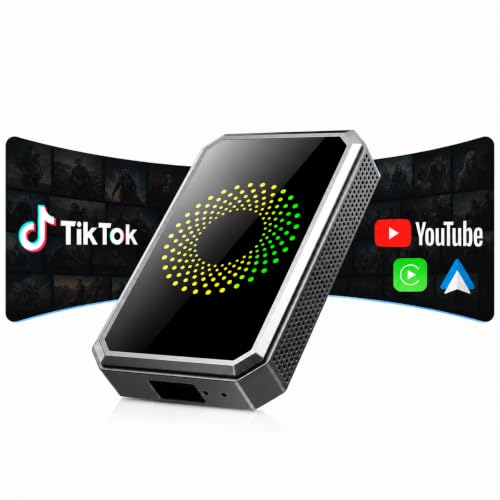
Want to watch YouTube on CarPlay? This adapter makes it seamless:

Prime for Young Adults — 6 Months Free
Students and 18–24s get six months of Prime free, then half price.
Start 6 Months Free

As an Amazon Associate we earn from qualifying purchases.
🎯 Key Takeaways
Recommended Best Deal Products


- Native CarPlay blocks video for safety.
- Third-party adapters enable screen mirroring.
- Jailbreaking offers app-based solutions.
- Consider legality, safety, and warranty risks.
- YouTube Music is CarPlay-compatible for audio.
Yes, watching YouTube videos directly on your CarPlay screen is possible, but it requires specific workarounds beyond Apple‘s standard functionality. Apple intentionally restricts video playback on CarPlay while driving, primarily for safety reasons, meaning the native YouTube app on your iPhone will not project video to your car’s display.

However, the desire for full video integration, whether for passengers or when parked, is strong among drivers. This guide dives into the actual methods available to achieve YouTube playback, bypassing those initial restrictions. We will explore viable options, detailing how they work, their benefits, and their associated risks.
Understanding CarPlay’s Native Video Restrictions
Why Standard YouTube Doesn’t Work
CarPlay is designed as a minimalist interface, prioritizing essential driving functions like navigation, communication, and audio. Video playback, from sources like YouTube or Netflix, is locked out at a fundamental software level. Apple’s developer guidelines strictly prohibit video applications from displaying content on the CarPlay screen, except for specific, driver-assistive video (e.g., rearview camera feeds or integrated navigation).

This isn’t a bug; it’s a deliberate design choice aimed at preventing driver distraction. If you try to open YouTube on your iPhone while connected to CarPlay, it will play audio through your car speakers, but the CarPlay screen itself will remain blank or display only basic audio controls. You won’t see the video.
The Apple Ecosystem’s Safety Approach
Apple enforces rigorous safety criteria for all certified CarPlay applications. Any app attempting to display dynamic video content, such as a YouTube stream, is explicitly blocked from mirroring onto the car’s display. This restriction applies universally, regardless of whether your vehicle is stationary or in motion. The system is programmed to prevent unauthorized video display from non-approved sources to maintain a focused driving environment.
This strict approach ensures that CarPlay remains a tool for safer driving, not a source of potential distraction. Overriding this functionality requires stepping outside of Apple’s intended ecosystem, often involving third-party hardware or software modifications.
From Start to Finish: Watching YouTube on CarPlay Explained
Recommended Best Deal Products

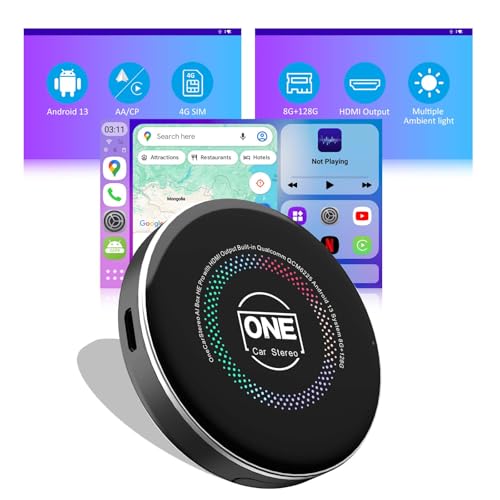

Welcome to your comprehensive guide on how to enable YouTube video playback through your car’s CarPlay system. While Apple’s official CarPlay interface does not natively support video streaming apps like YouTube for driver safety reasons, this guide will walk you through the process of utilizing specialized third-party hardware solutions, often referred to as “CarPlay AI Boxes” or “Android Auto/CarPlay Adapters,” that allow you to bypass these restrictions. It’s crucial to understand that these methods are unofficial and primarily intended for passenger entertainment or when the vehicle is safely parked. Following these steps carefully will help you set up this functionality while being mindful of important safety considerations.

Audible — Listen Free for 30 Days
One free credit a month and thousands of titles included.
Listen Free for 30 DaysStep 1: Understanding CarPlay’s Native Limitations and Identifying the Need for an AI Box
What you need: A car equipped with Apple CarPlay (wired or wireless), your iPhone, and a basic understanding of your vehicle’s infotainment system.
Instructions: Begin by recognizing that Apple designed CarPlay primarily for navigation, communication, and audio playback, explicitly restricting video apps while the car is in motion to prevent driver distraction. This means you won’t find a YouTube app directly in the standard CarPlay interface. To watch YouTube, you’ll need a “CarPlay AI Box” or an “Android Auto/CarPlay Adapter.” These devices plug into your car’s USB port, intercepting the CarPlay signal, and essentially run a separate Android operating system on your car’s screen, within which you can install and use apps like YouTube. It’s an emulation layer that extends functionality beyond Apple’s design.
Pro Tip: Verify your car supports CarPlay. Some older models might require a firmware update or aftermarket head unit installation to gain CarPlay functionality before proceeding with an AI box.
Step 2: Selecting the Right CarPlay AI Box or Adapter
What you need: Internet access for research, a budget (typically $100-$300), and a clear understanding of your car’s make, model, and year.
Instructions: This is a critical step. Research various CarPlay AI boxes available from reputable brands (e.g., Carlinkit, Ottocast, AIO Box, etc.). Look for devices that explicitly state they run a full Android OS (e.g., Android 9.0 or higher), include Google Play Store access, and are compatible with your specific car model and CarPlay version. Key features to look for include processor speed, RAM (4GB or more is recommended for smooth video playback), internal storage (32GB+), and whether it supports both wired and wireless CarPlay passthrough. Read customer reviews carefully for insights on stability, ease of use, and common issues specific to your car model.
Pro Tip: Pay close attention to reviews mentioning latency or lag when playing videos, as a slow processor or insufficient RAM can lead to a frustrating viewing experience. Prioritize boxes with active firmware update support.
Step 3: Initial Setup and Physical Connection of the AI Box
What you need: Your selected CarPlay AI Box, the USB-A or USB-C cable provided with the box, and your car.
Instructions: Turn on your car’s ignition. Locate the USB port in your car that normally connects to CarPlay (it might be marked with a phone icon or data transfer symbol). Plug one end of the provided USB cable into this port and the other end into your CarPlay AI Box. After a few seconds, your car’s infotainment screen should automatically switch from the standard CarPlay interface to the AI Box’s boot screen or Android operating system. Follow any on-screen prompts for initial language selection or basic setup. The AI box essentially tricks your car into thinking it’s still connecting to your iPhone for CarPlay, but then overlays its own Android environment.
Pro Tip: If the screen doesn’t switch, try a different USB port in your car, if available. Some cars have multiple USB ports, but only one is dedicated to CarPlay data transfer. Ensure your car’s infotainment system is fully booted up before plugging in the AI box.
Audible Premium Plus — Annual Membership
12 audiobook credits up front, plus the full Audible catalogue.
See Annual PlansStep 4: Configuring the AI Box for Internet Access
What you need: Your CarPlay AI Box successfully connected to your car, and a smartphone capable of creating a Wi-Fi hotspot, or an AI box that supports a separate SIM card for data.
Instructions: For YouTube to function, the AI Box needs internet access. On the AI Box’s Android interface, navigate to the ‘Settings’ menu (usually represented by a gear icon). From there, select ‘Network & Internet’ or ‘Wi-Fi’. Enable Wi-Fi scanning. On your smartphone, enable its personal hotspot feature. The AI Box should detect your phone’s hotspot as an available Wi-Fi network. Select it, enter the hotspot password (if you have one), and connect. Alternatively, if your AI box supports a SIM card, insert a data-enabled SIM card and configure its mobile data settings. Confirm connectivity by attempting to open a web browser on the AI Box.
Pro Tip: A stable internet connection is paramount for buffer-free YouTube streaming. If using your phone’s hotspot, ensure you have a strong cellular signal and an adequate data plan to avoid throttling or unexpected charges.
Step 5: Installing and Launching the YouTube App
What you need: Your AI Box with a stable internet connection, and optionally, your Google account credentials.
Instructions: Once your AI Box has internet access, locate the ‘Google Play Store’ icon on its home screen or app drawer. Tap to open it. If it’s your first time, you may be prompted to sign in with your Google account. This is recommended to access your YouTube subscriptions and history, but you can also browse and watch many videos without signing in. Use the search bar within the Play Store to find ‘YouTube’. Tap ‘Install’ to download and install the app. After installation, exit the Play Store and locate the YouTube app icon on the AI Box’s home screen or app drawer. Tap it to launch YouTube.
Pro Tip: Some AI Boxes come with YouTube pre-installed. If so, simply locate and launch it. Keep the YouTube app updated via the Play Store for the best performance and latest features.
Step 6: Navigating YouTube and Playing Videos
What you need: The YouTube app running on your CarPlay AI Box, and your car’s touchscreen display.
Instructions: With the YouTube app open on your car’s screen, you can now use the touchscreen interface to navigate. The experience will be similar to using YouTube on an Android tablet. Use the search function to find specific videos, browse your subscriptions, or explore trending content. Tap on a video thumbnail to begin playback. Adjust volume using your car’s physical volume controls or the AI Box’s on-screen controls. You can also utilize your car’s steering wheel controls for basic playback functions (play/pause, skip) if the AI Box supports integration.
Pro Tip: For a safer experience when stationary, consider creating playlists of videos you want to watch beforehand on your phone. This minimizes the need for extensive in-app searching while in the car.
Step 7: Safety and Usage Best Practices
What you need: Awareness, self-discipline, and a commitment to road safety.
Instructions: This step is paramount. Under no circumstances should the driver watch videos while the vehicle is in motion. Watching videos while driving is extremely dangerous, illegal in most jurisdictions, and significantly increases the risk of accidents. This functionality is intended strictly for passenger entertainment during drives or for anyone in the vehicle while it is safely parked and stationary. Always prioritize road safety. Configure any parental controls on the AI Box or YouTube app if children will be using it to prevent access to inappropriate content.
Pro Tip: Use the AI Box’s ability to switch back to standard CarPlay quickly. When the driver needs to focus, switch back to the native CarPlay interface for navigation or audio, eliminating video distractions.
Step 8: Troubleshooting Common Issues
What you need: Your AI Box user manual, access to the internet for troubleshooting guides, and basic problem-solving skills.
Instructions: If you encounter issues like no display, buffering, or app crashes, start with these common troubleshooting steps: First, ensure the USB cable is securely connected. Try unplugging and re-plugging the AI Box. If the problem persists, restart your car’s infotainment system (refer to your car’s manual) or simply turn off and restart the car. For buffering issues, check your Wi-Fi signal strength and consider moving to an area with better cellular coverage. Make sure the AI Box’s firmware is updated to the latest version, as manufacturers often release updates to improve compatibility and fix bugs. Finally, consult the AI Box’s user manual or the manufacturer’s online support for specific error codes or persistent problems.
Pro Tip: Many AI boxes have a small reset button (often a pinhole). If the device freezes or becomes unresponsive, gently press this button with a paperclip for a quick hard reset.
✅ Final Checklist
- The CarPlay AI Box is correctly connected to the dedicated CarPlay USB port.
- The AI Box is successfully connected to a stable Wi-Fi network (e.g., your phone’s hotspot).
- The YouTube app is installed and launched successfully on the AI Box’s Android interface.
- Video playback is smooth, without excessive buffering or lag, when the car is stationary.
- All drivers are aware that watching videos while driving is prohibited and dangerous.
Important Notes:
- Safety considerations or warnings: NEVER watch videos while driving. This system is for passenger entertainment or when the vehicle is safely parked. Driver distraction is a leading cause of accidents. Always follow local laws regarding in-car video displays.
- When to seek professional help: If you encounter persistent electrical issues, infotainment system malfunctions unrelated to the AI Box, or if you’re uncomfortable with hardware installations, consult a professional car audio installer or your car dealership.
- Estimated time and cost range: The setup process typically takes 15-30 minutes for initial installation and configuration. The cost for a reliable CarPlay AI Box generally ranges from $100 to $300, depending on features and brand. This does not include potential mobile data costs for streaming.
Exploring Third-Party Hardware Solutions for Video Playback
CarPlay AI Boxes and Android Adapters
One of the most popular and relatively straightforward methods to watch YouTube on your CarPlay screen involves using a “CarPlay AI Box” or an “Android Adapter.” These are external hardware devices that plug into your car’s USB port, the same port you’d typically use to connect your iPhone for wired CarPlay.

How They Work:
- These boxes trick your car’s infotainment system into believing it’s still running standard CarPlay.
- Once connected, they effectively take over the CarPlay interface and display a full Android operating system directly on your car’s screen.
- This allows you to download and run virtually any Android app, including the official YouTube app, Netflix, Disney+, and many others, just as you would on an Android tablet or smartphone.
Popular examples include devices like the CarlinKit TBox, Ottocast U2-PLUS, or various Road Top Android AI Box models. They often support Bluetooth for accessories, Wi-Fi connectivity, and even a SIM card for independent cellular data.
Pros, Cons, and Risks of AI Boxes
These devices offer significant functionality but come with their own set of considerations:
- Pros:
- Full Android Functionality: You get a complete Android experience on your car screen, enabling access to a vast ecosystem of apps.
- No iPhone Jailbreaking: Your iPhone remains untouched, preserving its warranty and security.
- Retains CarPlay/Android Auto: Most boxes allow you to switch back to wireless CarPlay or Android Auto passthrough with a tap.
- Independent Internet: Many support a SIM card, providing internet access even without your phone’s hotspot.
- Cons:
- Cost: These devices typically range from $150 to $350, a significant investment.
- Compatibility: Not all car models or infotainment systems are fully compatible. Research your specific vehicle’s year and model carefully before purchasing.
- Complexity: Initial setup can be somewhat technical, requiring firmware updates or specific settings adjustments for optimal performance.
- Performance: Some cheaper or older models might experience lag, slow boot-up times, or occasional crashes.
- Physical Device: It’s an extra device plugged into your USB port, potentially cluttering your console.
- Risks:
- Distraction: Allowing full video playback while driving poses a severe distraction risk, potentially leading to accidents.
- Legality: Using video playback features while driving may be illegal in your jurisdiction.
- Warranty: While unlikely to void your car’s warranty directly, any issues arising from the use of third-party electronics could be a gray area.
- System Instability: Rarely, a faulty box could cause minor glitches with your car’s infotainment system, though this is uncommon.
This method offers a robust solution for YouTube playback, transforming your CarPlay screen into a versatile Android tablet. It’s crucial to weigh the benefits against the costs and, most importantly, the safety implications.
Software-Based Workarounds: Jailbreaking and App Mirroring
Recommended Best Deal Products


Since Apple tightly controls what apps can run natively on CarPlay, some users explore less conventional, software-based modifications. These methods typically involve altering your iPhone’s operating system or using third-party mirroring tools to bypass standard restrictions.
The Jailbreak Route for CarPlay
Jailbreaking involves removing software restrictions imposed by Apple on iOS devices. For a select group of tech-savvy individuals, this can open doors to custom applications and tweaks not available in the App Store. Once jailbroken, specific tweaks (often found on platforms like Cydia) might allow unsupported apps, including YouTube, to display on your CarPlay screen.
- Potential Benefit: Offers the most direct (though unofficial) way to get full YouTube video playback integrated into CarPlay’s interface.
- Significant Risks:
- Security Vulnerabilities: Jailbreaking can compromise your device’s security, making it more susceptible to malware and data breaches.
- System Instability: It often leads to crashes, battery drain, and general performance issues.
- Voided Warranty: Apple does not support jailbroken devices, and attempting to get service will likely be denied.
- Complexity: The process itself can be technical and may brick your device if not done correctly.
This is a high-risk, technically demanding path that most users should avoid due to the severe implications for device security and stability.
App Mirroring Solutions
App mirroring refers to displaying your iPhone’s screen directly onto your car’s infotainment display, essentially bypassing CarPlay’s interface entirely. This isn’t a native CarPlay feature but rather an independent solution that uses your car’s screen as a secondary display for your phone.
- How it Works: These solutions often involve specialized third-party hardware dongles or complex software configurations that project your iPhone’s display onto the car screen. Your phone is still doing all the heavy lifting, and the car screen is merely showing what’s on your phone.
- Experience: While you can show YouTube, the experience is rarely seamless. You might encounter:
- Input lag and delayed responses.
- Incorrect aspect ratios or resolutions, leading to stretched or blurry video.
- Reliance on your phone’s controls, which isn’t ideal for driving.
- Potential compatibility issues with different car models and iOS versions.
- Key Takeaway: Mirroring doesn’t integrate YouTube into CarPlay; it just uses your car screen as a monitor. It’s often clunky and doesn’t offer the smooth, optimized experience you’d expect from a native app.
Weighing the Risks, Legality, and Safety Implications
Beyond the technical hurdles, exploring unofficial methods to watch YouTube on CarPlay brings up serious concerns regarding legality, the validity of warranties, and, most critically, driver and passenger safety.
The Legal and Warranty Minefield
Driving requires your full attention. Most jurisdictions have strict laws against distracted driving, especially regarding video playback on the driver’s display while the vehicle is in motion. Ignorance of these laws is no defense, and the penalties can be severe:
- Distracted Driving Laws: Many regions prohibit viewing video entertainment on screens visible to the driver. This is designed to prevent visual and cognitive distraction.
- Fines and Penalties: Violations can lead to significant fines, points on your license, and even license suspension depending on the severity and jurisdiction.
- Warranty Voiding: As mentioned, jailbreaking your iPhone immediately voids its warranty. Using unapproved third-party hardware or software could also potentially affect your vehicle’s infotainment system warranty or performance.
- Insurance Implications: In the unfortunate event of an accident, if it’s determined that you were distracted by unauthorized video playback, it could complicate insurance claims or even result in your policy being voided.
Always prioritize understanding and adhering to local traffic laws to ensure your own safety and that of others on the road.
Prioritizing Driver and Passenger Safety
CarPlay was meticulously designed with safety as its paramount concern. Its interface simplifies common tasks like navigation, messaging, and audio playback to minimize driver distraction. Bypassing these inherent safety features for video playback introduces significant hazards.
- Severe Distraction Risk: Watching videos, even for a moment, demands visual and cognitive attention away from the road, traffic, and surroundings. This significantly increases your reaction time and the risk of an accident.
- Impaired Decision Making: The human brain struggles to multitask effectively, especially with complex tasks like driving and video consumption. This split focus impairs decision-making and hazard perception.
- CarPlay’s Intent: Apple’s design philosophy for CarPlay intentionally restricts video apps for drivers. This isn’t an oversight but a deliberate safety measure.
- Passenger Considerations: If video entertainment is truly necessary for passengers, it is far safer to use a separate tablet or phone held by a passenger, ensuring the driver’s screen remains dedicated to driving information. Many modern vehicles also offer rear-seat entertainment systems for this purpose.
Ultimately, no video is worth risking your life or the lives of others. Safety should always be the top priority when operating a vehicle.
Conclusion: Balancing Entertainment and Safety
Watching YouTube on CarPlay presents a challenging dilemma between entertainment desires and practical limitations. While official methods are restricted to audio-only playback, various third-party apps, mirroring solutions, and even jailbreaking offer unofficial avenues. However, each of these workarounds comes with its own set of technical complexities, potential security risks, and, most critically, severe safety implications.
Before attempting any unofficial method, weigh the convenience against the legal ramifications, the potential to void warranties, and the undeniable dangers of distracted driving. Prioritize your safety and the safety of others on the road above all else. For passenger entertainment, consider legitimate, separate devices. Drive smart, drive safe, and keep your focus where it belongs – on the road ahead.
❓ Frequently Asked Questions
Why doesn’t Apple allow YouTube video playback on CarPlay natively?
Apple prioritizes driver safety, and watching videos while driving creates significant distractions. CarPlay is designed to minimize distractions by limiting video content to parked vehicles or specific car infotainment systems.
What types of third-party hardware can enable YouTube on CarPlay?
Devices like ‘CarPlay AI Boxes’ or ‘Wireless CarPlay/Android Auto dongles’ often provide an Android operating system layer, allowing you to install YouTube directly or mirror your phone’s screen, bypassing native CarPlay restrictions.
Are there any free software methods to get YouTube video on CarPlay?
Most reliable software methods involve a jailbroken iPhone and paid tweaks like CarBridge, or specialized firmware on certain aftermarket head units. Free methods are often unreliable, short-lived, or carry significant risks.
What are the potential risks of using these workarounds?
Risks include voiding your phone’s warranty (jailbreaking), system instability, potential malware, car warranty issues with hardware modifications, and most importantly, significant safety hazards from distracted driving.
Is it legal to watch YouTube videos on my CarPlay screen while driving?
In most jurisdictions, it is illegal to watch videos on a screen visible to the driver while the vehicle is in motion. These workarounds bypass safety features but do not change traffic laws.
Can I use YouTube Kids or other video streaming apps with these methods?
Yes, if a workaround allows general screen mirroring or installs an Android environment, you can typically access any video app, including YouTube Kids, Netflix, or Disney+, though the same safety and legal warnings apply.