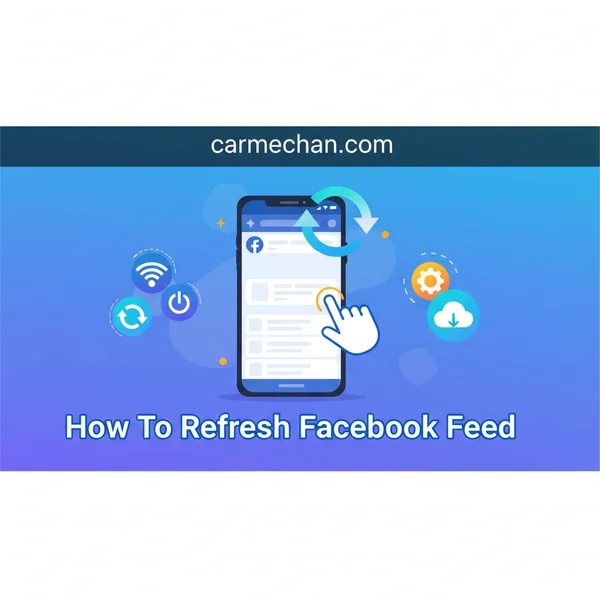
How to Refresh Facebook Feed: See Latest Posts Instantly
Refreshing your Facebook feed is crucial for seeing the newest content quickly. Discover simple, platform-specific methods to instantly update your news feed on both desktop and mobile, ensuring you never miss an important post.
🎯 Key Takeaways
- Pull down on mobile to refresh your Facebook feed.
- Click the refresh icon on desktop for new posts.
- Check internet connection if feed doesn’t update.
- Force-close and reopen app for persistent issues.
- Sorting by ‘Most Recent’ shows newest content.
Want to see the very latest posts on Facebook instantly? Manually refreshing your Facebook feed is a quick, essential action to ensure you’re always viewing the most up-to-date content from your friends, groups, and followed pages. While Facebook’s algorithms work behind the scenes, a direct refresh provides an immediate command to pull new data, preventing you from missing crucial updates or timely interactions.


Staying truly current on Facebook means actively engaging with its dynamic nature. Whether you’re catching up after a busy morning or waiting for specific news, knowing how to refresh your feed correctly across different devices guarantees you’re not scrolling through stale posts. This guide will clarify why a manual refresh is often necessary and prepare you for the exact steps to see new content instantly, every time.
Understanding Your Facebook Feed and Content Flow
The Dynamic Nature of Your Feed
Your Facebook News Feed is designed to be a constantly updating stream, a personalized window into the vast network of information shared by your connections and interests. It aggregates posts from your friends, family, groups you’ve joined, and pages you follow, displaying them in what Facebook deems the most relevant order for you. However, “relevance” and “recency” are distinct concepts. Facebook’s intricate algorithms work tirelessly to prioritize content it believes you’ll engage with most, sometimes meaning that very new posts aren’t always front and center, especially if you haven’t prompted a feed update.

Think of your feed like a flowing river: new water (posts) is continuously entering the stream, but if you’ve been looking at the same section for a while, you might not see the fresh content that’s just arrived upstream. For example, if you leave your Facebook browser tab or mobile app open for an extended period, say an hour, returning to it doesn’t automatically display every single new post that has accumulated. The system often needs a gentle nudge.
Why Manual Refresh is Essential for Recency
While Facebook does update your feed periodically in the background, these automatic refreshes are not always instantaneous or comprehensive enough for truly real-time updates. A manual refresh actively prompts Facebook to fetch the absolute latest content available at that precise moment. It effectively tells the platform, “Show me everything new right now!” This direct command can override any potential display delays and bring the freshest content forward, ensuring you catch up quickly.
This active approach is crucial for several reasons. It allows you to see real-time events unfolding, catch breaking news shared by pages you follow, or participate in recent conversations with friends before they become outdated. Without the occasional manual refresh, you might find yourself scrolling through posts that are minutes, or even hours, old, potentially missing critical updates, timely discussions, or photos shared just moments ago. It’s your most direct way to ensure you’re always experiencing the most current Facebook content possible.
The Ultimate Facebook Feed Refresh Walkthrough
Is your Facebook News Feed looking a bit stagnant? Not seeing the latest posts from your friends, favorite pages, or groups? This comprehensive guide will walk you through every practical method to refresh your Facebook feed, ensuring you’re always up-to-date with the newest content. From simple gestures to advanced troubleshooting, we’ll cover both desktop and mobile platforms, empowering you to take control of your feed and never miss an important update again.
Step 1: Understanding the Concept of a Feed Refresh
What you need: A basic understanding of how digital interfaces like Facebook display content from their servers.
Instructions: In the context of Facebook, “refreshing” means prompting the application or web browser to fetch the absolute latest data from Facebook’s servers. It’s like asking for a new batch of cookies when the old ones are stale. This action specifically targets your News Feed, pulling recent posts, stories, and updates from friends, pages, and groups you follow. It’s crucial because Facebook’s algorithm doesn’t always deliver the absolute latest content automatically; manual intervention ensures you’re seeing the most current information available, preventing you from missing out on breaking news or timely updates from your network.
Pro Tip: While Facebook often auto-refreshes as you scroll, a manual refresh provides a definitive command for new content, bypassing any potential caching issues on your device and ensuring a true update.
Step 2: The Quick Refresh: Desktop Web Browser
What you need: A desktop or laptop computer, a stable internet connection, and any modern web browser (Google Chrome, Mozilla Firefox, Microsoft Edge, Safari) with Facebook open and logged in.
Instructions: To refresh your Facebook feed on a desktop browser, you have a few easy options. The simplest is to locate the circular “Refresh” arrow icon, usually found next to your address bar in the top-left corner of the browser window. Clicking this icon will reload the entire webpage, including your News Feed. Alternatively, you can use the keyboard shortcut: press F5 on Windows/Linux or Command (⌘) + R on macOS. A third method is to click the “Home” icon or “Facebook” logo located in the top-left corner of the Facebook interface itself, which often triggers a feed refresh without reloading the entire page entirely.
Pro Tip: If only your feed needs refreshing and not the whole page, clicking the “Home” icon within Facebook is usually faster as it often preserves your current browsing context within the Facebook domain.
Step 3: Seamless Refresh: Facebook Mobile App (Pull-to-Refresh)
What you need: A smartphone or tablet (iOS or Android device) with the Facebook mobile application installed and an active internet connection (Wi-Fi or cellular data).
Instructions: The most intuitive way to refresh your Facebook feed on the mobile app is using the “pull-to-refresh” gesture. First, ensure you are on the main News Feed tab, which is typically represented by a house icon or “News Feed” text at the bottom or top of the app. Once on this screen, gently place your finger near the top of the feed and swipe downwards. As you pull down, you should see a small loading spinner or a Facebook logo animation appear at the top of the screen. Release your finger, and the app will fetch and display new content, updating your feed with the latest posts.
Pro Tip: Ensure you are specifically on the “News Feed” tab. Attempting to pull-to-refresh on other tabs like “Groups” or “Marketplace” might refresh their specific content but won’t update your main News Feed.
Step 4: Force Close and Reopen the Facebook Mobile App
What you need: A smartphone or tablet (iOS or Android device) with the Facebook app currently running in the background.
Instructions: If the pull-to-refresh gesture doesn’t seem to bring new content, a more definitive approach is to force close the Facebook app and then reopen it. This clears its active memory and often resolves temporary glitches.
- On iOS (iPhone/iPad): Swipe up from the bottom of your screen (for devices without a home button) or double-press the Home button (for devices with one) to bring up the App Switcher. Find the Facebook app card and swipe it upwards to dismiss it completely from memory.
- On Android: Tap the “Recent Apps” button (usually a square or three vertical lines icon) or swipe up and hold from the bottom of your screen to access the overview screen. Find the Facebook app and swipe it left or right, or tap the “X” to close it.
After force closing, simply tap the Facebook app icon on your home screen to relaunch it. This often forces a complete reload of the feed from scratch.
Pro Tip: Force closing an app is a powerful troubleshooting step that clears its active memory, resolving many common display or loading issues without affecting your login status or saved data, making it a safe first advanced option.
Step 5: Logging Out and Back In to Facebook
What you need: Your Facebook account login credentials (email or phone number associated with your account, and your password).
Instructions: A robust method to ensure a completely fresh start for your feed is to log out of Facebook entirely and then log back in. This action completely resets your session with Facebook’s servers, often resolving persistent issues where content fails to update, as it forces the system to re-authenticate and fetch all new data for your account.
- On Desktop: Click the downward-pointing arrow in the top-right corner of the Facebook page, then select “Log Out.”
- On Mobile: Tap the three horizontal lines (Menu icon), scroll down towards the bottom of the menu, and tap “Log Out.”
Once logged out, you will be directed to the login screen. Carefully enter your email or phone number and password, then click “Log In.” Your feed should now be fully refreshed with the latest content.
Pro Tip: Always verify your password or use a trusted password manager before attempting this step to avoid getting locked out of your account. Ensure you have access to any two-factor authentication methods if enabled on your account.
Step 6: Verifying Your Internet Connection Stability
What you need: Your device (computer or mobile), knowledge of your device’s network settings, and potentially access to your Wi-Fi router.
Instructions: A stale or unresponsive Facebook feed is frequently caused by an unstable or non-existent internet connection rather than Facebook itself. Before attempting advanced troubleshooting, confirm your device is properly connected to the internet.
- For Wi-Fi: Check your Wi-Fi signal strength icon on your device. Try disconnecting and reconnecting to your Wi-Fi network.
- For Cellular Data: Ensure mobile data is enabled in your device settings and that you have sufficient data allowance with your provider.
- General Test: Open a web browser and try visiting a completely different, popular website (e.g., google.com or bbc.com). If other sites don’t load, the problem is your internet connection, not Facebook. A quick router reboot (unplug for 30 seconds, then plug back in) can often resolve home network issues.
Pro Tip: If on mobile data, try switching to a known stable Wi-Fi network, or vice-versa, to rule out issues with a specific network connection. Sometimes, public Wi-Fi networks might have specific content filtering that affects Facebook.
Step 7: Clearing Browser Cache (Desktop) or App Cache (Mobile)
What you need: Access to your browser’s settings (for desktop) or your device’s app settings (for mobile). Note that clearing app data (not just cache) on mobile will log you out.
Instructions: Over time, web browsers and mobile apps store temporary files (called cache) to speed up loading times. Sometimes, this cache can become corrupted or outdated, preventing new content from appearing.
- Desktop Browser (e.g., Google Chrome): Go to your browser’s `Settings`, then navigate to `Privacy and security`, and click `Clear browsing data`. Select “Cached images and files” and choose a time range (e.g., “Last 24 hours” or “All time”), then click “Clear data.”
- Mobile App (Android): Go to your device’s `Settings> Apps & notifications> See all apps> Facebook> Storage & cache`. Tap “Clear cache.” (Avoid “Clear storage/data” unless absolutely necessary, as this will log you out and reset app preferences).
Clearing the cache forces the browser or app to download fresh versions of website elements, often resolving persistent display issues with your feed.
Pro Tip: Clearing only the cache is generally safe and doesn’t delete personal data or log you out. However, clearing “storage” or “data” on mobile apps will reset the app to its factory state, requiring you to log in again and reconfigure any specific app settings.
Step 8: Updating the Facebook App or Web Browser
What you need: Access to your device’s app store (Google Play Store or Apple App Store) or your browser’s built-in update mechanism.
Instructions: An outdated version of the Facebook app or your web browser can sometimes lead to performance issues, including a feed that doesn’t refresh properly or displays content incorrectly. Developers regularly release updates with bug fixes and improvements that can resolve such problems.
- For Mobile App: Visit your device’s app store (Google Play Store for Android, App Store for iOS). Search for “Facebook” and check if an “Update” button is available next to the app name. If so, tap it to install the latest version.
- For Desktop Browser: Most modern browsers update automatically in the background. However, you can manually check for updates via the browser’s settings menu (e.g., for Chrome: `Help> About Google Chrome`; for Firefox: `Menu> Help> About Firefox`). Installing any available updates ensures you have the latest bug fixes and features, which can directly impact how Facebook functions.
Pro Tip: Enabling automatic updates for your Facebook app and web browser ensures you’re always running the most stable and feature-rich version, minimizing refresh issues caused by outdated software.
✅ Final Checklist
-
Confirmed a stable internet connection before attempting any refresh methods.
-
Successfully performed a basic refresh (F5 key on desktop or pull-down gesture on mobile) to get new content.
-
Attempted a more robust refresh (force closing the app or logging out and back in) if basic methods failed.
-
Checked if Facebook’s official status page (e.g., via Twitter or a general news search) indicates any ongoing server issues.
-
Ensured my Facebook app or web browser is updated to the latest available version.
Important Notes:
-
Security Reminder: Be extremely cautious of any third-party websites or applications promising “super refreshes” or asking for your Facebook login credentials outside of the official Facebook site or app. These are often phishing attempts designed to steal your account information.
-
Persistent Issues: If your feed consistently fails to update after trying all the troubleshooting steps outlined in this guide, it might indicate a more widespread issue with Facebook’s servers or a problem specific to your account configuration. In such rare cases, checking Facebook’s official support page or social media for outage reports is advisable.
-
Estimated Time: Most basic refresh actions take mere seconds (under 5 seconds) to execute. More advanced steps like clearing cache or logging out and back in might take 1-2 minutes depending on your device speed and internet connection.
Factors Affecting Feed Updates and Content Visibility
The Constant Influx of New Content
Facebook is a global platform where millions of users are sharing content every single second. This includes everything from simple status updates and short text posts to elaborate photo albums, engaging videos, external links, and live streams. Your personal Facebook feed represents a highly filtered and curated view of this colossal, continuously expanding global data stream. Because of this non-stop content creation, there is almost always fresh content available that pertains directly to your network and specific interests.

Consider a scenario where a friend might post a picture from an event that concluded just minutes ago, or a news organization you follow could share an urgent, developing story. Your feed doesn’t instantly beam every single one of these new items to your screen the very second it’s posted. Instead, it waits for either a predetermined automatic update interval or, more reliably, a direct cue from you in the form of a manual refresh. This constant influx means that even if you’ve just checked Facebook, there could be dozens of new posts waiting just below the surface.
Common Scenarios Requiring a Refresh
Several common situations highlight why a manual refresh is not just a convenience but an indispensable action for seeing the latest content:
- Extended Browsing Sessions: If you keep your Facebook browser tab or mobile app open for a long period without actively navigating away or closing it, the feed can become “stale.” New posts will accumulate on Facebook’s servers, but they won’t automatically be displayed on your screen until you actively request them through a refresh.
- Returning After a Break: Coming back to Facebook after an hour or two, or even just a few minutes, usually means your feed will initially show you content from where you last left off. It won’t automatically jump to the freshest content. A simple manual refresh immediately solves this, presenting you with the latest updates.
- Connectivity Fluctuations: Even brief dips or inconsistencies in your internet connection can prevent Facebook from seamlessly pulling new data in the background. Once your connection stabilizes, a manual refresh ensures that all pending updates are fetched and displayed, catching you up instantly.
- App or Browser Glitches: Occasionally, the Facebook mobile app or the website in your browser might experience minor display hiccups. These temporary glitches can sometimes prevent newly available content from appearing until you initiate a straightforward refresh command, clearing the display issue.
Understanding these everyday scenarios helps you instinctively know when to refresh your feed, guaranteeing you’re always engaging with the most current Facebook experience available.
Troubleshooting Common Refresh Issues and Expert Tips
Ever found yourself repeatedly trying to refresh your Facebook feed, only to be met with the same old posts? It’s a common frustration, but often, the fix is simpler than you think. Understanding the root cause can help you get back to seeing fresh content quickly.
Why Isn’t My Feed Refreshing? Common Culprits
When your feed seems stuck, it’s usually not a deep-seated mystery. Most refresh issues stem from a few primary areas:
- Internet Connection Woes: This is by far the most frequent culprit. A weak Wi-Fi signal, spotty cellular data, or an overloaded network can prevent Facebook from fetching new posts. Your device might be connected, but the actual data flow is too slow or intermittent.
- App or Browser Cache Overload: Over time, your Facebook app or web browser stores a lot of temporary data (cache) to speed things up. However, a cluttered or corrupted cache can sometimes interfere with loading new information, making your feed appear stagnant.
- Facebook Server Glitches: While less common, sometimes Facebook itself experiences temporary server issues. These are usually widespread and resolve themselves quickly, but they can prevent anyone from seeing new content for a brief period.
Pro Tips for a Smoother Refresh Experience
Beyond the basic refresh, a few strategic habits can significantly improve your Facebook browsing experience:
- Ensure a Robust Connection: Always double-check your Wi-Fi or cellular data strength. If you’re struggling, try moving closer to your router, switching to a different network, or toggling airplane mode on and off to reset your connection.
- Regularly Clear Cache: Periodically clearing your Facebook app’s cache (or your browser’s cache for the web version) can help prevent data buildup that might hinder refreshing. Think of it as spring cleaning for your app!
- Keep Your App Updated: Developers constantly release updates to fix bugs and improve performance. Make sure your Facebook app is always running the latest version to benefit from these enhancements, including better refreshing capabilities.
- Restart Your Device: The classic IT advice rings true here too. A quick restart of your phone or computer can often resolve minor software glitches that might be preventing your feed from updating correctly.
Beyond Refresh: Alternative Ways to Discover New Content
While a good old refresh is essential, Facebook offers a wealth of other avenues to explore and find new, engaging content. Don’t limit yourself to just scrolling the main feed; delve into Facebook’s various features to personalize your discovery experience.
Exploring Specific Content Streams
Sometimes, simply pulling down on your main feed isn’t enough to satisfy your craving for novelty. Facebook provides specific filters and dedicated sections that can unveil content you might otherwise miss:
- Utilize Feed Filters: Beyond the default “Top Stories,” Facebook often offers filters like “Most Recent,” “Favorites,” or even customized feeds. Actively switching to “Most Recent” ensures you see posts in chronological order, rather than what Facebook’s algorithm thinks you want to see. This is often the quickest way to confirm new posts exist.
- Dive into Groups and Pages: If you’re passionate about specific hobbies, interests, or communities, regularly visiting your favorite Facebook Groups and Pages is a goldmine. These often have dedicated feeds that update frequently with highly relevant content from members and administrators.
- Watch Section for Videos: For video enthusiasts, the dedicated “Watch” tab is a fantastic resource. It features a continuous stream of videos tailored to your viewing habits, from news clips to entertainment, often updating in real-time with new uploads and live streams.
Leveraging Facebook’s Discovery Tools
Don’t wait for content to come to you; actively seek it out using Facebook’s powerful built-in discovery mechanisms. Being proactive can dramatically broaden your exposure to fresh, interesting material.
- Effective Use of the Search Bar: The search bar isn’t just for finding friends. Use it to look up trending topics, specific news events, public figures, or even general interests like “sustainable living tips.” You’ll often find a treasure trove of related posts, pages, and groups.
- Explore Trending Topics and Hashtags: Keep an eye on the “Trending” sections (if available in your region) or follow popular hashtags related to your interests. This is an excellent way to tap into the real-time pulse of what’s happening and what people are talking about right now.
- Follow New Pages and People: Actively seek out and follow new sources of content. If you enjoy a particular type of article or creator, search for similar ones. The more diverse your follows, the more varied and fresh your feed will naturally become, reducing reliance on a single refresh.
Conclusion
Keeping your Facebook feed vibrant and up-to-date is key to a fulfilling social media experience. Whether it’s a simple refresh, troubleshooting a stubborn connection, or exploring alternative content streams, you have plenty of tools at your disposal to stay connected with what matters most. Don’t let a stagnant feed dampen your browsing; take control and ensure you’re always seeing the latest and greatest.
Remember to keep an eye on your internet connection and periodically clear your app’s cache for smooth sailing. Beyond that, actively engage with Facebook’s diverse features like “Most Recent” views, groups, and the Watch section to discover even more content. Empower yourself to curate a dynamic and engaging Facebook experience every single day!
❓ Frequently Asked Questions
Why isn’t my Facebook feed refreshing properly or showing new posts?
If your feed isn’t refreshing, first check your internet connection. Then, try force-closing and reopening the Facebook app, or clearing your browser’s cache for the desktop version, as these often resolve display issues.
Is there a difference in refreshing on iOS vs. Android?
The primary method of pulling down to refresh is identical across both iOS and Android mobile apps. Minor UI differences might exist, but the core functionality remains the same for seeing new content.
What’s the best way to ensure I always see the newest posts, not just popular ones?
To consistently see the newest content, change your feed sorting preference to ‘Most Recent’ or ‘Favorites’ (if available). While refreshing pulls new posts, these settings prioritize their display chronologically.
How can I refresh Facebook without going to the very top of my feed?
Unfortunately, a standard refresh action typically takes you to the top of the feed to display the latest updates chronologically. There isn’t an official way to refresh content mid-scroll without losing your place.
Does clearing my Facebook app cache help with refresh issues?
Yes, clearing the app cache can often resolve persistent refresh problems by removing corrupted or outdated data. This can make the app more responsive and help it fetch new content more efficiently.
What if I’ve refreshed multiple times but still see old content?
If multiple refreshes yield no new content, it might indicate a broader issue. Verify your device’s date/time settings, check for Facebook app updates, or even temporarily log out and back in to resync your account.