
How to Mute Instagram Stories: A Quick Guide to a Cleaner Feed
Muting Instagram stories is a simple way to customize your feed without unfollowing accounts. You can easily silence stories from the main feed or a user’s profile. This keeps their content out of sight, moving them to the end of your story tray.
🎯 Key Takeaways


- Long-press story avatar to mute quickly.
- Muting stories doesn’t affect posts.
- Easily unmute stories anytime from profile.
- Muted stories appear at end of feed.
- User is not notified of story mute.
Want to fine-tune your Instagram Story feed and see only what truly interests you? Muting Instagram Stories is a straightforward solution. This feature allows you to hide specific users’ stories from your main feed without the need to unfollow them or block them entirely. It’s an essential tool for managing your digital experience, ensuring your daily scroll is cleaner and more personalized, focusing on content you genuinely want to see.

This quick guide cuts directly to the chase, providing you with the exact steps to regain control over your Instagram Story consumption. You’ll learn how to discreetly mute stories that no longer resonate with you and, crucially, how to easily unmute them should your preferences change. Get ready to declutter your feed and enhance your Instagram experience in just a few taps.
Understanding Instagram Story Muting


Muting a story on Instagram is a distinct action from unfollowing or blocking someone. It’s a gentle way to manage your feed without affecting your follow status or sending any notification to the user. When you mute a story, it simply disappears from your active story tray, moving to the very end of your story list, appearing greyed out. This keeps your main feed focused on more relevant updates, improving your browsing efficiency.
What Muting Does (and Doesn’t Do)
- Hides Stories: The primary effect is that a muted user’s stories will no longer appear prominently in your story tray at the top of your Instagram feed. They move to the far right, appearing faded.
- Maintains Follow Status: You remain a follower of the account. They will still see your posts and messages, and you will see their regular feed posts (unless you also mute posts, which is a separate option).
- No Notifications: The muted user is never informed that you have muted their stories. It’s a completely private action.
- Does Not Hide Posts: Muting stories does not automatically mute their regular feed posts. These are two distinct features, offering granular control over your content.
- Not a Permanent Action: You can unmute a story at any time, restoring it to its regular visibility in your feed.
The Core Method: Muting from Your Feed’s Story Tray
The most common and direct way to mute an Instagram Story is right from your main feed. This method takes mere seconds and is perfect when you spot a story you’d rather not see regularly.
Here’s the step-by-step process:
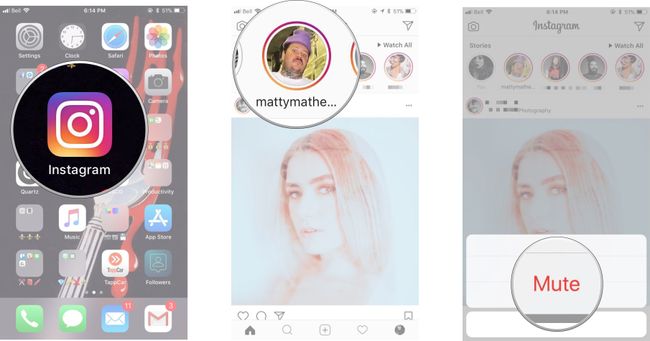
- Open Instagram: Launch the Instagram app on your mobile device.
- Locate the Story Tray: At the very top of your home feed, you’ll see a horizontal row of circular profile pictures. This is your story tray, displaying active stories from accounts you follow.
- Find the User’s Avatar: Scroll through the story tray until you find the profile picture of the person whose stories you wish to mute.
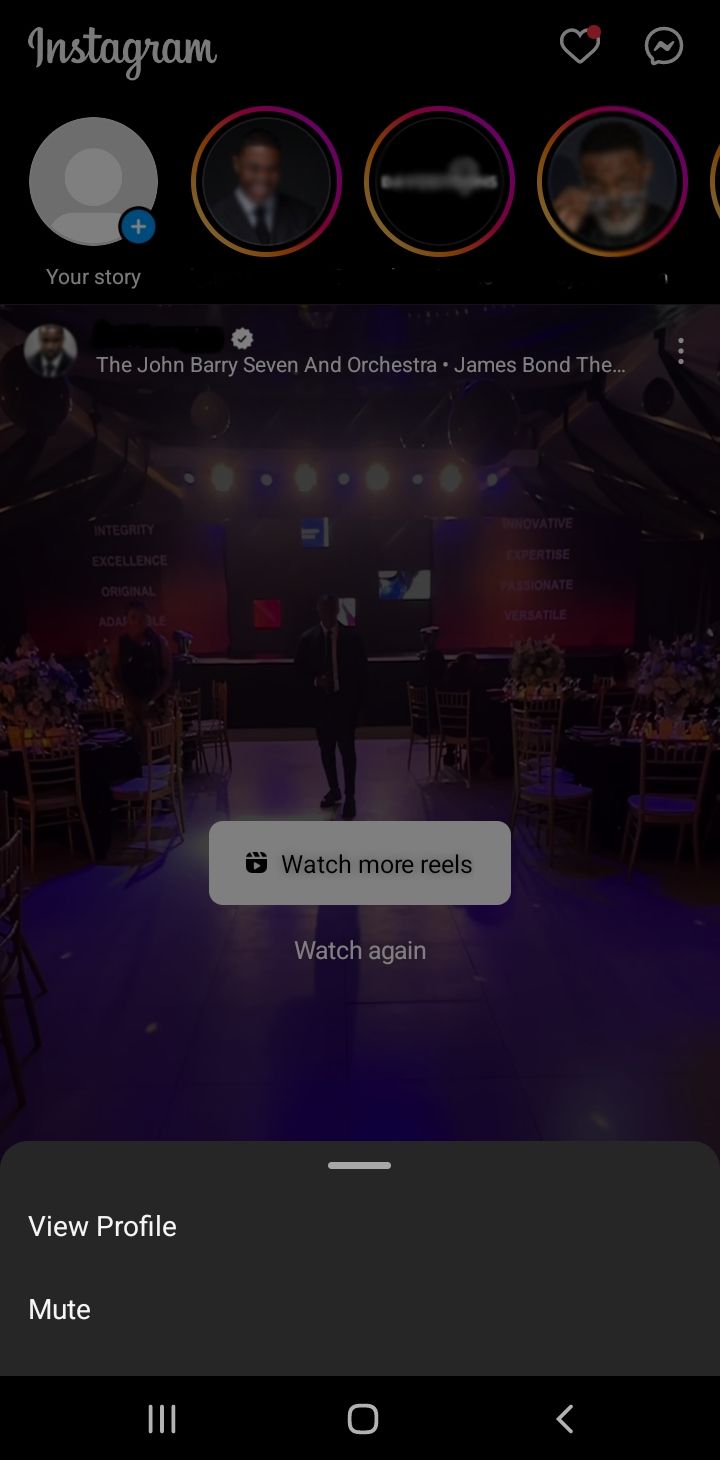
- Long-Press the Avatar: Tap and hold down on their profile picture for a couple of seconds. A small pop-up menu will appear at the bottom of your screen.
- Select “Mute”: From the options presented, tap on “Mute.”
- Choose “Mute Story”: Another sub-menu will pop up. You’ll typically see two choices: “Mute Story” and “Mute Story and Posts.” To mute only their stories, tap on “Mute Story.” This ensures their regular feed posts still appear in your feed.
Once you select “Mute Story,” that user’s profile picture will instantly move to the far right end of your story tray and will appear greyed out, signifying their stories are now muted. You’ve successfully decluttered your feed with just a few quick taps.
Master Muting Instagram Stories in 6 Simple Steps
Welcome to your essential guide on how to take control of your Instagram feed! This walkthrough will empower you to selectively mute stories from accounts you follow, ensuring your daily scroll is filled only with content you genuinely want to see. Whether you’re decluttering your feed, taking a break from certain types of content, or simply want to streamline your Instagram experience, mastering the art of muting stories is a simple yet powerful skill. Follow these detailed steps to effortlessly curate your Instagram Story carousel.
Step 1: Launch Your Instagram Application
What you need: An active Instagram account logged into the official Instagram application on a compatible mobile device (iOS or Android).
Instructions: Begin by locating the Instagram icon on your smartphone or tablet’s home screen or app drawer. The icon typically features a multi-colored camera lens. Tap this icon to launch the application. Ensure you are connected to the internet, either via Wi-Fi or cellular data, for the app to function correctly and display the most current content. Once launched, you should land on your personalized Instagram home feed, where you’ll see posts from accounts you follow and, crucially, the Stories bar at the very top.
Pro Tip: Before proceeding, quickly verify that your Instagram app is updated to its latest version. Developers frequently release updates that improve performance, add new features, or fix bugs, ensuring a smoother user experience. An outdated app might behave unexpectedly or have slightly different interface elements.
Step 2: Navigate to the Stories Bar at the Top of Your Feed
What you need: Your Instagram home feed readily accessible after successfully launching the application.
Instructions: Upon opening the Instagram app, your attention should naturally be drawn to the very top of the screen. Here, you’ll find a horizontal carousel displaying circular profile pictures. These circles represent the active stories from accounts you follow. The stories that are yet to be viewed will typically have a colorful ring around them, while those you’ve already watched will have a faded grey ring. Scroll horizontally through this bar by swiping your finger left or right across the screen to browse through the various accounts that have posted stories recently.
Pro Tip: If you’re looking for a specific account’s story and don’t see it immediately, don’t despair! The stories are usually ordered by recent activity and engagement. Keep swiping left to reveal older or less-engaged-with stories. Sometimes, a story you want to mute might be further down the line.
Step 3: Identify the Specific Story You Wish to Mute
What you need: A clear understanding of which user’s stories you no longer wish to see in your main feed.
Instructions: As you scroll through the Stories bar, carefully locate the profile picture of the user whose stories you intend to mute. Take a moment to confirm that you’ve identified the correct account to avoid accidentally muting a friend or family member whose content you still want to enjoy. The profile picture will be clearly visible within its circular frame, often accompanied by the user’s handle underneath. This is the crucial step where you make your selection before accessing the muting options.
Pro Tip: Consider the implications of muting. Muting a user’s story does not unfollow them, nor does it prevent you from seeing their regular posts in your main feed. It specifically targets their stories. If you want to stop seeing all content from an account, you would need to unfollow them entirely.
Step 4: Access the Muting Options by Long-Pressing
What you need: The identified story’s profile icon ready for interaction.
Instructions: Once you have precisely located the profile picture of the user whose stories you want to mute, initiate a ‘long-press’ gesture. This means you should press and hold your finger down on their circular profile icon for approximately 1-2 seconds. Do not just tap it, as tapping will open their story. A small pop-up menu will then appear on your screen, offering a few options. This menu is your gateway to managing your story preferences for that specific user. Observe the options carefully as they appear, preparing for the next crucial selection.
Pro Tip: If you accidentally tap instead of long-press and the story begins to play, simply tap the ‘X’ icon in the top-right corner or swipe down to exit the story. Then, reposition your finger and attempt the long-press again. Precision in this gesture is key to bringing up the correct menu.
Step 5: Confirm Your Mute Selection from the Pop-Up Menu
What you need: The pop-up menu displayed on your screen after a successful long-press.
Instructions: The pop-up menu will typically present two main options: “View Profile” and “Mute.” Select “Mute” to proceed. Upon tapping “Mute,” another sub-menu will often appear, giving you a choice between “Mute story” and “Mute story and posts.” To only stop seeing their stories while still viewing their regular feed posts, select “Mute story.” If you wish to stop seeing both their stories and their regular posts, choose “Mute story and posts” (though this guide specifically focuses on stories). Make your definitive selection by tapping the desired mute option. Once tapped, the menu will disappear, indicating your choice has been registered.
Pro Tip: If you accidentally mute the wrong type of content (e.g., “Mute story and posts” when you only meant “Mute story”), don’t worry. You can always visit the user’s profile, tap the “Following” button, and then select “Mute” from the options to adjust your mute settings, or even unmute them entirely.
Step 6: Verify That the Story Has Been Successfully Muted
What you need: Your Instagram Stories bar to re-evaluate after muting.
Instructions: After making your mute selection, return your attention to the Stories bar at the top of your Instagram feed. The profile picture of the user you just muted will no longer appear in its original position among the active, unviewed stories. Instead, their faded profile picture will be moved to the very end of your Stories carousel. You might need to swipe all the way to the right to see it. It will appear greyed out, signifying that their stories are muted. You can still tap on it at the end of the list if you ever wish to view their stories in the future, but they will no longer autoplay or appear prominently in your main story feed.
Pro Tip: To unmute a story, simply navigate to the very end of your Stories bar, find the greyed-out profile icon of the muted user, long-press on it, and select “Unmute story” from the pop-up menu. This provides an easy way to reverse your decision should you change your mind.
✅ Final Checklist
- ✅ Confirmed Instagram app is open and you are logged in.
- ✅ Located the Stories bar at the top of your feed.
- ✅ Identified the correct user’s story you wished to mute.
- ✅ Successfully performed a long-press on the user’s story icon to bring up the menu.
- ✅ Selected “Mute story” (or “Mute story and posts” if intended) from the options.
- ✅ Verified that the muted story has moved to the end of your Stories bar and appears greyed out.
Important Notes:
- Privacy: Muting someone’s story is a private action. The user whose story you mute will not receive any notification that you have done so.
- Troubleshooting: If the muting options do not appear, try restarting your Instagram app or checking for an app update. Persistent issues might indicate a bug, in which case contacting Instagram support could be necessary.
- Estimated Time: Muting a single Instagram story typically takes no more than 10-15 seconds once you are familiar with the steps.
Benefits of Customizing Your Story Feed
Taking control of your Instagram Story feed through muting isn’t just about hiding content; it’s about actively enhancing your overall experience on the platform. By tailoring what you see, you can significantly reduce digital fatigue and ensure that your time on Instagram is more enjoyable and productive. You get to decide which voices and visuals occupy your prime digital real estate, rather than letting the algorithm or others dictate it entirely.
Reclaiming Your Story Experience
A customized story feed offers several practical advantages:
- Reduced Clutter: Your story tray becomes tidier, featuring only stories you genuinely want to watch. This saves you time from skipping through irrelevant content.
- Improved Focus: With fewer distractions, you can concentrate on stories from close friends, family, or professional accounts that provide value or entertainment.
- Enhanced Mental Well-being: Removing content that might cause stress, FOMO (fear of missing out), or simply boredom contributes to a more positive browsing environment.
- No Awkwardness: Unlike unfollowing, muting allows you to maintain social connections without openly distancing yourself, which can be particularly useful for acquaintances or professional contacts.
How to Unmute a Story (and Why it’s Easy)
Just as easily as you can mute a story, you can unmute it. Instagram understands that your preferences change, so they’ve made the process intuitive. This flexibility means you never have to worry about making a permanent decision. You can restore a story to your active feed at any time, for any reason.
Here are two primary methods to unmute an Instagram Story:
Method 1: Unmuting from the Story Tray (Most Common)
This is the fastest way to unmute if you know who you’re looking for:
- Open Instagram: Access the app.
- Scroll to the End of the Story Tray: Swipe all the way to the right on the story tray at the top of your feed. Muted stories are always placed at the very end, appearing in a faint, greyed-out state.
- Locate the Muted User: Find the profile picture of the person whose story you want to unmute among the muted icons.
- Long-Press the Avatar: Tap and hold down on their greyed-out profile picture.
- Select “Unmute”: A pop-up menu will appear. Tap on “Unmute Story.” Their stories will immediately reappear in their normal position in your active story tray.
Method 2: Unmuting from the User’s Profile Page
This method is useful if you’re already on the user’s profile or if you can’t easily find them in the muted story section:
- Go to the User’s Profile: Search for the user’s name or navigate to their profile page through a post or message.
- Tap “Following”: On their profile, beneath their bio, you’ll see buttons like “Message,” “Email,” and “Following.” Tap on the “Following” button.
- Select “Mute”: A menu will appear. Tap on “Mute.”
- Toggle Off “Stories”: You will see options for “Posts” and “Stories.” If their stories are muted, the toggle next to “Stories” will be blue. Tap this toggle to turn it off (it will turn grey).
Their stories are now unmuted and will once again appear in your primary story tray. The ease of both muting and unmuting empowers you to maintain a flexible and highly personalized Instagram experience, ensuring your feed always reflects your current interests.
Distinguishing Story Mute from Post Mute
One of Instagram’s most valuable features for feed management is its granular control over what you mute. It’s crucial to understand that muting someone’s stories is a separate action from muting their regular feed posts. This distinction gives you incredible power to tailor your experience precisely to your preferences.
Understanding the Difference
When you mute someone’s stories, you’re telling Instagram that you don’t want to see their ephemeral daily updates in your story tray. Their profile picture will move to the end of the story bar, appearing greyed out. However, if that same person or account posts a photo or video to their main feed, you will still see it as you scroll. Conversely, if you mute their posts, you won’t see their feed content, but their stories will still pop up as usual.
- Story Mute: Hides stories from the story tray.
- Post Mute: Hides photos and videos from your main feed.
- Both Mute: Hides all content from a specific user.
This separation is intentional, allowing you to fine-tune your interaction. You might appreciate a brand’s occasional product announcements on their feed but find their behind-the-scenes stories excessive. Or perhaps you enjoy a friend’s personal life updates via stories but find their frequent inspirational quotes on their feed redundant.
When to Use Each Mute Option
Knowing when to apply each mute option can significantly enhance your Instagram experience. Think about the specific type of content you want to avoid:
- Mute Stories When:
- Someone posts an overwhelming number of stories daily.
- You follow an account purely for their aesthetic feed, not their personal life updates.
- You want to temporarily step back from a friend’s excessive sharing without unfollowing.
- Mute Posts When:
- A friend frequently shares content that doesn’t resonate with you (e.g., niche hobbies, political views) but you still value their story updates.
- You follow a news account for breaking stories but don’t want their regular feed posts cluttering your main scroll.
- You’re trying to reduce exposure to certain types of content on your main feed without completely disconnecting.
This thoughtful approach means you don’t have to make an all-or-nothing decision. You can maintain connections while curating a feed that genuinely brings you joy and valuable information.
Best Practices for Managing Your Instagram Experience
Muting Instagram stories is a powerful tool, but it’s just one part of a larger strategy for a healthy and enjoyable social media experience. Proactive management of your feed can save you time, reduce stress, and ensure Instagram remains a positive space for you.
Regular Feed Hygiene
Your interests and relationships evolve, and so should your Instagram feed. Periodically take a moment to review who you follow and what content you’re consuming. Think of it like decluttering your physical space, but for your digital world.
- Periodic Review: Once a month, or whenever you feel overwhelmed, scroll through your “Following” list. Are there accounts you no longer connect with?
- Unfollow vs. Mute: If an account consistently posts content you dislike or find irrelevant across the board, consider unfollowing instead of just muting. Muting is great for temporary breaks or specific content types; unfollowing is for a more permanent disconnection.
- Check Muted Accounts: Instagram allows you to review accounts you’ve muted. Sometimes, content that was once annoying becomes interesting again, or vice-versa. Don’t be afraid to unmute!
A clean, intentional feed enhances your experience, making it easier to discover new content you love and stay connected with the people who matter most.
Leveraging Other Instagram Features
Beyond muting, Instagram offers other features that can help you manage your content intake and output effectively.
- “Close Friends” Stories: If you’re a content creator or enjoy sharing more personal stories, use the “Close Friends” feature. This allows you to share specific stories only with a select group, reducing the need for others to mute you.
- Notification Settings: Dive into your overall Instagram notification settings. You can turn off notifications for likes, comments, messages, and more. This can be more effective than muting for reducing overall app distraction.
- Digital Wellbeing Tools: Utilize your phone’s built-in digital wellbeing or screen time features. Set daily limits for Instagram use, schedule downtime, or enable “Do Not Disturb” during focused work or rest periods. These tools go beyond Instagram’s internal settings to help you maintain a balanced relationship with all your apps.
By combining story muting with these broader strategies, you gain complete control over how Instagram fits into your life, ensuring it serves your needs rather than overwhelming them.
Conclusion
Taking control of your Instagram experience doesn’t mean disconnecting entirely; it means curating a feed that truly serves you. Muting Instagram stories is a simple yet incredibly effective tool to achieve this. By understanding how to silence specific accounts, distinguishing between story and post muting, and adopting broader feed hygiene practices, you can transform your scrolling from a potential source of overwhelm into a streamlined, enjoyable experience.
Don’t let endless stories dictate your precious screen time. Take a few moments today to review your story tray and mute those accounts that no longer add value. Your cleaner, more focused Instagram feed awaits!
❓ Frequently Asked Questions
What exactly happens when I mute an Instagram story?
When you mute an Instagram story, their story content will no longer appear prominently at the beginning of your stories feed. Instead, it moves to the very end and often appears greyed out, allowing you to easily skip or view it if you choose, without it cluttering your main feed.
What are the main benefits of muting Instagram stories?
Muting stories helps declutter your feed, allowing you to focus on content from accounts you actively want to see. It’s ideal for maintaining connections without being constantly exposed to content you’re not interested in, improving your overall app experience.
How do I unmute an Instagram story if I change my mind?
To unmute a story, you can long-press their story avatar at the end of your stories tray, then select “Unmute.” Alternatively, visit their profile, tap “Following,” then “Mute,” and toggle off “Stories.”
Is there a difference between muting stories and muting posts?
Yes, Instagram offers separate options to mute stories and mute posts. Muting stories only affects their ephemeral content, while muting posts hides their regular grid updates from your main feed, offering granular control over what you see.
Can I mute someone’s story without visiting their profile?
Absolutely. The quickest way to mute a story is by long-pressing their story icon in the stories tray at the top of your feed. This brings up a menu where you can select the mute option directly.
Why would I choose to mute someone’s story instead of unfollowing them?
Muting is a less drastic option than unfollowing, ideal for friends or acquaintances whose content you don’t want to see constantly but don’t wish to sever the connection entirely. You’ll still see their posts, DMs, and profile, maintaining the follow without the story interruptions.