My Nissan App Not Working: Complete Troubleshooting Guide
Last Updated on October 18, 2026 by Ryan
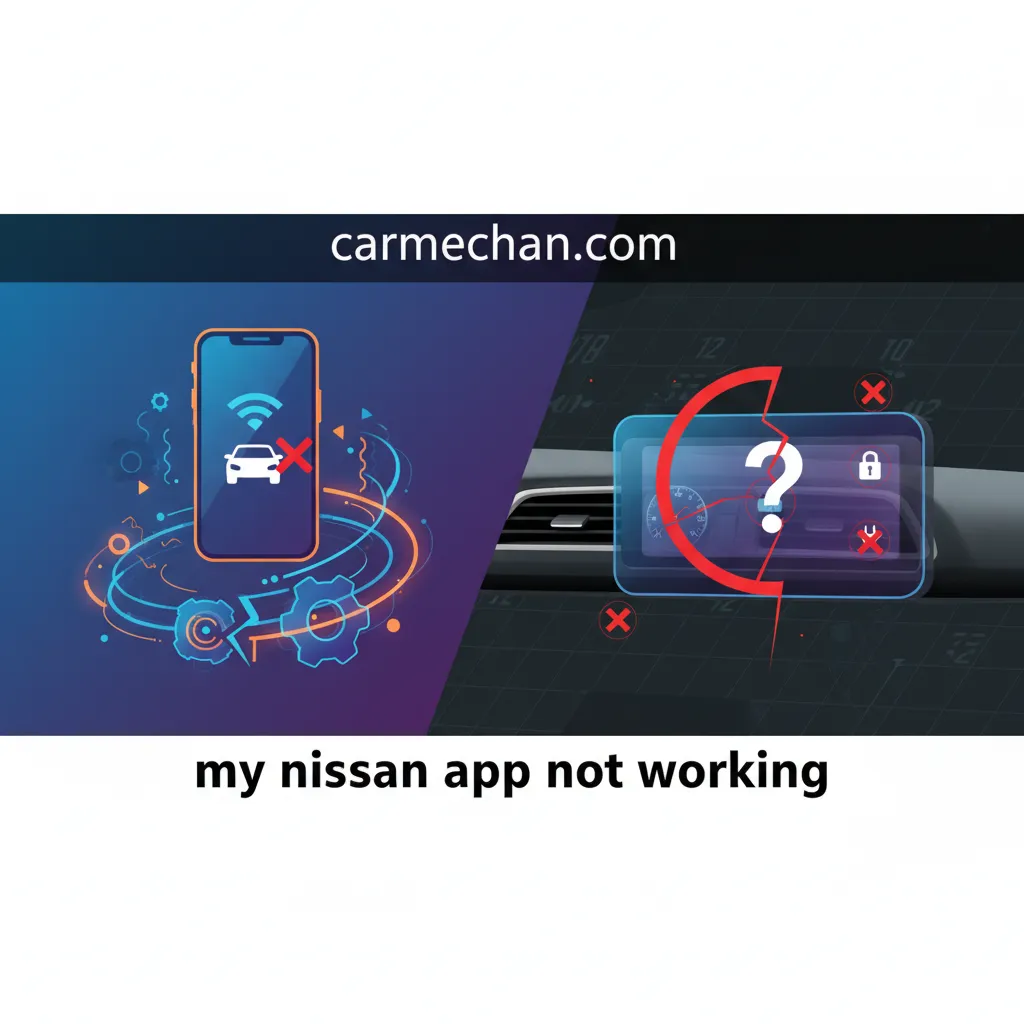
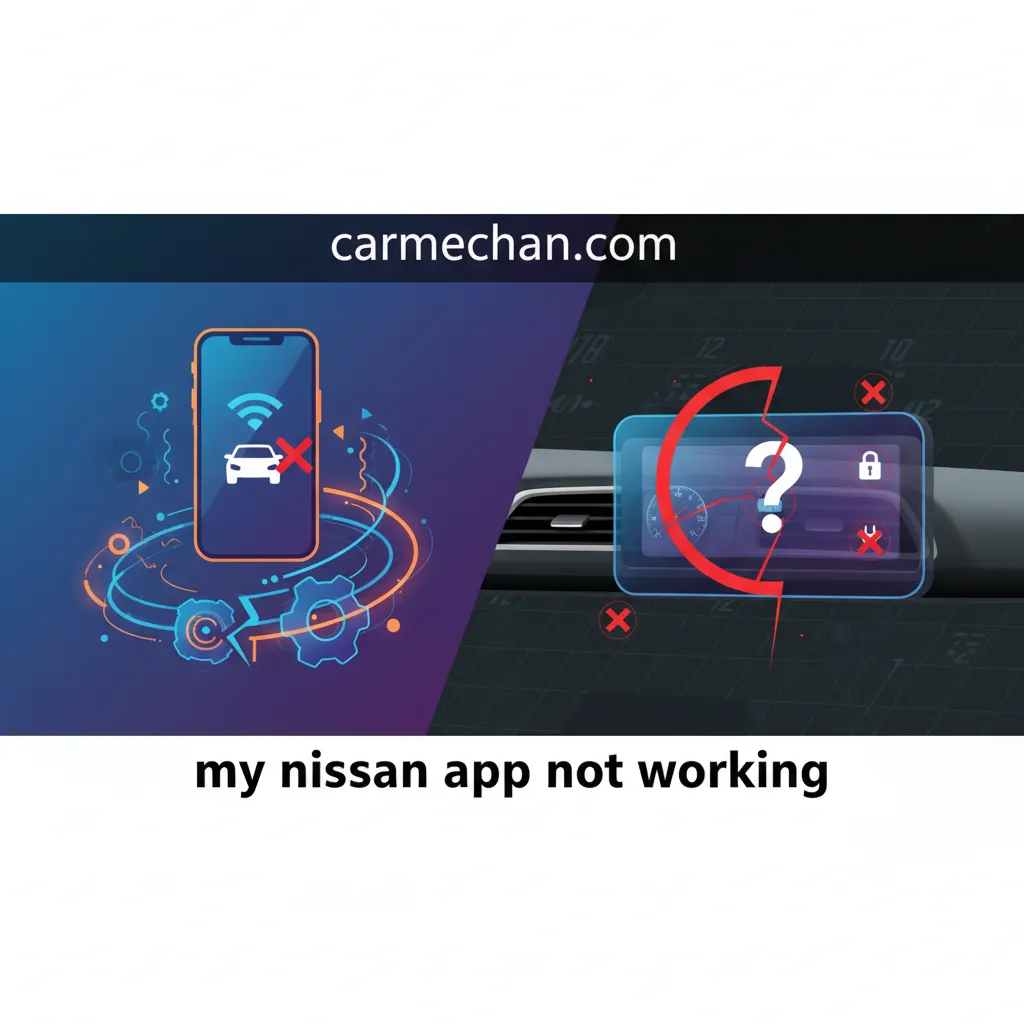
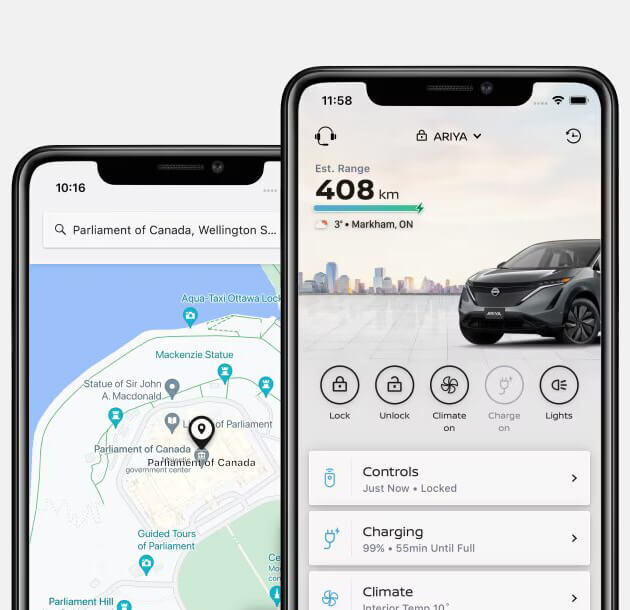
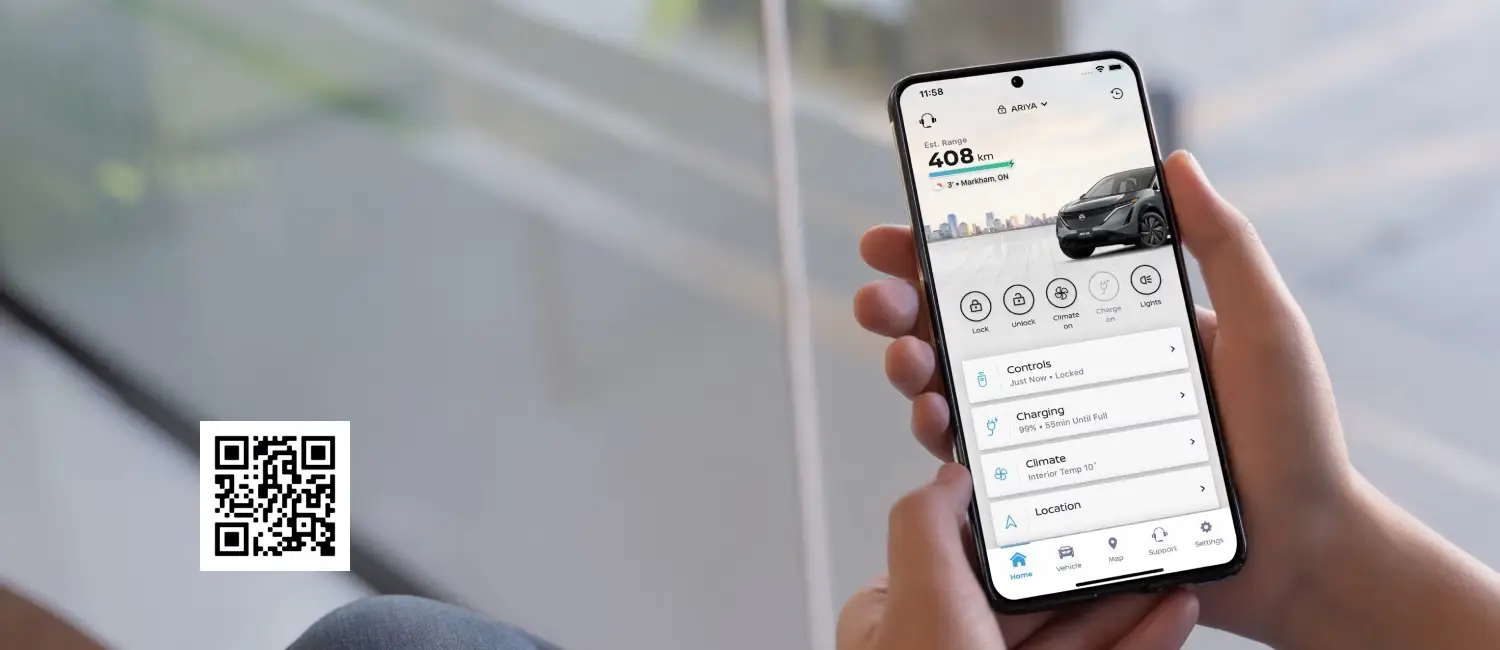
Experiencing frustrating issues with your NissanConnect Services app can be disruptive, preventing you from accessing crucial vehicle features and information. When your MyNissan app is not working, it can range from minor glitches like remote commands failing to more severe problems such as login difficulties or complete app unresponsiveness. Such failures can impede convenience, security, and access to vital vehicle data. This comprehensive guide provides an authoritative, step-by-step troubleshooting blueprint designed to diagnose and resolve a wide array of Nissan app functionality and connectivity issues, helping you regain seamless control over your vehicle. We will delve into initial diagnostics, app-specific data conflicts, vehicle telematics, account authentication, and advanced system resets to provide a robust solution for common malfunctions.
Run through these 60-second checks before diving into the full guide — most issues are solved right here:
- ✅ App & OS updated? — Install the latest NissanConnect app and phone OS version.
- ✅ Internet working? — Open another app to confirm your connection is stable.
- ✅ Nissan servers up? — Check Nissan’s status pages for a known outage.
- ✅ Subscription active? — Confirm NissanConnect Services hasn’t expired.
- ✅ Logged in correctly? — Re-enter credentials; check MFA codes arrive.
Initial Diagnostics: Essential Checks for Nissan App Malfunctions


Before delving into complex technical details, it is crucial to perform fundamental diagnostic checks. Many common ‘My Nissan App Not Working’ issues stem from basic oversights or temporary system glitches. This initial phase helps to rapidly diagnose and often fix problems without extensive effort, forming the baseline for more advanced troubleshooting if required.
📤 Share Image
Verify Device and App Compatibility
The foundation of a stable app experience begins with ensuring your mobile device and the NissanConnect Services app itself meet the minimum operational requirements. Neglecting this fundamental step is a common cause of malfunction. Always verify that your smartphone or tablet’s operating system (OS), whether iOS or Android, is updated to at least the minimum version specified by Nissan. Simultaneously, confirm that the NissanConnect Services app is running its latest iteration. Outdated software often harbors bugs and lacks crucial compatibility enhancements, potentially leading to the app failing to function correctly.
Scenario: A user attempting to perform remote commands finds the app unresponsive. An initial debug check reveals an outdated app version (e.g., attempting to run a modern Nissan app on iOS 13 when the application now mandates iOS 15 or higher). Updating both the OS and the app immediately provides the solution, re-establishing functionality.
Data Point: Keeping the app and device OS current — plus a simple restart — resolves a large share of first-time app issues. Always try this before deeper troubleshooting.
Assess Internet Connectivity
The NissanConnect Services app relies heavily on a stable internet connection to communicate with Nissan’s servers and your vehicle. Weak, intermittent, or non-existent Wi-Fi or cellular data signals can severely disrupt the app’s ability to send or receive commands and data. Distinguish between a genuinely stable connection and one that appears present but is unreliable. Test your device’s internet by browsing web pages or using other data-intensive applications. If other apps struggle, your Nissan app will too.
Real-world example: A user experiences a ‘failed to communicate’ error when attempting to remote start their vehicle. The underlying issue is often a weak cellular signal in an underground parking garage, preventing the device from maintaining a consistent data flow required for the command to register.
Perform Basic System Resets
A significant portion of transient app issues can be resolved by simple resets. Start by force-closing the NissanConnect Services app. On iOS, swipe up from the bottom of the screen (or double-tap the Home button) and swipe the app off the screen. On Android, navigate to your recent apps list and swipe the app away. Following this, perform a full device restart (power cycle your smartphone or tablet). This action clears temporary system glitches, refreshes memory, and can often resolve minor software conflicts that prevent the app from functioning optimally.
Confirm Server Status
Occasionally, the problem may not reside with your device or the app, but with Nissan’s backend servers. Widespread service outages or maintenance periods can render the app temporarily non-functional for all users. Before committing to extensive individual troubleshooting, check official Nissan channels. Look for announcements on the NissanConnect website, their official social media accounts, or user forums. If a known outage is occurring, patience is the only workaround until services are restored.
Resolving App-Specific Data and Permission Conflicts


Once basic checks are exhausted, the next step involves addressing issues specific to how the NissanConnect Services app interacts with your device’s operating system. Corrupted data, restricted permissions, or an unstable installation are frequent culprits behind persistent malfunctions and can be systematically resolved.
Clear App Cache and Data
Over time, cached files and associated data for any application can become corrupted, leading to performance issues, incorrect displays, or outright crashes. Clearing this data effectively gives the app a fresh start without requiring a full reinstallation.
📋
Step-by-Step Guide: Clearing App Cache & Data

Navigate to Settings > Apps & Notifications > See all apps > NissanConnect Services. Tap on Storage & cache, then select Clear cache and subsequently Clear storage / Clear data. Confirm the action when prompted.
iOS does not offer a direct ‘clear cache’ option for individual apps like Android. Your primary method is to offload the app (Settings > General > iPhone Storage > NissanConnect Services > Offload App) which frees up storage while keeping its documents and data. If this doesn’t resolve the issue, a full reinstallation (delete app, then re-download) is the next step to clear all app-related data.
Scenario: The Nissan app crashes repeatedly or displays outdated vehicle information. Clearing its cache and data frequently stabilizes it by removing corrupted temporary files that were hindering its operation, often a vital fix for persistent display issues.
Data Point: Clearing app cache and data is one of the most frequently recommended fixes in owner forums for persistent display or loading issues.
Review and Adjust App Permissions
Modern mobile operating systems allow granular control over app permissions. If the NissanConnect Services app lacks critical permissions, certain features will inevitably fail. Key permissions to verify include Location Services (for vehicle tracking and geofencing), Background App Refresh (for continuous updates), and Notifications (for alerts). Incorrectly configured permissions can directly impact the app’s ability to monitor vehicle status or execute remote commands effectively.
Example: A user reports that their vehicle’s location is not updating on the map within the app. Upon troubleshooting, it’s discovered that location services permission was inadvertently revoked for the Nissan app in device settings, rendering this feature inoperable. Granting the permission provides the immediate solution.
Data Point: Permission conflicts are easy to overlook, yet they are a common cause of failures in location-dependent features like vehicle tracking and geofencing.
Reinstall the NissanConnect Services App
When clearing cache and adjusting permissions doesn’t yield results, a complete reinstallation is often the most effective workaround. This process ensures a clean slate, eliminating any deep-seated corrupted files or configuration issues from previous installations.
Steps for Reinstallation:
- Uninstall: Press and hold the app icon until options appear, then select ‘Uninstall’ (Android) or ‘Remove App > Delete App’ (iOS).
- Restart Device: A full device restart after uninstallation can help clear any lingering app-related processes.
- Reinstall: Download the NissanConnect Services app directly from the official App Store (iOS) or Google Play Store (Android).
- Grant Permissions: During the initial setup, carefully grant all necessary permissions as requested by the app.
- Log In: Re-enter your NissanConnect credentials to log in.
Check for Device-Specific Settings
Many smartphones include features designed to optimize battery life or reduce data usage. While beneficial, these settings can inadvertently restrict the Nissan app’s background activity, preventing it from functioning correctly. Check for:
- Battery Optimization: Ensure the NissanConnect Services app is excluded from any aggressive battery optimization settings that might ‘put it to sleep.’
- Data Saver Modes: Verify that data saver or low data usage modes are not throttling the app’s ability to communicate over cellular networks.
- Background App Restrictions: Confirm that the app is allowed to run in the background without being aggressively closed by the OS.
Diagnosing Vehicle-to-App Communication and Telematics Failures
Beyond device and app-specific issues, a common cause of the ‘My Nissan App Not Working’ is a breakdown in communication between your vehicle’s telematics system and Nissan’s servers, or simply a lack of appropriate conditions at the vehicle itself. This section focuses on diagnosing the critical link from your Nissan vehicle to the digital ecosystem.
Verify NissanConnect Services Subscription Status
The advanced remote features of the NissanConnect Services app, such as remote start, door lock/unlock, and vehicle health reports, are not typically free services. They require an active subscription. It’s easy for trial periods to expire or for subscriptions to lapse without immediate notice. Access your Nissan Owner Portal or contact NissanConnect support directly to confirm that your subscription is current and active for your specific vehicle identification number (VIN).
Example: A user repeatedly receives a ‘service unavailable’ message when attempting to use remote features. The core issue, identified during debug efforts, is an expired trial subscription for NissanConnect Services, which prevents all premium app functionalities. Renewing the subscription provides the immediate solution.
Data Point: Expired trial subscriptions are a frequent culprit — always verify your NissanConnect plan is active before deeper troubleshooting.
Assess Vehicle Telematics Signal Strength
Just as your smartphone needs a good cellular signal to operate, your Nissan vehicle’s embedded telematics system requires a robust cellular connection to communicate with Nissan’s cloud servers. If your vehicle is parked in an area with poor cellular coverage—such as an underground garage, a remote rural location, or even certain dense urban areas—the app’s commands may fail to reach the car, and vehicle status updates may not transmit. If experiencing issues, try moving the vehicle to an open area with known good cellular reception and retest the app’s functionality.
Data Point: Poor cellular signal at the vehicle’s location is a leading cause of remote command failures — move the vehicle to an open area and retest.
Confirm Vehicle Prerequisites for Remote Commands
Nissan vehicles have specific safety and operational prerequisites that must be met for remote commands to execute successfully. These conditions are not optional; they are embedded for security and vehicle integrity. Ensure the following:
- Vehicle is Off: For remote start, the engine must be off.
- All Doors, Hood, and Trunk are Closed and Locked: This is a critical safety measure. An unlocked door or open hood/trunk will prevent remote commands.
- Sufficient Fuel/Battery Charge: Ensure the vehicle has enough fuel (for ICE vehicles) or sufficient battery charge (for EVs) to start.
- Gear Selector in Park: The transmission must be in ‘Park’ for remote start to engage.
- No Warning Lights: Major warning lights on the dashboard can inhibit remote functions.
Scenario: A user attempts a remote start, but the app returns an error. Upon investigation, it is found that one of the vehicle’s doors was not securely locked, or the hood was slightly ajar. Rectifying these simple physical conditions allows the remote command to proceed, serving as a straightforward fix.
Check Vehicle Infotainment System Status
The vehicle’s infotainment system acts as a gateway for telematics communication. If the infotainment system is frozen, displaying an error message, or otherwise non-responsive, it can interfere with the vehicle’s ability to communicate with Nissan’s servers. Power cycle your vehicle (turn it off, open and close the driver’s door, then wait a few minutes before restarting it) to reset the infotainment system. Verify that it boots up normally and is fully operational within the vehicle.
Troubleshooting Nissan Account and Authentication Challenges
Sometimes, the ‘My Nissan App Not Working’ isn’t a technical malfunction with the app or vehicle, but rather an issue with your user account or the authentication process. These challenges are often overlooked but are straightforward to debug and fix once identified.
Verify Login Credentials
The simplest, yet most common, cause of login failure is incorrect credentials. Double-check your username and password for your Nissan Owner Portal or NissanConnect Services account. Remember that passwords are typically case-sensitive. Avoid common typing errors or auto-fill mistakes. If you have multiple Nissan-related accounts (e.g., for different vehicles or services), ensure you are using the credentials specifically linked to the NissanConnect Services app and your registered vehicle.
Example: A user repeatedly fails to log in, receiving a ‘login failed’ error. After extensive troubleshooting, they discover they were using a legacy password associated with a different, older Nissan service, rather than their current NissanConnect account. Correcting the password resolves the access issue.
Execute Password Reset Procedures
If you suspect your password is incorrect or forgotten, do not continue guessing, as repeated failed attempts can lock your account. Initiate the password reset procedure immediately through the official NissanConnect website or the Nissan Owner Portal. Ensure you have access to the email address associated with your account, as reset links are typically sent there. Follow the on-screen instructions carefully to establish a new, strong password.
Address Multi-Factor Authentication (MFA) Issues
Multi-Factor Authentication adds a crucial layer of security, but it can also be a point of failure if misconfigured. Common MFA problems include delayed verification codes, codes being sent to an outdated phone number or email, or issues with third-party authenticator apps.
- Check Spam/Junk Folder: For email-based codes.
- Verify Contact Info: Log into your Nissan Owner Portal (if you can, or initiate recovery) to ensure your registered phone number or email for MFA is current.
- Time Sync: Ensure your device’s time is set to automatic, as authenticator apps rely on precise time synchronization.
- Resend Code: Utilize the ‘resend code’ option if the initial one doesn’t arrive promptly.
Scenario: MFA codes are not arriving on a user’s phone, preventing login. The debug process reveals an outdated phone number associated with the account in the Nissan portal. Updating the contact information provides the necessary solution for code delivery.
Data Point: Account issues — password resets, login failures, and MFA delivery problems — make up a large share of app support inquiries. Double-check credentials and MFA settings first.
Review Account Status and Linkage
Occasionally, an account might be temporarily suspended, locked, or incorrectly linked to a vehicle VIN. Log into the Nissan Owner Portal (or NissanConnect website) via a web browser to confirm your account’s active status. Verify that your vehicle’s VIN is correctly registered and linked to your NissanConnect Services account. Any discrepancies here can prevent the app from recognizing your vehicle or accessing its services.
Advanced Diagnostic Steps and System Resets for Persistent Issues
If you’ve systematically worked through all the previous troubleshooting steps and your NissanConnect Services app still isn’t working, it’s time to consider more advanced diagnostics and system-level resets. These steps address deeper software conflicts or communication blocks that simpler methods might not resolve, offering a potential fix where others have failed.
Perform a Hard Reset of Your Mobile Device
A hard reset differs from a simple restart; it forces the device’s operating system to completely refresh, clearing out more deeply embedded temporary data and potentially resolving kernel-level software glitches. The procedure varies by device model:
- iOS: For most recent iPhones (iPhone 8 and later), quickly press and release Volume Up, then Volume Down, then press and hold the Side button until the Apple logo appears. For older models, refer to Apple’s support documentation.
- Android: This varies significantly by manufacturer (Samsung, Google Pixel, etc.). Typically involves pressing and holding the Power button and a Volume button simultaneously for an extended period (10-30 seconds). Consult your device’s manual for the precise sequence.
This action is a robust workaround for pervasive system instability.
Reset Network Settings on Your Device
Corrupted network configurations on your mobile device can silently interfere with app connectivity, even if other internet functions appear normal. Resetting network settings deletes all Wi-Fi passwords, cellular settings, VPN configurations, and Bluetooth pairings, forcing your device to rebuild them. This can often resolve mysterious connectivity blocks that prevent the Nissan app from establishing a secure connection.
- iOS: Settings > General > Transfer or Reset iPhone > Reset > Reset Network Settings.
- Android: Settings > System > Reset options > Reset Wi-Fi, mobile & Bluetooth (or similar path, varies by device).
Example: A user’s app consistently shows ‘offline’ despite perfect internet connectivity for other apps. Resetting network settings on their phone effectively resolves the underlying communication block, providing an elegant solution.
Data Point: If you use a VPN, try disabling it or resetting network settings — VPNs are a known source of app connectivity problems.
Consider In-Vehicle Infotainment System Reset
If the issue seems to originate from the vehicle’s side, and the infotainment system is unresponsive or buggy, a reset can be an effective alternative. Some Nissan models allow a user-initiated soft reset through a combination of button presses (e.g., holding down the audio power button for 10-15 seconds). A factory reset, if available, would return the infotainment system to its default state but may require re-pairing devices and reconfiguring settings. Consult your vehicle’s owner’s manual for specific instructions, as incorrect procedures can cause further issues.
Scenario: The in-vehicle system is unresponsive to app commands or displays a persistent connectivity error. An infotainment system reset can often refresh its internal modules, helping to re-establish the critical connection to Nissan’s telematics services.
Data Point: Infotainment system resets are rarely needed, but they are the correct next step when in-vehicle communication failures persist.
Investigate VPN or Proxy Conflicts
Virtual Private Networks (VPNs) and proxy servers encrypt and reroute your device’s internet traffic. While excellent for privacy and security, they can occasionally interfere with specific applications’ ability to establish direct, secure connections to their designated servers. Temporarily disabling any active VPN services or proxy settings on your mobile device is a crucial troubleshooting step to rule out this potential cause of connectivity issues. If the app functions correctly after disabling the VPN, you’ve found your culprit; you may need to configure an alternative VPN setup that allows the Nissan app to bypass its tunnel.
After performing any system reset on your device or in your vehicle, always perform a full device restart and re-open the NissanConnect Services app to ensure all changes are correctly applied and processes are refreshed.
When to Contact Nissan Support: Escalation and Information Gathering
Despite thorough troubleshooting, some persistent issues with your NissanConnect Services app may require expert intervention. Knowing when to escalate and what information to provide can significantly expedite the solution process, minimizing your downtime and frustration.
Identify Escalation Triggers
It’s time to contact Nissan support if:
- You have systematically followed all diagnostics and fix steps outlined in this guide without success.
- The app consistently displays persistent, specific error codes (e.g., ‘System Error 0x80070005’) that do not clear.
- Remote commands fail repeatedly despite confirming subscription, strong signals, and all vehicle prerequisites.
- You cannot log into your account, even after attempting password resets and MFA debug.
- The issue appears to be a widespread service outage not publicly acknowledged by Nissan (though this is rare).
Example: A user presents a screenshot of a recurring ‘System Error 0x80070005’ message that persists despite clearing cache, reinstalling, and verifying account details. This is a clear indicator that the problem requires professional intervention.
Compile Essential Information
Before contacting support, gather the following crucial data points. This preparation significantly helps support agents diagnose your issue more quickly.
- Vehicle VIN: Your Vehicle Identification Number (found on your dashboard, door jamb, or registration).
- NissanConnect Account Details: Your username/email, and the associated phone number.
- Mobile Device Model and OS Version: (e.g., iPhone 13 Pro, iOS 17.2; Samsung Galaxy S23, Android 14).
- NissanConnect Services App Version: (usually found in the app’s settings or “About” section).
- Specific Error Codes or Messages: Take screenshots if possible.
- Detailed Symptoms: What exactly isn’t working? When did it start? What steps have you already taken?
- Location of Vehicle and Device: Are they in areas with good cellular/Wi-Fi signal?
Data Point: Providing exact error codes and detailed symptom descriptions helps support resolve your case faster.
Utilize Nissan Support Channels
Nissan offers several channels for customer support:
- NissanConnect Services Customer Support: The most direct line for app and telematics issues. Check the official Nissan website for the most current phone numbers and operating hours.
- Online Chat/Email Support: Available on the NissanConnect or Nissan Owner Portal websites for less urgent inquiries.
- Authorized Nissan Dealership Service Department: For issues suspected to be hardware-related within the vehicle’s telematics unit or infotainment system, a dealership visit may be necessary.
Understand the Support Process
When you contact support, be prepared for them to walk you through some of the troubleshooting steps you’ve already performed. This is standard procedure to ensure nothing was missed. They may initiate remote diagnostics on your vehicle’s telematics system. If the issue cannot be resolved remotely, they will likely recommend a visit to an authorized Nissan dealership for further in-person inspection and repair.
Data Point: For complex telematics faults that resist remote fixes — especially those needing physical inspection or module reprogramming — a dealership visit is usually the final step.
By The Numbers
Reduced Resolution Time (with detailed info)
Complex Issues Resolved by Dealerships
Effectively addressing the ‘My Nissan App Not Working’ issue requires a methodical approach, starting from the simplest checks and progressing to more complex system interactions. By systematically applying these troubleshooting strategies, most Nissan app malfunctions can be effectively resolved, ensuring seamless integration with your vehicle. Start with basic checks: ensure your app and device OS are updated, and confirm internet connectivity. Next, address app-specific issues by clearing the app’s cache, verifying essential permissions, or performing a clean reinstallation. Then, validate your vehicle’s connectivity: confirm your NissanConnect subscription status, assess telematics signal strength, and verify vehicle readiness for remote commands. Don’t overlook managing account credentials; troubleshoot login difficulties, password resets, and any Multi-Factor Authentication challenges. Finally, if all self-service attempts fail, gather all diagnostic information and contact Nissan Customer Support or your authorized dealership for expert assistance, equipped with the knowledge to facilitate a quicker solution.
Frequently Asked Questions
Why is my Nissan app saying ‘failed to communicate’ with the vehicle?
This error often indicates a connectivity issue. First, ensure your vehicle has a strong cellular signal and is parked in an open area. Verify your NissanConnect subscription is active and that your vehicle’s ignition is off, doors are locked, and battery is charged. Also, check your mobile device’s internet connection. If these are all confirmed, try restarting both the app and your mobile device.
What should I do if my Nissan app remote start isn’t working?
For remote start to function, several conditions must be met: the vehicle doors must be locked, the hood and trunk closed, the shifter in ‘Park,’ and the engine off. Ensure your vehicle has adequate fuel and battery charge. Also, verify your NissanConnect subscription is active and that both your mobile device and vehicle have a strong network signal. Check for any active warning lights on your dashboard.
How do I clear the cache for the Nissan app on my phone?
On Android, go to ‘Settings’ > ‘Apps’ (or ‘Apps & Notifications’) > ‘NissanConnect Services’ > ‘Storage’ > ‘Clear Cache’ and ‘Clear Data.’ On iOS, there isn’t a direct ‘clear cache’ option for individual apps; uninstalling and reinstalling the app is the most effective way to clear its cached data and ensure a fresh start.
My Nissan app login is failing, even with the correct password. What’s wrong?
If your login is failing despite correct credentials, first ensure you’re using the correct username (often your email). Try resetting your password via the Nissan Owner Portal to rule out any synchronization issues. Also, check for multi-factor authentication (MFA) problems, such as delayed verification codes, and ensure your account isn’t locked or suspended. Verify no service outages are impacting login.
Can an outdated phone OS cause the Nissan app to malfunction?
Yes, an outdated operating system (OS) on your smartphone can absolutely cause the Nissan app to malfunction. App developers design their applications to be compatible with specific OS versions. If your phone’s OS is significantly older than the app’s minimum requirements, you may experience crashes, unresponsive features, or complete inability to open the app. Always ensure your device’s OS is updated.
How do I check if the Nissan app or NissanConnect servers are down?
Before troubleshooting your phone, rule out a Nissan-side outage: check Nissan’s official support pages and social channels for service-status notices, and search recent reports from other owners. If the outage is on Nissan’s end, remote commands, vehicle location refresh, and login may all fail at once across devices — in that case the only fix is to wait for Nissan to restore service, then sign out and back in once it’s resolved.