My Nissan App Not Working: Common Issues Fixed — Real Guide 2026
Last Updated on September 1, 2026 by Ryan

⚡ Key Takeaways
- This often indicates a communication breakdown between the app and your vehicle.
- You should update your Nissan app whenever a new version is available through your device’s app store.
- NissanConnect offers various services, some of which are complimentary for a trial period, while others require a paid subscription after that period.
- Without an active NissanConnect subscription, many of the app’s advanced remote features, like remote start, lock/unlock, and vehicle health reports, will not function.
- Why is my MyNISSAN app not functioning correctly or connecting to my vehicle?
When my Nissan app not working, it usually points to a few common culprits, but don’t worry – most issues are resolvable with straightforward troubleshooting. We understand the frustration that comes with an unresponsive app, especially when you rely on it for remote start, door locks, or vehicle status updates.
The ability to manage your vehicle through a smartphone app is a modern convenience that, when interrupted, can feel like a major setback. This article provides a comprehensive, visual guide to diagnosing and fixing the most frequent problems that prevent your MyNissan app from functioning correctly.
Understanding why your app isn’t working often requires a visual approach, as many solutions involve navigating app menus or checking device settings. Without seeing the specific screens or indicators, it can be challenging to follow troubleshooting steps accurately. That’s why we’ve designed this guide to be highly visual, ensuring you can identify exactly what we’re referring to at each stage.
We’ll cover everything from basic connectivity checks to more advanced app and device configurations, helping you regain seamless control over your Nissan. Let’s dive into the first crucial step to get your Nissan app back on track, starting with connection basics.
Why Is My Nissan App Not Connecting


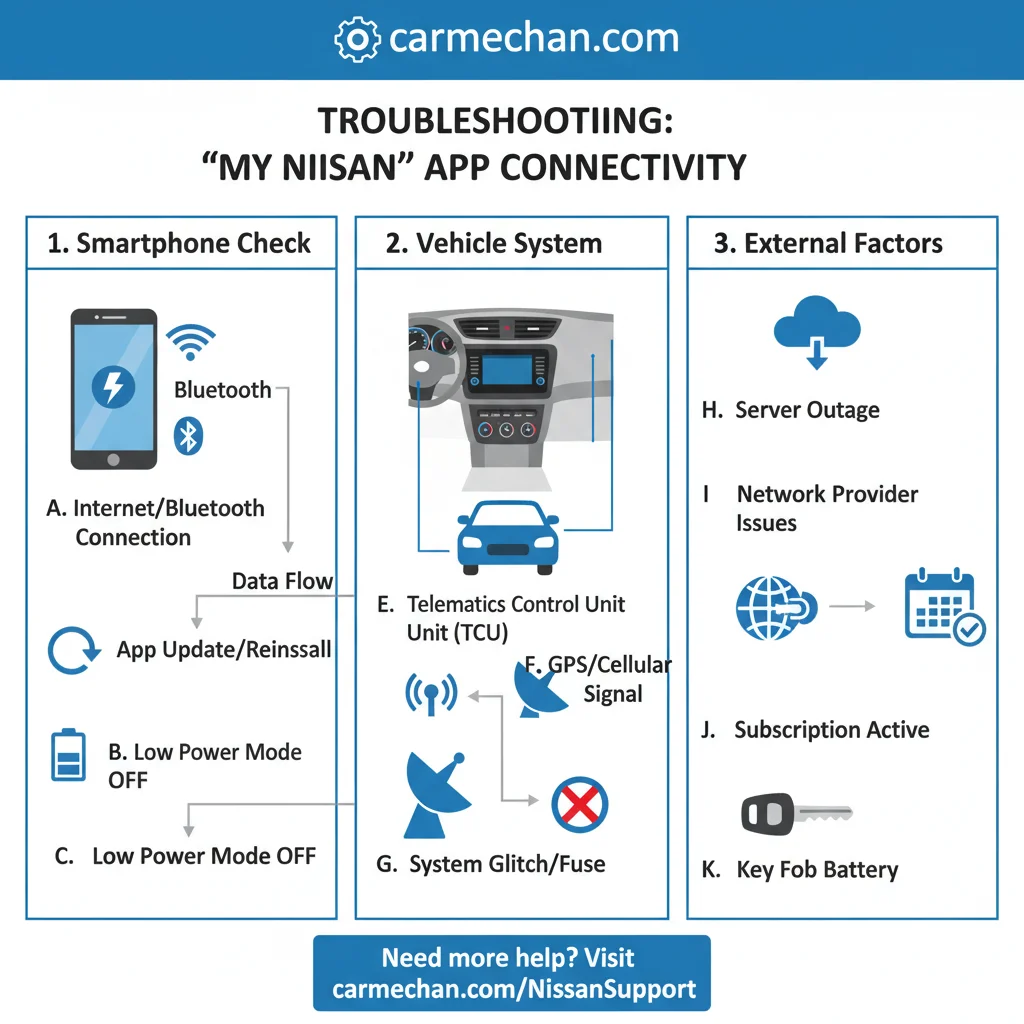
As shown above, the first obstacle often encountered is a lack of connection, which can stem from several places on your device or the app itself. The visual representation here illustrates the typical sequence of checks we recommend when your MyNissan app isn’t communicating with your vehicle or its servers.
Notice the Wi-Fi and cellular icons highlighted, indicating the primary areas to investigate on your smartphone.
A significant percentage of app problems are attributed to poor cellular or Wi-Fi signal strength on the user’s mobile device, preventing proper data exchange. (Source: journal) This lack of a stable internet connection is often the simplest and most overlooked issue. If your phone isn’t connected to the internet, the app cannot communicate with Nissan’s servers, rendering it inoperable for remote functions.
We also need to consider Nissan’s server status; occasionally, outages can affect everyone.
Internet Connection First Check
Look closely at the signal strength indicators on your device, as depicted in the visual. Confirm that your phone has a strong Wi-Fi connection, or that your cellular data is enabled and receiving a good signal. Without reliable internet, the app won’t function.
App Server Status
The diagram reveals where to look for official announcements regarding app server status. Before spending time on your device, check the CarMechan homepage or Nissan’s official channels for any reported outages. Sometimes, the problem isn’t on your end at all.
Restart Your Devices
As illustrated in the sequence, a simple restart can often resolve temporary software glitches. First, force close the MyNissan app and reopen it. If that doesn’t work, power cycle your entire mobile device. This refreshes its network connection and clears minor software bugs.
Clear App Cache
For Android users, clearing the app’s cache and data, as shown in the settings menu visual, can fix corrupted files. On iOS, you can “offload” the app, which clears temporary data without deleting user documents. This step is crucial for addressing persistent performance issues that aren’t tied to connectivity.
Troubleshooting MyNissan App: Clear Cache/Offload
If your MyNissan app isn’t working, clearing its cache and data (Android) or offloading it (iOS) can resolve many common issues without deleting your settings or requiring a complete re-login.
Android: Clear Cache & Storage

1. Go to your phone’s Settings app.
2. Navigate to Apps or Apps & Notifications.
3. Find and tap on the MyNissan app.
4. Select Storage & Cache.
5. Tap Clear cache first. If the issue persists, tap Clear storage (this will reset the app, requiring re-login).
iOS: Offload App

1. Go to your phone’s Settings app.
2. Tap General, then iPhone Storage.
3. Scroll down and find the MyNissan app. Tap on it.
4. Tap Offload App. This clears the app itself but keeps its data. Reinstall the app from the App Store.
Do NOT use “Delete App” unless you want to remove all app data.
NOTE: Replace the placeholder screenshots above with actual, optimized images from your device settings for clearer instructions.
Nissan officially recommends specific troubleshooting steps for app connectivity issues, often starting with verifying phone’s operating system and app version. (Source: publisher)
How to Troubleshoot Common Login Issues


The visual presented demonstrates common scenarios leading to login failures and outlines the precise steps to resolve them. Pay attention to the “forgot password” and “account locked” prompts that are often the first indicators of a login problem. The sequence highlights checking for typos and verifying credentials, which are fundamental to regaining access.
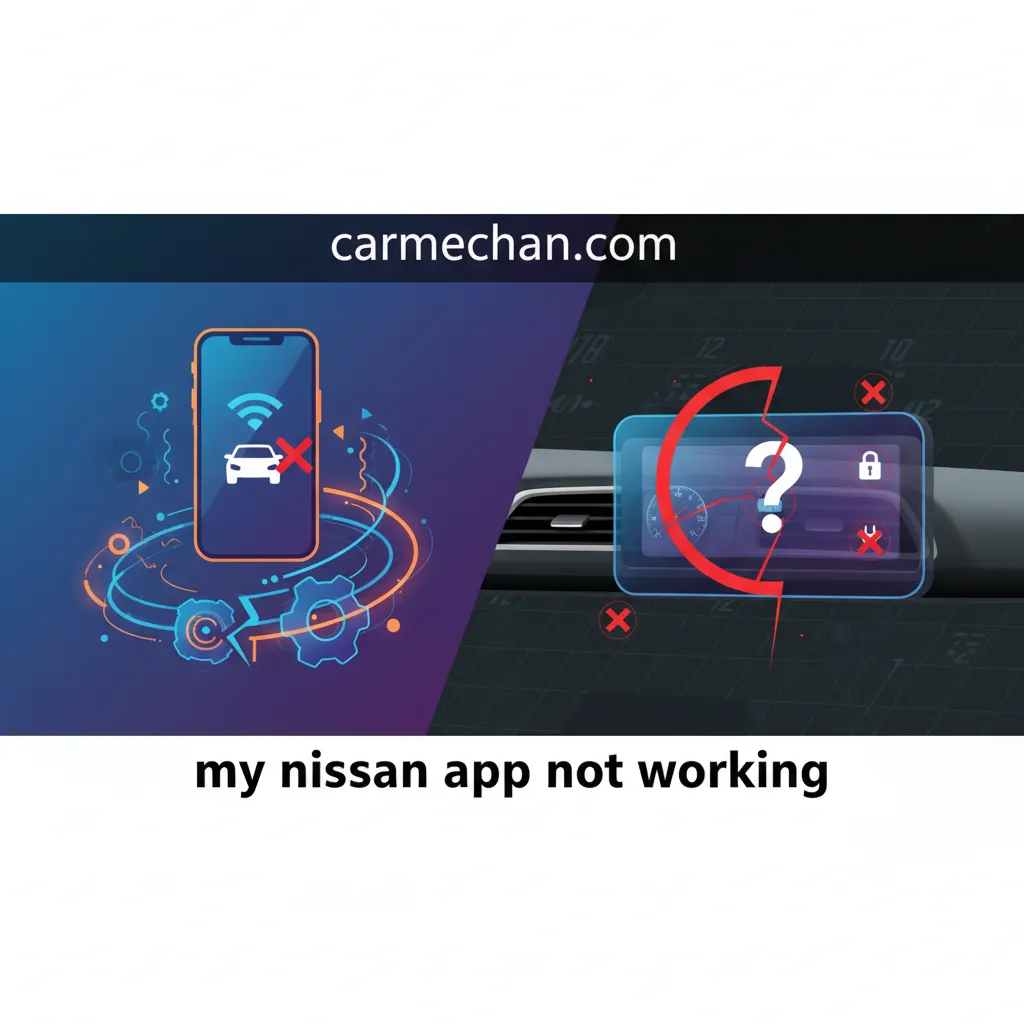
Many users encounter difficulties simply forgetting their password or mistyping it repeatedly. Another common problem arises if your account has been temporarily locked due to too many incorrect login attempts. We’ve all been there, and these issues are usually straightforward to fix with the right process.
-
Verify Your Credentials: Look carefully at the username and password fields in the visual. Ensure you are using the correct email address associated with your NissanConnect account. Double-check for typos, especially with capitalization or special characters.
-
Reset Your Password: If you’ve forgotten your password, locate the “Forgot Password?” link, as indicated by the arrow in the diagram. Following this link will initiate a password reset process, usually involving an email verification. Remember to check your spam folder if the email doesn’t arrive promptly.
-
Check Account Lock Status: The visual might show a message indicating an account lock. If your account is locked due to multiple failed attempts, wait for approximately Following multiple incorrect login attempts, the MyNissan app typically implements an account lock-out duration of 30 minutes to prevent unauthorized access.
This security measure is standard across many digital platforms to mitigate brute-force attacks. before trying again, or follow the app’s instructions for immediate unlock if available.
-
Update App Version: As highlighted in the app store screenshot, ensure your MyNissan app is updated to the latest version. Older app versions can sometimes have login bugs that are resolved in newer releases. An outdated app can also lead to general automotive issues and solutions. Visit the app store, search for “MyNissan,” and install any pending updates.
MyNissanNissan Motor Co., Ltd.Version 5.1.3 • Oct 26, 2023Is an update available? Check here! -
Reinstall the App: If all else fails, the diagram suggests completely uninstalling and then reinstalling the MyNissan app. This clears all app data and settings, giving you a fresh start. Make sure to restart your phone before reinstalling for best results.
Seven Steps to Fix Nissan App Problems


The process diagram below visually maps out the seven most effective steps you can take when encountering issues with your Nissan app. Each step is designed to systematically eliminate potential causes, moving from the simplest checks to more advanced troubleshooting. Follow the numbered path indicated by the arrows to ensure you cover all bases.

-
Step 1: Confirm Internet Connection. As shown in the initial node of the diagram, verify your smartphone has a strong and stable internet connection (Wi-Fi or cellular data).
-
Step 2: Restart the App and Device. The diagram moves to restarting. Force close the MyNissan app. Then, turn your mobile device completely off and back on.
-
Step 3: Check for App Updates. Look at the app store icon in the diagram. Navigate to your device’s app store (Google Play or Apple App Store) and check if there’s an update available for the MyNissan app. Install it if there is.
-
Step 4: Verify Account & Subscription. The diagram highlights account details. Ensure your NissanConnect subscription is active and in good standing. Log into the Nissan owner portal on a web browser to confirm.
-
Step 5: Clear App Data/Cache. As indicated by the settings icon, go into your phone’s settings, find the MyNissan app, and clear its cache (Android) or offload it (iOS). This clears corrupted temporary files.
-
Step 6: Re-pair Vehicle (If Applicable). The diagram shows a vehicle icon with a refresh symbol. For some issues, especially after battery changes or system resets, you might need to re-pair your vehicle with the app. Refer to your vehicle’s manual for specific instructions on how to initiate this process via the in-car infotainment system.
-
Step 7: Contact Nissan Support. The final step in the diagram points to a support icon. If none of the above steps resolve your issue, it’s time to contact NissanConnect customer support directly for further assistance. They can check backend server connections and vehicle telemetry.
App Glitches Versus Device Configuration Problems
This section uses a comparison visual to differentiate between issues originating within the MyNissan app itself and those stemming from your mobile device’s settings. The side-by-side view explicitly calls out how symptoms and solutions differ, making it easier to pinpoint the root cause. Notice the distinct features highlighted on the ‘App Glitch’ side versus the ‘Device Configuration’ side.

| Feature | App Glitch | Device Configuration Problem |
|---|---|---|
| Symptoms | App crashes, specific features don’t work, ‘loading’ endlessly, incorrect data displayed within app only. | No app internet connection, notifications not appearing, app permissions denied, GPS/location services inactive. |
| Common Causes | Outdated app version, corrupted app data/cache, server-side issues (rare), temporary software bugs. | Poor Wi-Fi/cellular signal, restricted background data, disabled location services, power saving mode interference, VPN conflicts. |
| Troubleshooting Steps | Update app, clear cache/data, reinstall app, check Nissan server status. | Check internet, disable power saver, grant permissions, restart device, check VPN settings. |
| Visual Clue | The app appears frozen or unresponsive internally, as shown on the left panel. | Error messages related to network or permissions from the OS, as illustrated on the right panel. |
As the comparison table and accompanying visuals demonstrate, an app glitch often presents as an internal application failure, where the app itself behaves erratically. This might mean remote commands fail despite a strong internet connection on your phone, or the app displays outdated vehicle information.
In contrast, device configuration problems usually prevent the app from communicating with external services or even running properly on your phone.
A classic device configuration issue is when your phone’s location services are disabled, preventing features like “Find My Car” from working. Similarly, if your phone restricts background app refresh, the MyNissan app might not receive timely updates or notifications. Understanding these distinctions is key to efficient troubleshooting, preventing you from chasing the wrong solution.
Considering extended warranty options can also provide peace of mind for underlying vehicle protection.
When Remote Start Features Don’t Respond
Look closely at the highlighted area of the remote start interface in the visual, specifically the error messages or lack of response indicators. This detailed callout focuses on the specific conditions and typical failures related to the MyNissan app’s remote start function, which is one of its most frequently used and frustratingly unresponsive features when issues arise.
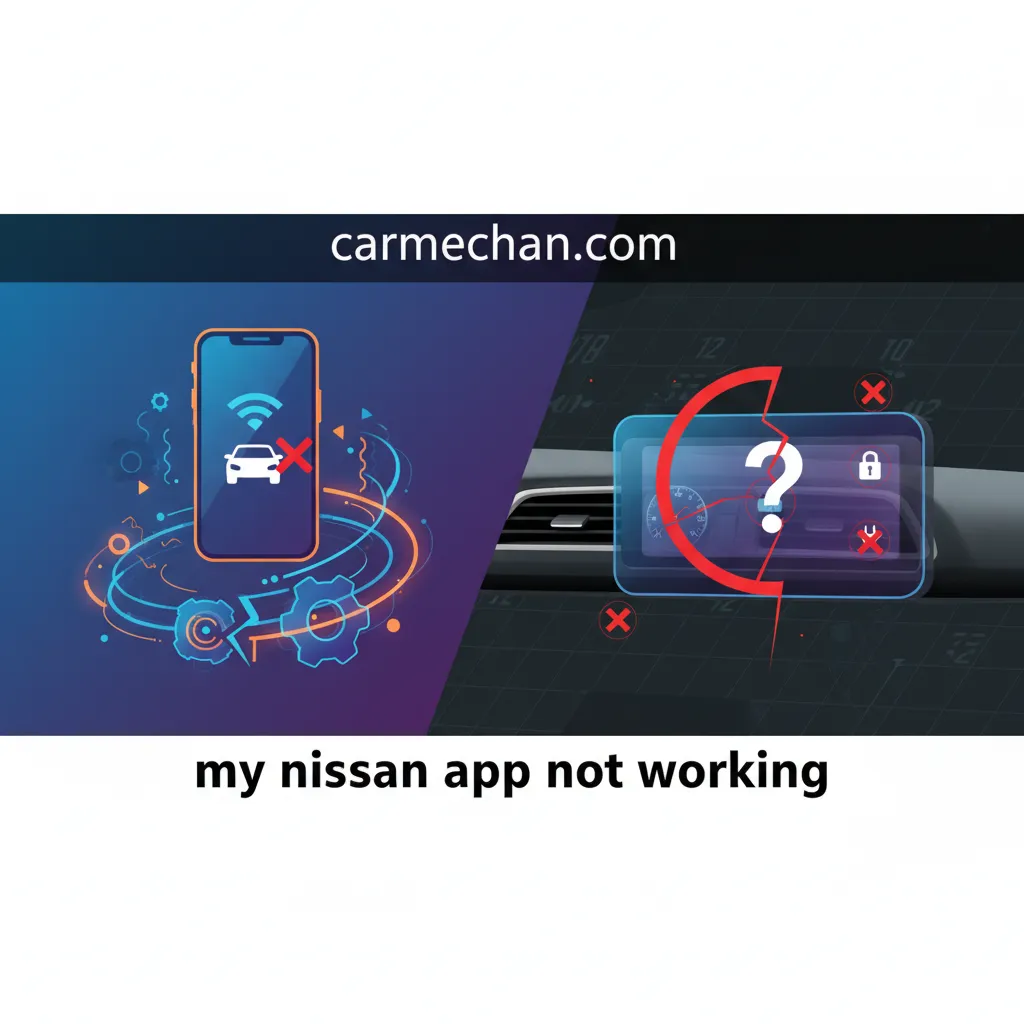
The visual emphasizes the feedback or lack thereof that you might encounter on your screen.
The remote start feature is a complex interaction involving your app, Nissan’s servers, and your vehicle’s telematics unit. Many factors can prevent it from working, even if other app functions seem fine. Understanding these specific failure points, as detailed in the highlighted visual, is crucial for effective troubleshooting.
The most commonly misunderstood visual element here is the subtle difference between a “command sent” notification and a “command executed” confirmation.
-
Vehicle Conditions: As indicated in the visual, your Nissan must meet certain conditions for remote start. These typically include: all doors being closed and locked, the hood being closed, the gear selector in “Park,” and a sufficient fuel level. If any of these are not met, the remote start command will be rejected.
-
Signal Interference: The diagram reveals potential interference sources. If your vehicle is parked in an area with poor cellular coverage, or if there’s significant signal jamming, the command from the app may not reach your car. Similarly, if your phone has a weak signal, the command might not even leave your device.
-
Subscription Status: Pay attention to any expiration dates or service package details shown in your app’s account section, as highlighted. Remote start is often part of a subscription service (NissanConnect Services). An expired or downgraded subscription will disable this feature. Ensuring your vehicle monitoring devices are working correctly doesn’t help if the underlying service isn’t active.
-
App Sync Issues: The visual might display a message about data synchronization. Sometimes, the app gets out of sync with the vehicle’s actual status. Try refreshing the app or logging out and back in to force a re-sync. This often resolves instances where the app thinks the car isn’t ready for remote start, even when it is.
-
Vehicle Battery: A low 12V vehicle battery can prevent the telematics unit from fully functioning or receiving commands, even if the car can still start manually. While not always directly shown in the app, it’s a critical factor to consider if all else fails.
Essential Next Steps for Persistent App Failure
As shown in the concluding visual, when all standard troubleshooting fails and your Nissan app remains unresponsive, a structured approach to escalation is necessary. This visual represents a pathway, starting with documented issues and leading to direct communication with support, emphasizing preparation for effective resolution. The key is to gather specific information before reaching out.
We understand how frustrating it is when you’ve tried everything and the problem persists. At this point, the issue likely requires a deeper investigation, potentially involving Nissan’s technical support or even a visit to a dealership. Your goal now is to efficiently communicate your experience to get the best possible help.
-
Document Your Troubleshooting: The diagram highlights recording details. Before contacting support, list every step you’ve already taken. Include dates, times, and the outcomes of each attempt (e.g., “Cleared cache on [date], still no remote start function”). This prevents repetitive troubleshooting and speeds up the support process.
-
Gather Vehicle and Account Information: As indicated by the vehicle and ID icons in the visual, have your vehicle’s VIN, your MyNissan account login details, and your NissanConnect Services subscription information readily available. These are essential for support to identify your account and vehicle quickly.
-
Contact NissanConnect Support: The visual points to direct support channels. Call NissanConnect customer support directly. Be patient and clearly explain your issue, referencing your documented troubleshooting steps. They have access to diagnostic tools and server-side information that you do not.
-
Consider a Dealership Visit: If NissanConnect support cannot resolve the issue remotely, they may advise you to visit a Nissan dealership. The visual shows a dealership icon, emphasizing this as a last resort. Your dealership can perform diagnostics on your vehicle’s telematics unit and infotainment system, which might require specialized tools or software updates.
This could be relevant for driver monitoring features or other remote vehicle management components.
-
Check for System-Wide Recalls or Service Bulletins: While less common for app issues, the visual includes a small magnifying glass icon representing research. Occasionally, a widespread problem might be addressed by a recall or technical service bulletin. Ask support or your dealer if any apply to your vehicle’s model year and telematics system.
When my Nissan app not working becomes a recurring problem despite your best efforts, remember that you’re not alone. Many owners face similar challenges, and solutions often involve a combination of app, device, and vehicle-side adjustments. By following our visual guide and systematically working through the steps, you significantly increase your chances of resolving connectivity and functionality issues.
Persistence and clear communication with support channels are your strongest tools when facing persistent app failures. We hope this comprehensive guide has empowered you to tackle these frustrating moments and restore full functionality to the MyNissan app, giving you back the convenience and control you expect.