How to Use Rivian Cruise Control: Mastered Step by Step
Driving a Rivian is a high-tech experience, but the most sophisticated part of your R1T or R1S might be the Driver+ cruise control system. Many owners feel uncertain about when to trust the car’s automated steering and speed control. In this guide, we will break down exactly how to use Rivian cruise control, ensuring you remain in total control while enjoying the convenience of Driver+ technology.


Understanding the Architecture of Rivian Driver+ Systems


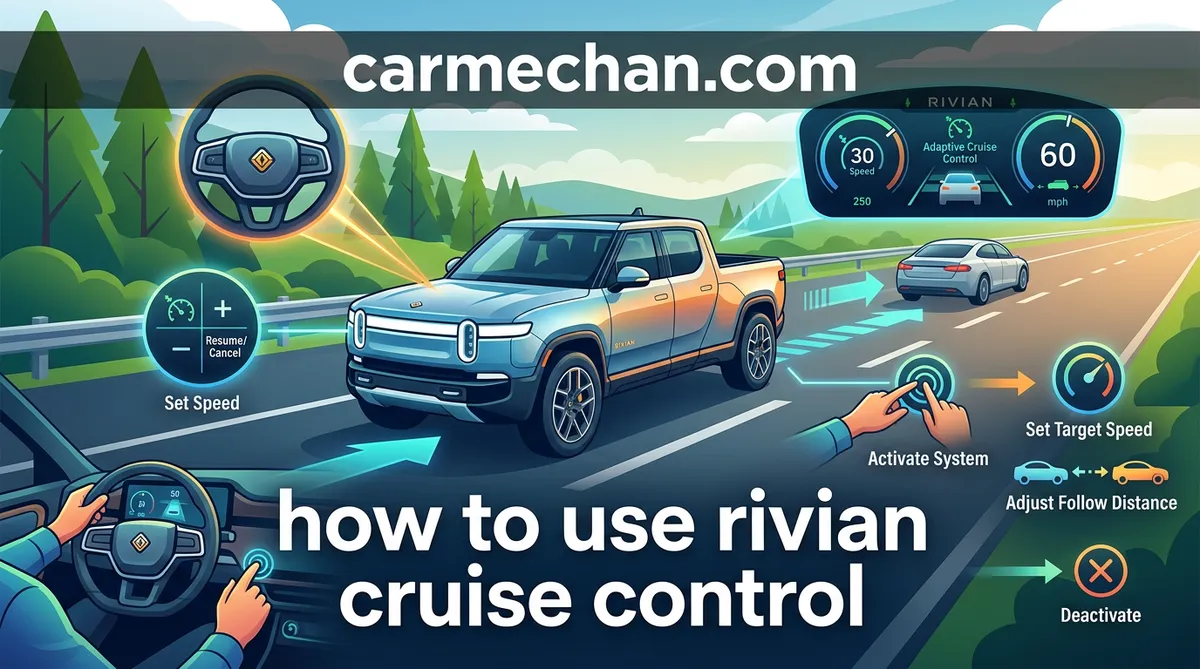
To effectively master the system, one must first recognize that Driver+ is a suite of hardware and software components working in harmony. The system relies on a complex array of cameras and radar sensors to create a 360-degree environmental model. This is not a “set and forget” feature; it is an active assistance tool.
📤 Share Image
How sensors track the road environment
Rivian vehicles use high-resolution cameras and forward-facing radar to detect lane markers, traffic signs, and lead vehicles. The synergy between these sensors allows the vehicle to calculate distance and speed adjustments in real-time. When you see the ‘blue icons’ materialize on your driver display, the system has successfully locked onto the lane lines and is ready to provide assistance.


The role of the driver monitoring camera
Safety is the cornerstone of the Rivian design philosophy. A dedicated interior driver monitoring camera ensures that you remain attentive to the road. If the system detects that your eyes are diverted from the road for too long, it will provide auditory and visual alerts. Research indicates that maintaining driver engagement is vital for the safe operation of ADAS (Advanced Driver Assistance Systems).

Distinguishing Driver+ from standard cruise control
Standard cruise control simply maintains speed. Rivian’s Adaptive Cruise Control (ACC) adjusts speed based on traffic flow, while Highway Assist adds automated steering. Understanding this distinction is essential: ACC can function on more road types, whereas the advanced lane-centering capabilities of Highway Assist are limited to specifically mapped highway segments.
How to Use Rivian Cruise Control: Step-by-Step Engagement



Learning the physical interaction with your R1T or R1S is the most important step for new owners. The controls are intuitive but require precise input to engage safely.
📋
Step-by-Step Engagement Procedure


![[UPGRADED PROTECTION] 4 Set (8 pcs) Reusable Wine Bags for Travel, Wine…](https://m.media-amazon.com/images/I/51udmIJIgHL._SS500_.jpg)

Locate the right-side scroll wheel and button on your steering wheel. With the vehicle moving, push down on the stalk or press the designated cruise button to engage Adaptive Cruise Control. You will see a green icon appear on your instrument cluster confirming activation.
Use the steering wheel controls to toggle between 4 distinct following distance levels. Level 1 keeps you closest to the vehicle ahead, while Level 4 provides the maximum safety gap. Always start on Level 4 when learning the system’s behavior.
Watch for the ‘Blue Steering Wheel’ icon. This indicates Highway Assist is available and lane centering is ready. If the icon is grayed out, the system cannot confirm road geometry, and steering assistance will not activate.
Mastering Highway Assist and Lane Centering Logic
Highway Assist is the pinnacle of the current Driver+ software. By utilizing high-definition map data, the vehicle can actively steer itself, provided the criteria are met.



- Mapping Requirements: Highway Assist only activates on pre-mapped highway segments. If you are on an unmapped surface street, you will be limited to Adaptive Cruise Control.
- Steering Intervention: The system is designed for light guidance. If the vehicle encounters a sharp curve or road debris, you must be prepared to intervene immediately.
- Automatic Disengagement: Be aware that the system will automatically disengage if lane markings disappear (e.g., in a construction zone) or if weather conditions—such as heavy downpours—obscure the sensors.
If you find the steering feels ‘heavy’ or resistant, it is often because the lane centering is actively correcting your position. Allow the vehicle to guide you, but keep your hands resting lightly on the wheel to satisfy the torque sensor requirements.
Common Pitfalls and How to Use Rivian Cruise Control Safely
The primary danger with advanced driver assistance is complacency. Drivers often overestimate the capability of the vehicle, which can lead to hazardous situations.
Why you must supervise the vehicle at all times
Driver+ is a Level 2+ system, not a self-driving system. You are legally and practically responsible for the vehicle’s actions. The driver monitoring camera is not merely a suggestion; it is a critical safety interlock that prevents the system from operating if the driver is distracted.
Risks in construction zones and complex interchanges
Construction zones often feature contradictory lane markers and erratic traffic patterns. In these instances, the vehicle’s sensor suite can become confused. Always disengage Highway Assist manually when entering construction zones to ensure complete control.


Safe emergency disengagement techniques
If you ever feel unsafe, use the primary methods of disengagement: applying the brake pedal or tugging on the steering wheel. Both actions immediately return full control to the driver. Familiarizing yourself with these manual overrides in low-traffic scenarios is a vital skill for any owner.
Never rely on Driver+ in extreme weather, such as heavy fog, snow, or blinding direct sunlight, as these conditions significantly degrade sensor accuracy.
Comparative Guide: Rivian Driver+ vs. Industry Standards
When comparing Rivian’s architecture to industry leaders like Tesla, the interface philosophy is distinctly different. Rivian prioritizes a calm, informative display that clearly signals system states, focusing on reliability within the mapped highway network.
By The Numbers
Distance Settings
MPH Range
Conclusion: Finalizing Your Mastery of Rivian Driver+
Mastering how to use Rivian cruise control is about more than just pressing a button; it is about building a mental model of when and where the system excels. Driver+ is a powerful tool designed to reduce fatigue, not replace the driver. Always monitor the instrument cluster for system status updates and keep your hands ready to take control, especially in construction or unmapped areas. Practice these techniques on familiar highways during low-traffic hours to build your confidence and ensure that every mile you travel in your R1T or R1S is both efficient and safe.
How to Use Rivian Cruise Control: Frequently Asked Questions
How do I engage Rivian cruise control?
To engage basic cruise control, ensure your vehicle is traveling above 5 mph. Push the right-hand steering column stalk downward once. The driver display will show a gray icon indicating it is ready to set your current speed. Once confirmed, the system will maintain that velocity until you manually override it by pressing the brake or pushing the stalk up.
Does Rivian Driver+ support hands-free driving?
No, Rivian Driver+ is a Level 2 driver assistance system. While it provides active steering and speed control on supported highways, it is not a hands-free system. You are required to maintain your attention on the road at all times and keep your hands on the steering wheel, as the vehicle monitors for driver engagement and readiness to take over at any moment.
Why does my cruise control turn off automatically?
Cruise control will automatically disengage if the brake pedal is depressed, if the system detects an unresolvable obstacle, or if the steering sensors detect a sudden manual torque input from the driver. Additionally, if the front-facing cameras are obstructed by mud, debris, or heavy rain, the system will disable itself for safety reasons and notify you on the display.
Does it work on city streets or only highways?
Traffic-Aware Cruise Control (standard cruise) works on most roads, including city streets. However, the advanced lane-centering feature known as Driver+ is strictly geofenced. It is only available on highways and roads that Rivian has pre-mapped and validated as safe for lane-centering technology. If you are on an unsupported road, the system will only allow standard speed maintenance.
How do I adjust the following distance in my Rivian?
You can adjust the following distance—the gap between your Rivian and the vehicle ahead—by using the steering wheel controls. While cruise control is active, access the settings menu on the center touchscreen or use the scroll wheel on the right side of the steering wheel to toggle through distance presets, usually ranging from one to four car lengths.